# Schedule an Event Levels Activation
> Source: https://support.donorview.com/schedule-an-event-levels-activation-dv | Updated: 2026-01-30T18:54:18Z
When setting up an event ticket level you are able to set a date range for when that level should be active and available for registration on the event page. This is helpful for things like early-bird or late registration pricing.
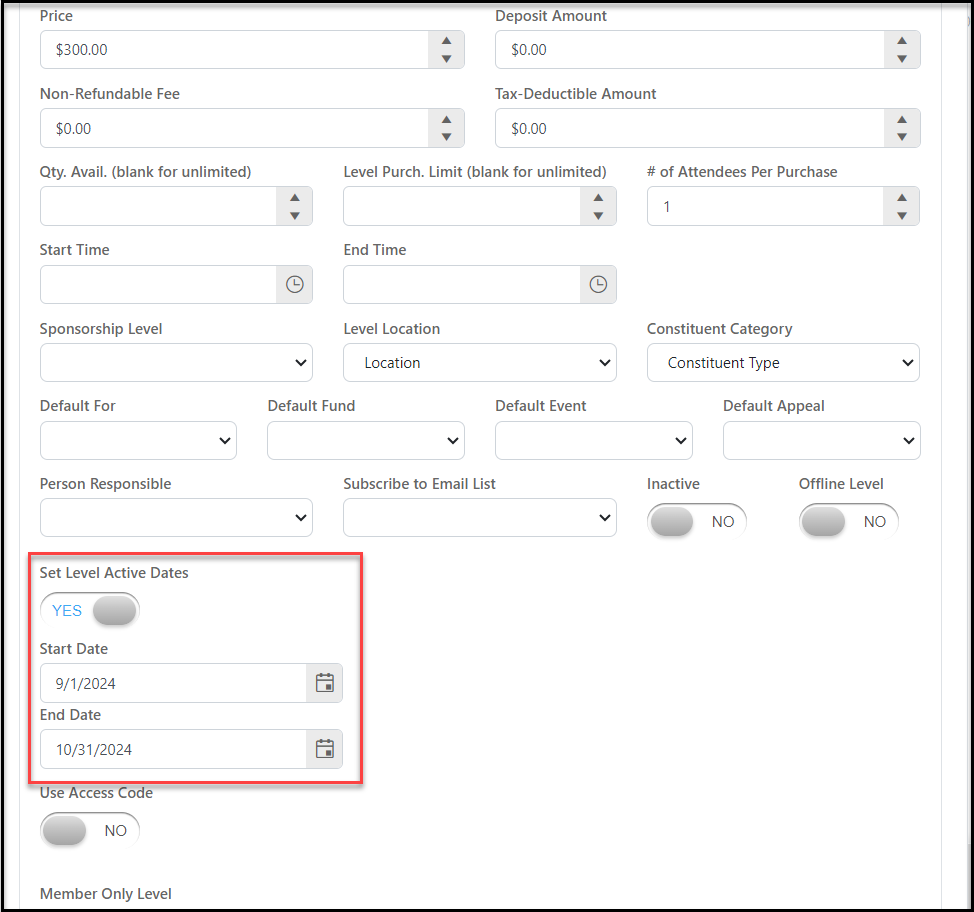
On the level setup window, scroll down towards the bottom of the window where you will find a toggle setting called **Set Level Active Dates.** Turning this setting to **YES** will make visible two date fields, one for the **Start Date** and one for the **End Date**. Based on the dates you enter here you can automatically have this event ticket level show on the event page only during these date. There is also a manual **Inactive** toggle setting you can switch to **YES** if you want to hide this event ticket level immediately.
NOTE: Ensure both the Active Start Date and End Date are entered for any Level using the setting.
 The event ticket Level is available until midnight of the Active End Date.
Here is an example based on today being 01/30/2026.
The event ticket Level is available until midnight of the Active End Date.
Here is an example based on today being 01/30/2026.
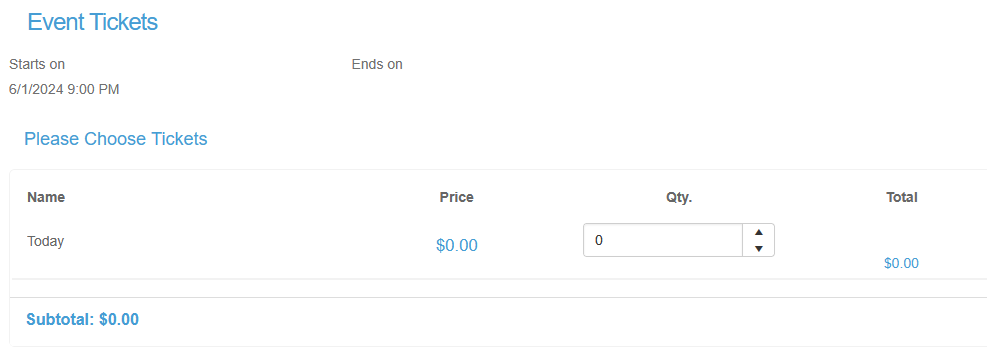
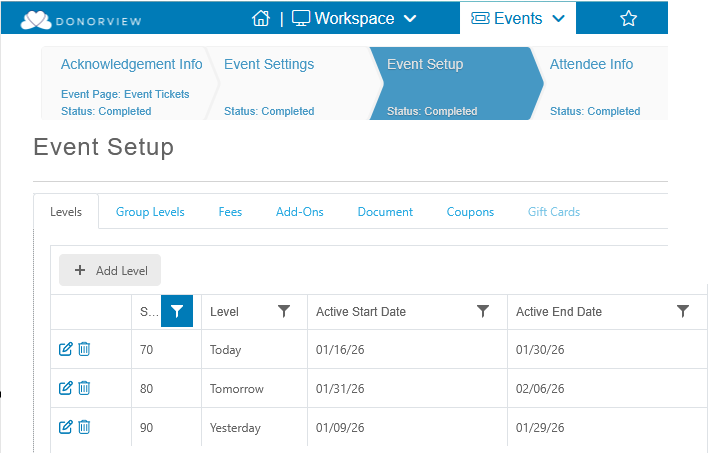 The ticket Level for Today is only available.