# S700 Terminal Auction Processing
> Source: https://support.donorview.com/s700-terminal-auction-processing-dv | Updated: 2026-05-01T16:04:06Z
Once a user has been assigned a Stripe S700 Terminal, they can use it to process in-person credit card payments during Auction checkout. The Auction form offers three different checkout methods, all of which are compatible with the terminal.
**Option 1: Process Payment**
- Use this option when checking out a **single item** or a **single unpaid Add-On or Paddle Raise**.
1. From the Auction grid, locate the item and click on the **Tools** menu.
2. Select **Process Payment** to launch the Process Payment dialog.
3. Search for and select the Constituent responsible for payment. If a Constituent is already assigned, their name will appear automatically.
4. Adjust details such as item price, Add-On cost, or Paddle Raise quantity if needed.
5. Under **Payment Type**, select **Credit Card**.
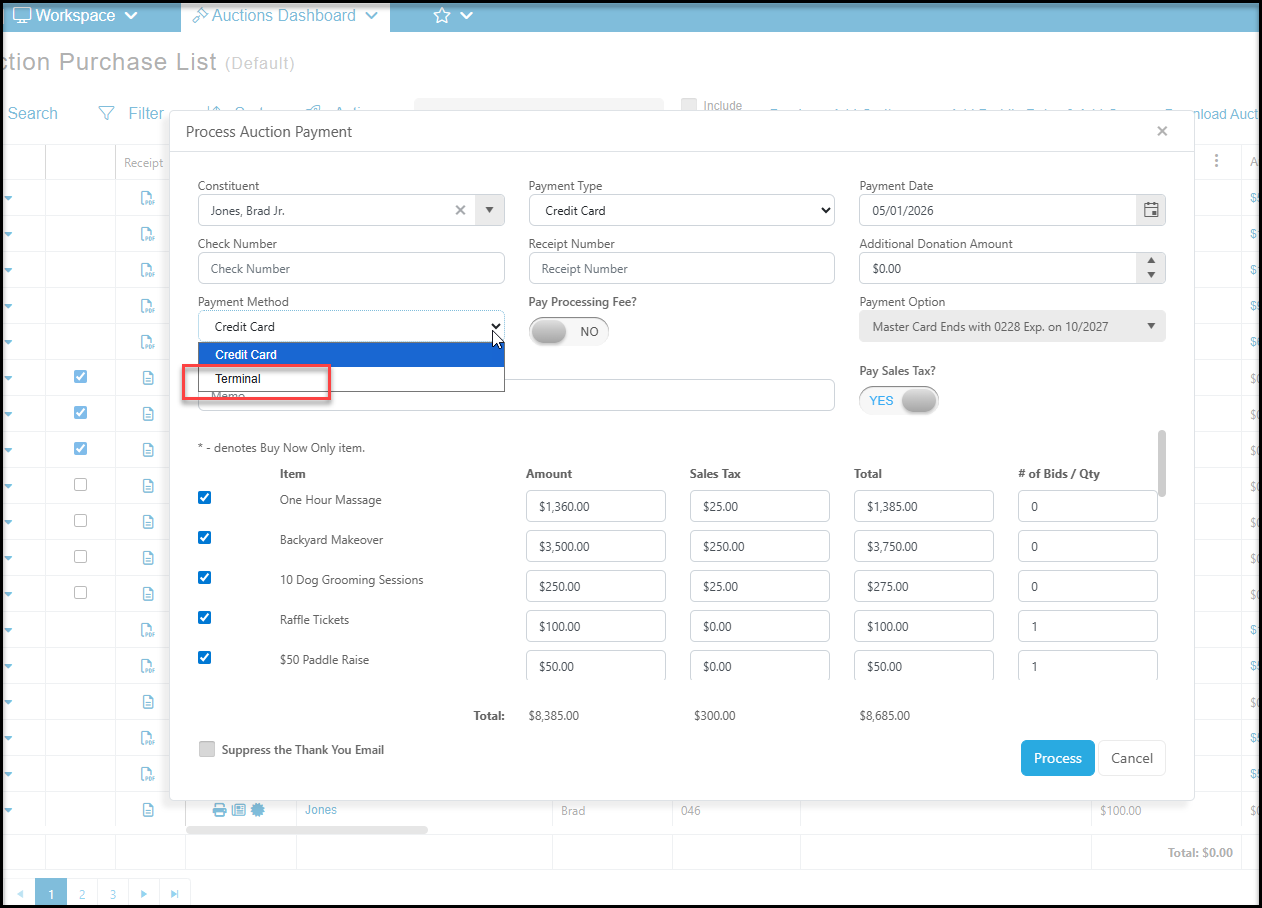
6. A **Payment Method** menu will appear. Choose **Terminal**.
7. The standard **Submit** button will change to a blue **Pay with Card Reader** button. Click it to activate the terminal.
**Option 2: Purchase Add-On Item**
- Use this option when a bidder purchases an **Add-On item not previously assigned** to them.
1. Click **Purchase Add-On Item** above the Auction grid.
2. In the Purchase Add-On dialog, search for and select the Constituent.
3. Select the Add-Ons to include in the transaction and adjust price or quantity as needed.
4. Under **Payment Type**, select **Credit Card**.
5. From the **Payment Method** menu, select **Terminal**.
6. Click the blue **Pay with Card Reader** button to process the payment.
**Option 3: Checkout**
- Use this option to check out a bidder who has **multiple items** to pay for.
1. In the Auction grid, check the box next to each item won by the bidder.
2. Click the **Checkout** button above the grid.
3. The Checkout dialog will pre-populate the winning bidder’s details and include any unpaid Add-Ons or Paddle Raises.
4. Adjust item prices or quantities if needed.
5. Under **Payment Type**, select **Credit Card**.
6. From the **Payment Method** menu, select **Terminal**.
7. Click the blue **Pay with Card Reader** button to activate the terminal.
 **Processing the Payment**
- If the terminal is powered off, not connected to Wi-Fi, or not assigned to your user account, an error message will appear.
- When active, the terminal will display the total transaction amount and prompt you to **tap or insert** the card.
- A beep will confirm the card has been read.
- The terminal will then display either a success message (if approved) or an error message (e.g., if the card was declined).
**Transaction Confirmation**
- The checkout dialog will update to show either a confirmation or error message.
- Successful transactions will automatically appear on the **Auctions grid** as **Paid**.
**Processing the Payment**
- If the terminal is powered off, not connected to Wi-Fi, or not assigned to your user account, an error message will appear.
- When active, the terminal will display the total transaction amount and prompt you to **tap or insert** the card.
- A beep will confirm the card has been read.
- The terminal will then display either a success message (if approved) or an error message (e.g., if the card was declined).
**Transaction Confirmation**
- The checkout dialog will update to show either a confirmation or error message.
- Successful transactions will automatically appear on the **Auctions grid** as **Paid**.