# Portal Features for Members Only Documents
> Source: https://support.donorview.com/portal-features-for-members-only-documents | Updated: 2026-06-06T15:29:13Z
If you have the advanced portal activated and you have selected **Member Only Documents** in the list of options available for the portal, your constituents will be able to see the Members Only Document library you have one created.
Note that the member must create their portal account with the same name and primary email as is saved in DonorView. Using a different name or email will not reveal any membership information.
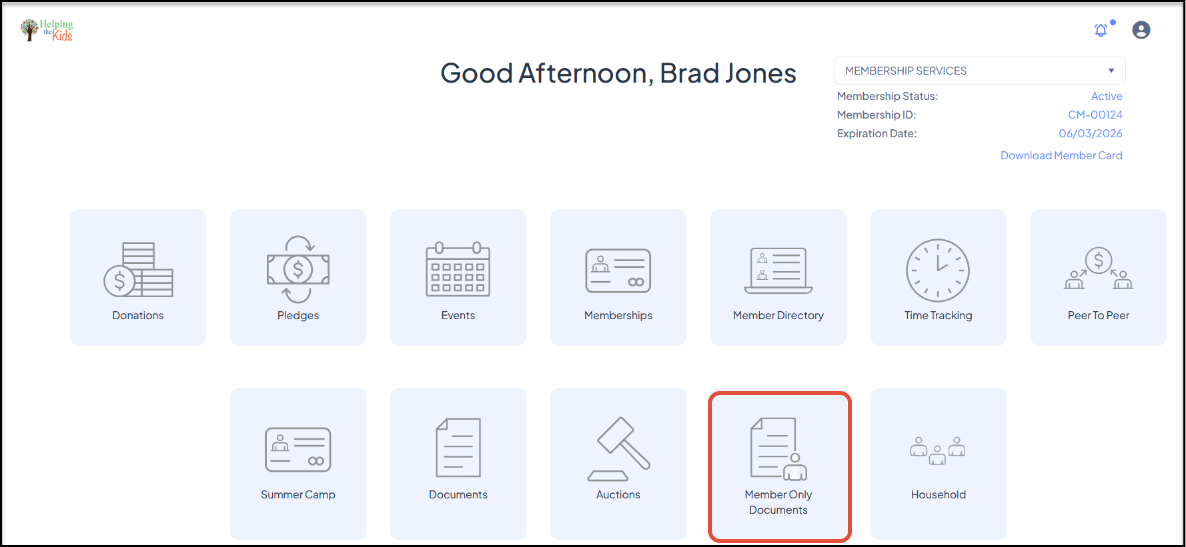 Clicking the **Member Only Documents** link will open a list to show any members only documents that this member is authorized to see based on their membership level and current status.
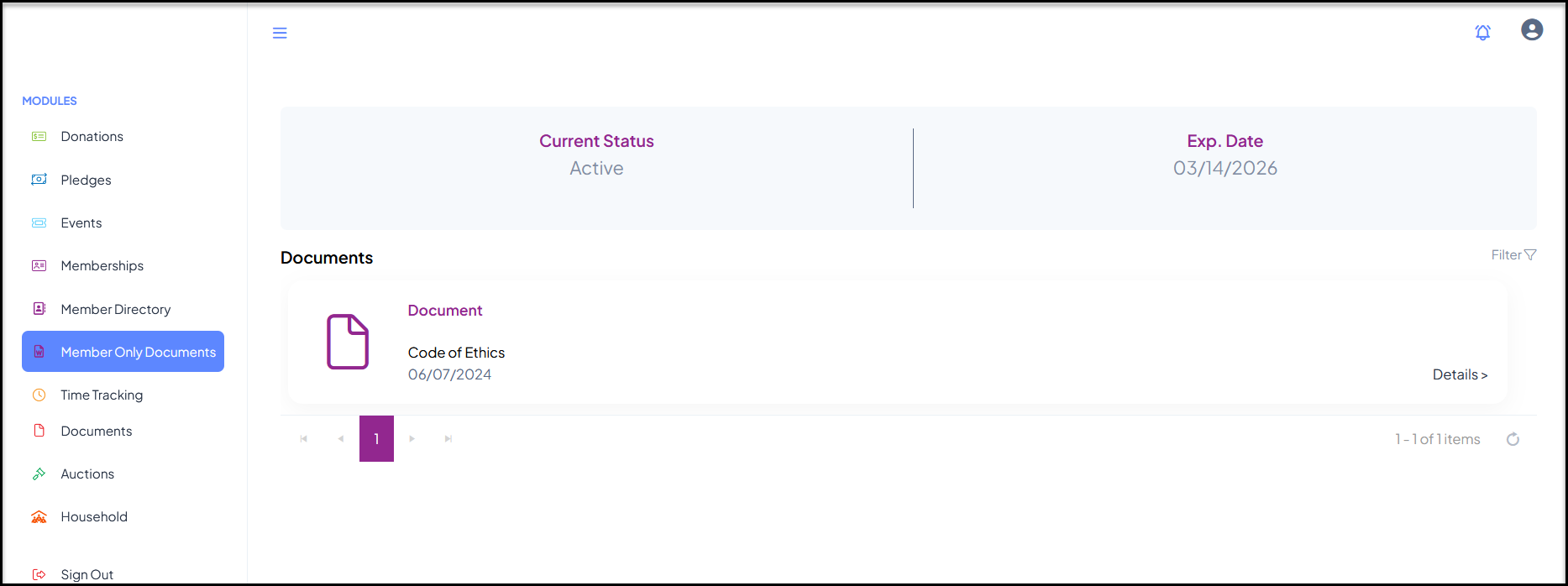 Clicking on **Details** on the row next to the document will open a new window where the member can click **Download Document** or click any hyperlinks to view the information. Clicking **Back** will return to the previous window.
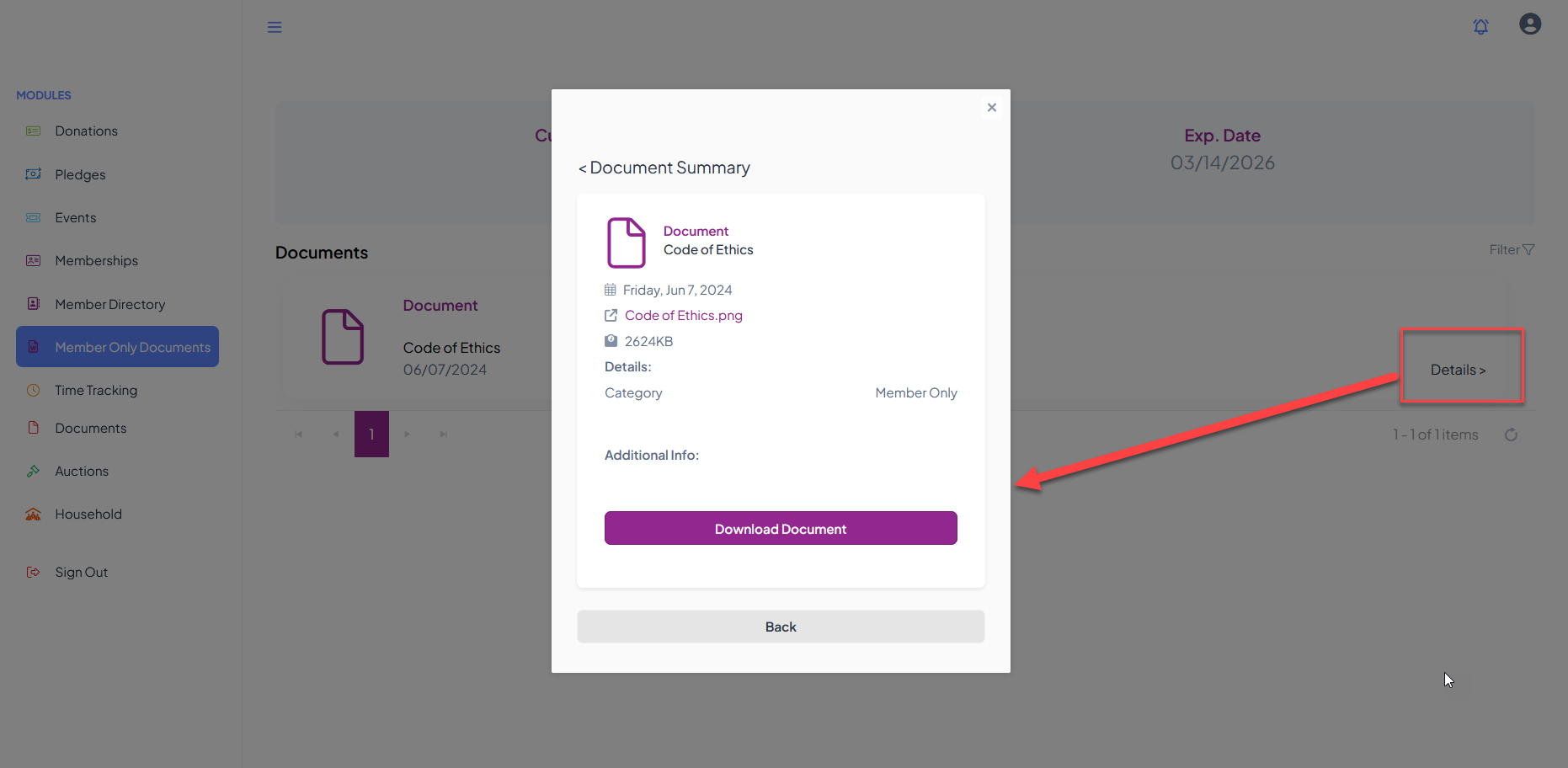 The user can navigate to another module using the links on the left menu or go to the homepage by clicking on the organization's logo in the top left corner.