# Portal Features for Donations
> Source: https://support.donorview.com/portal-features-for-donations | Updated: 2026-06-05T20:52:12Z
If you have the Advanced Portal activated and you have selected Donations from the list of options, your constituents can use the portal to see a list of all their transactions and make new donations using the **Donations** icon.
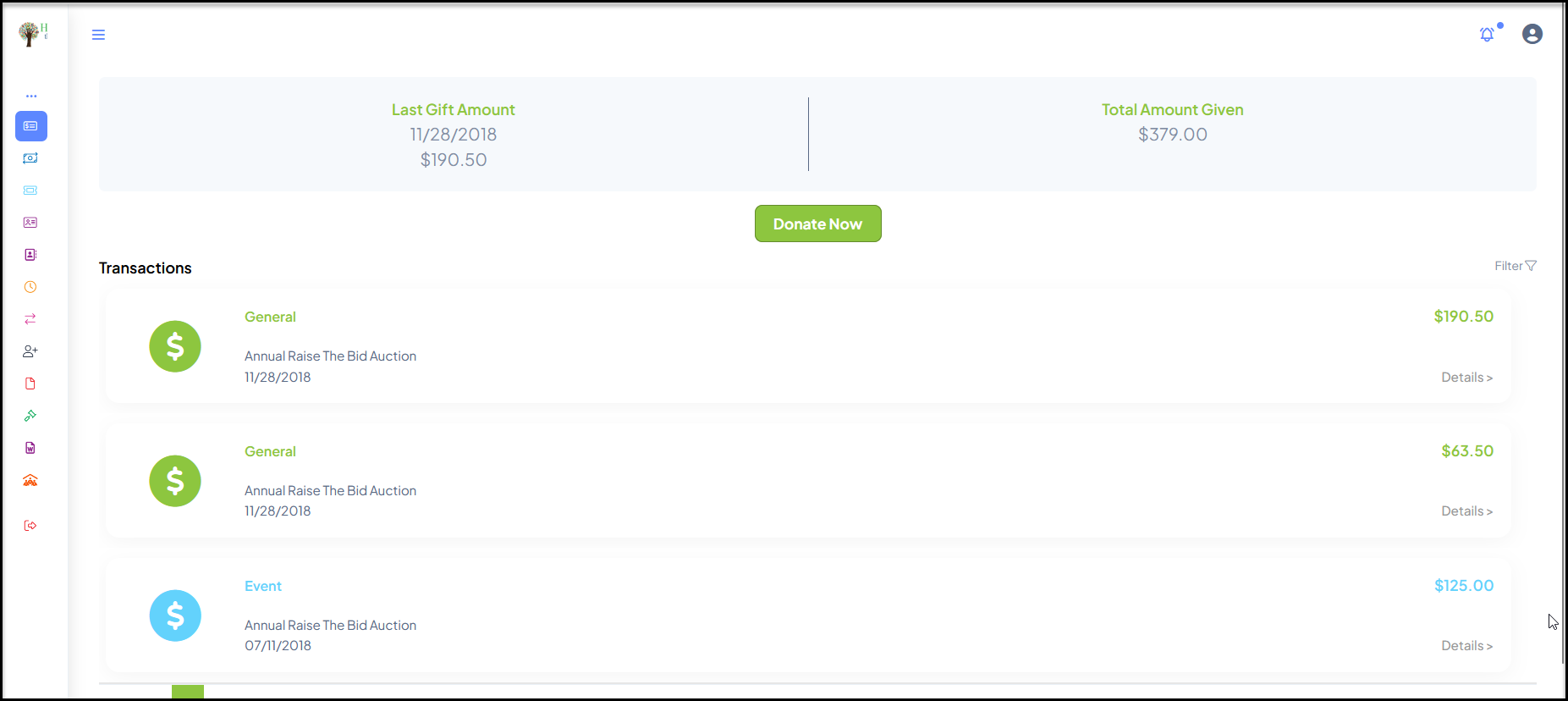
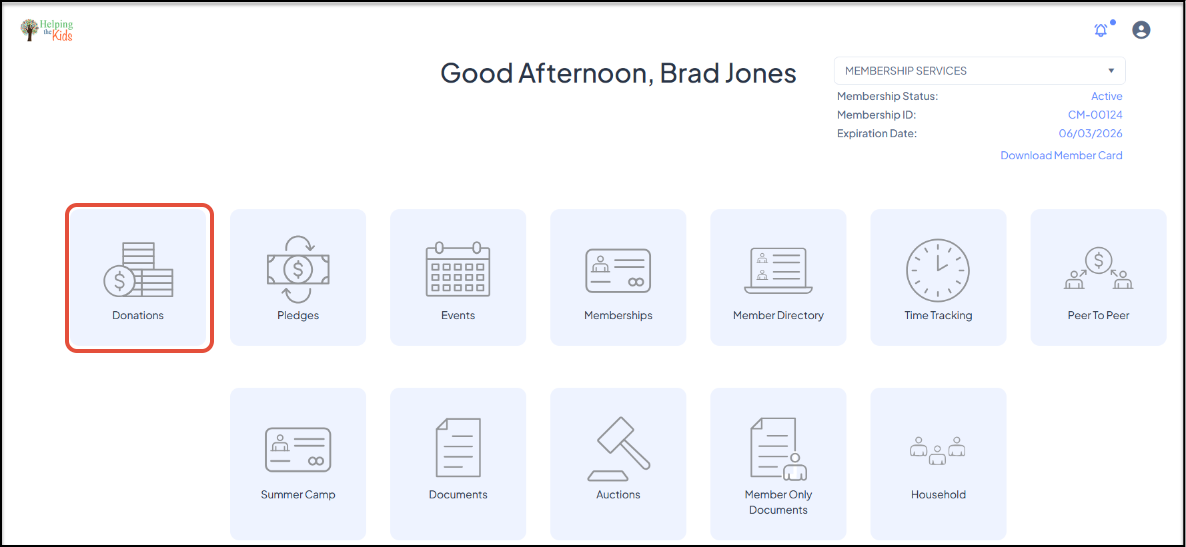 Constituents can use the portal to see a list of all their transactions and make new donations using the **Donations** icon. Clicking on **Donations** will open a new page showing the date of their last transaction, the last transaction amount and their lifetime transaction total.
If they wish to make a donation, they can click **Donate Now** to be directed to the donation page you have identified in your Constituent Portal page set up.
Constituents can use the portal to see a list of all their transactions and make new donations using the **Donations** icon. Clicking on **Donations** will open a new page showing the date of their last transaction, the last transaction amount and their lifetime transaction total.
If they wish to make a donation, they can click **Donate Now** to be directed to the donation page you have identified in your Constituent Portal page set up.
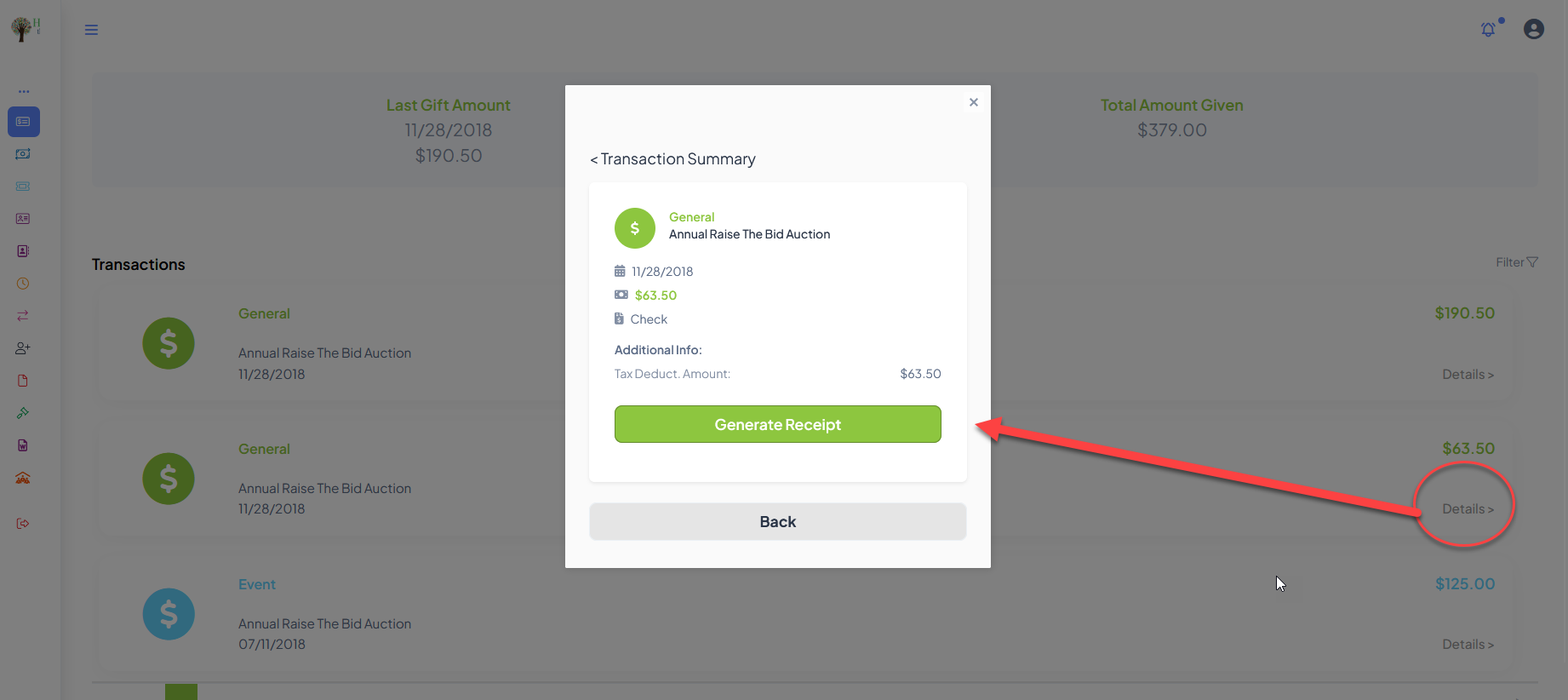
 Clicking on the Details link on the right side of any transaction will open a popup window with more details and an opportunity to **Generate Receipt** if desired. Clicking on **Back** will return to the previous view.
The user can navigate to another module using the links on the left menu or go to the homepage by clicking on the organization's logo in the top left corner.
Clicking on the Details link on the right side of any transaction will open a popup window with more details and an opportunity to **Generate Receipt** if desired. Clicking on **Back** will return to the previous view.
The user can navigate to another module using the links on the left menu or go to the homepage by clicking on the organization's logo in the top left corner.