# Portal Features for Documents
> Source: https://support.donorview.com/portal-features-for-documents-dv | Updated: 2026-06-06T15:19:27Z
If you have the Advanced Portal activated and you have selected Documents from the list of options, your constituents can use the portal to see a list of all the documents that have been saved in their record.
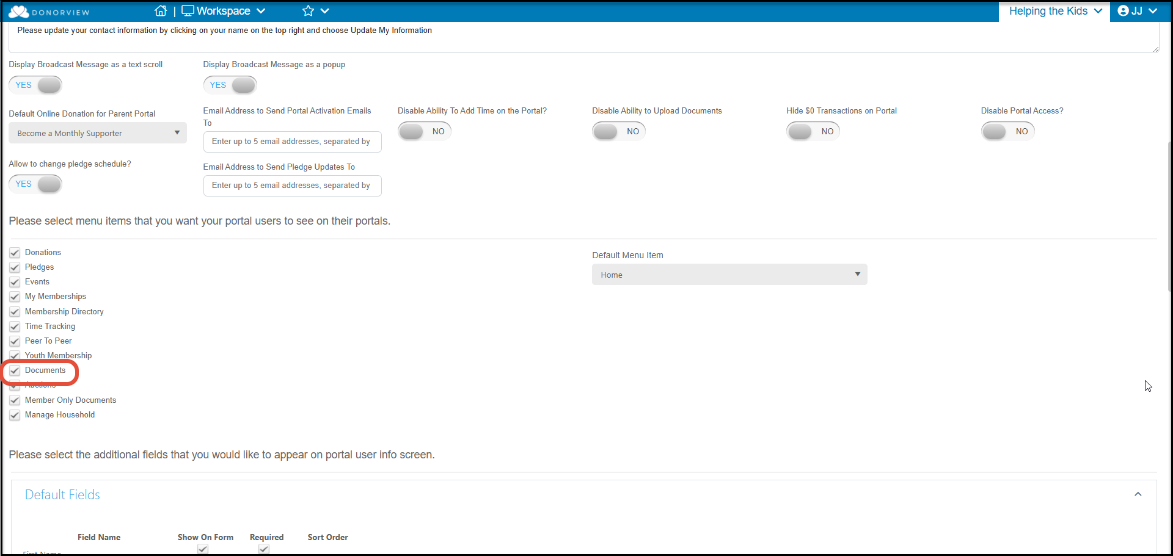
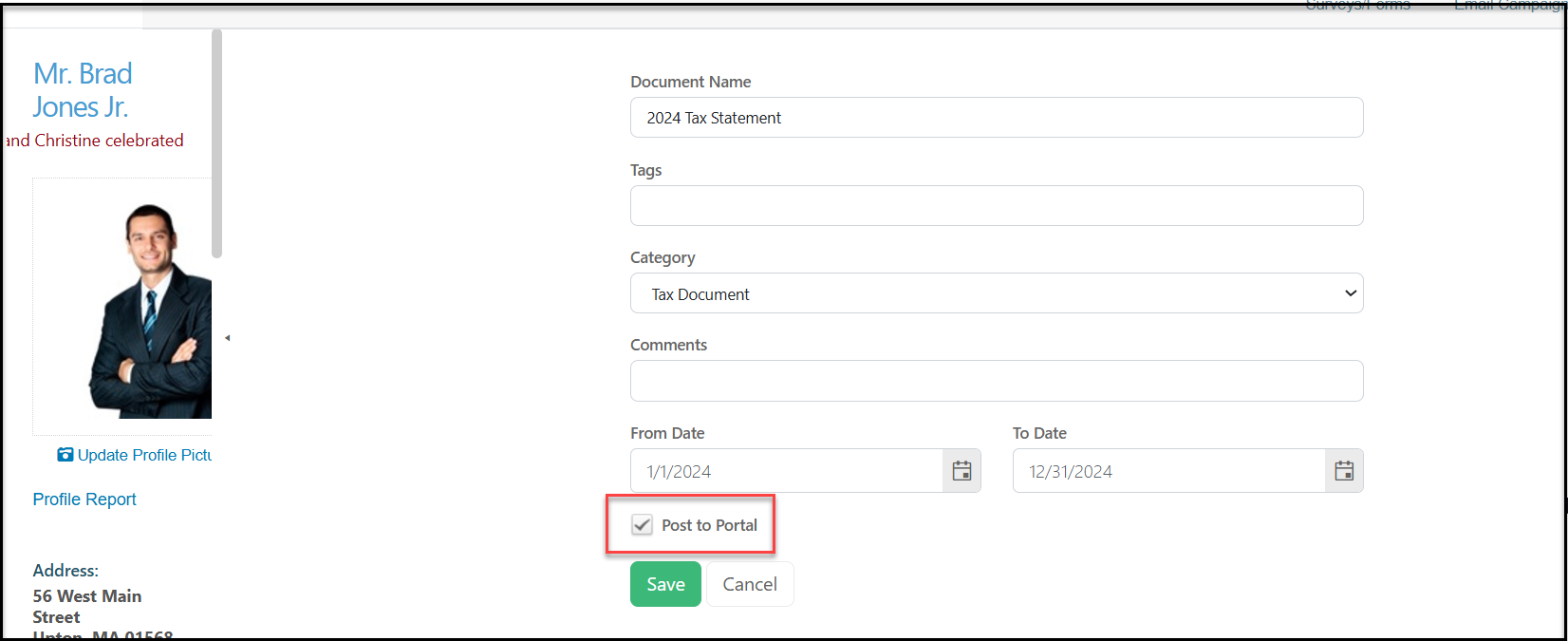
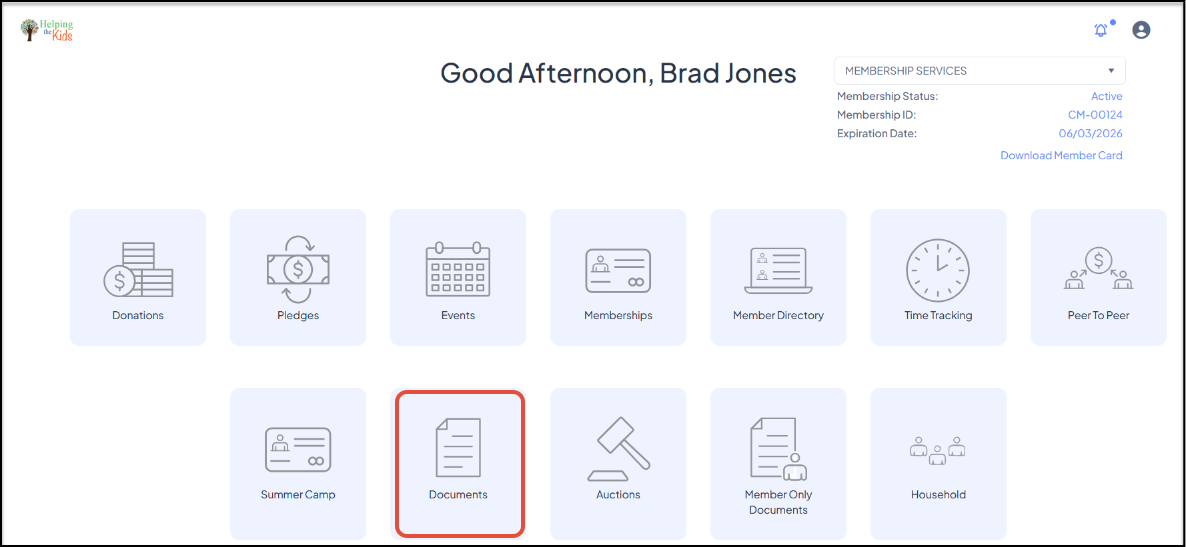 Documents saved for the constituent must be checked "**Post to Portal**" in order to be visible in the portal.
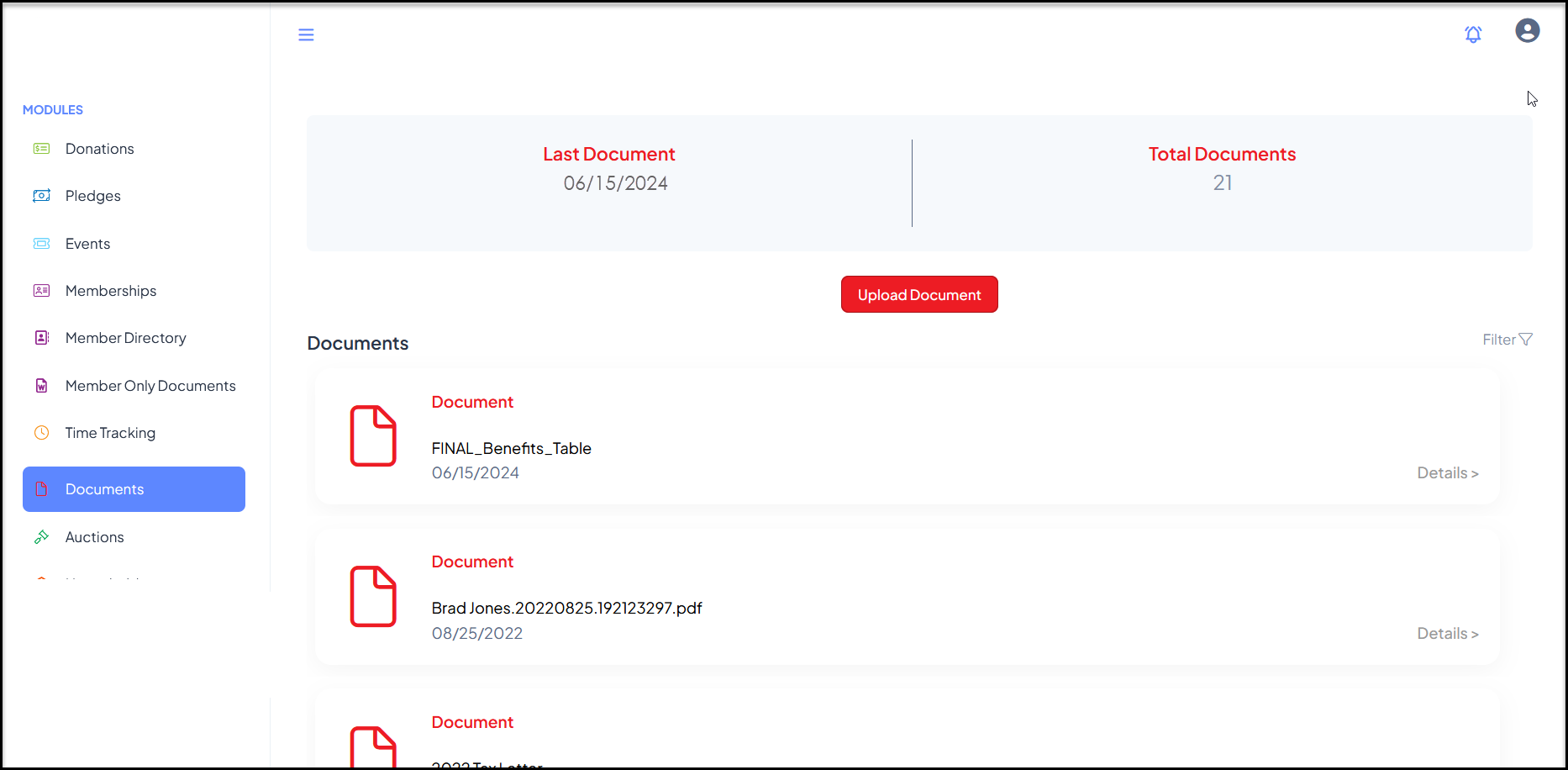
 Constituents can see all of their documents that have been posted to the portal. The date the **Last Document** was posted and the **Total Documents** available are shown at the top of the page.
If you have authorized it in the Constituent Portal settings, they can click on **Upload Document** to upload a new document.
Constituents can see all of their documents that have been posted to the portal. The date the **Last Document** was posted and the **Total Documents** available are shown at the top of the page.
If you have authorized it in the Constituent Portal settings, they can click on **Upload Document** to upload a new document.
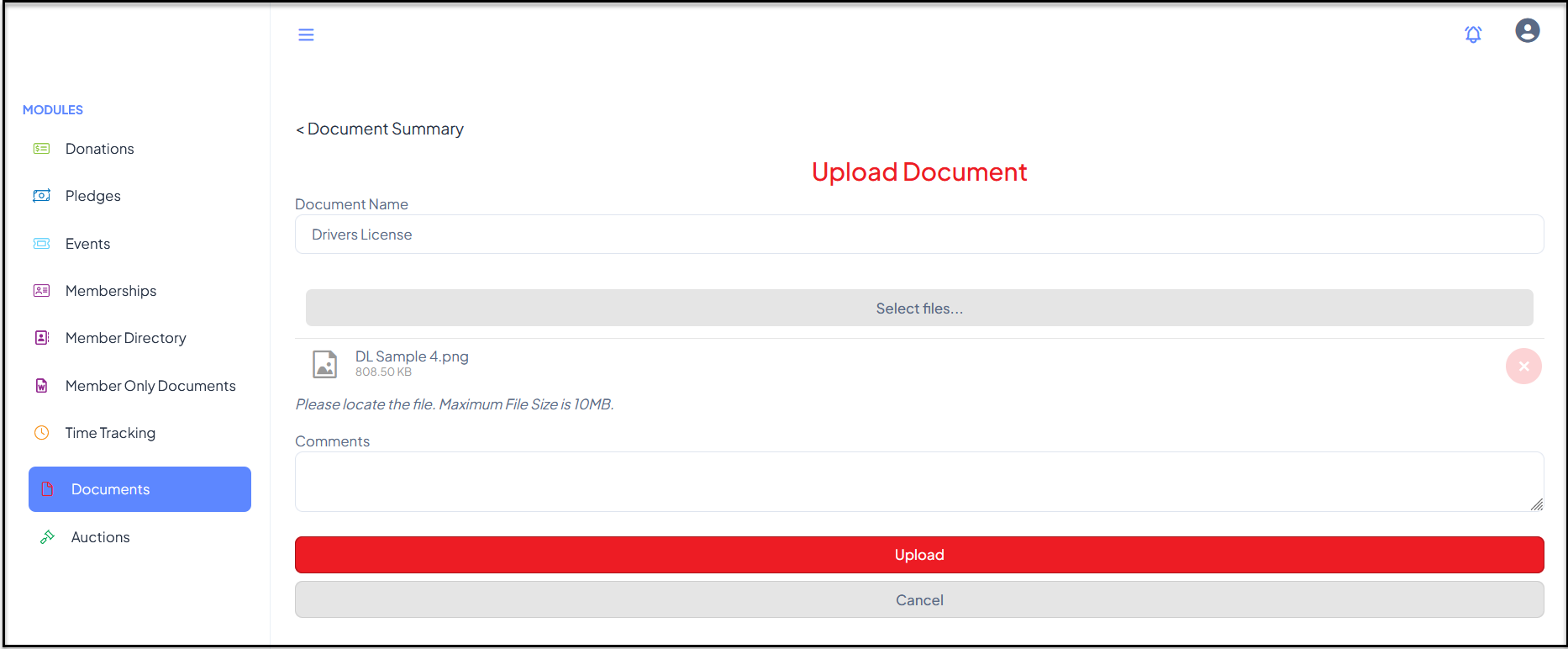
 In the next page they can enter a **Document Name, Select files** to upload, add **Comments** and then click on **Upload** to add the document to their record.
Once uploaded they will get a confirmation on the Documents page that the document was successfully uploaded.
Note that there is a 10 MB size limit and only Word doc, Excel xls, PowerPoint ppx, Adobe pdf, Image jpg, and Image png files can be uploaded.
In the next page they can enter a **Document Name, Select files** to upload, add **Comments** and then click on **Upload** to add the document to their record.
Once uploaded they will get a confirmation on the Documents page that the document was successfully uploaded.
Note that there is a 10 MB size limit and only Word doc, Excel xls, PowerPoint ppx, Adobe pdf, Image jpg, and Image png files can be uploaded.
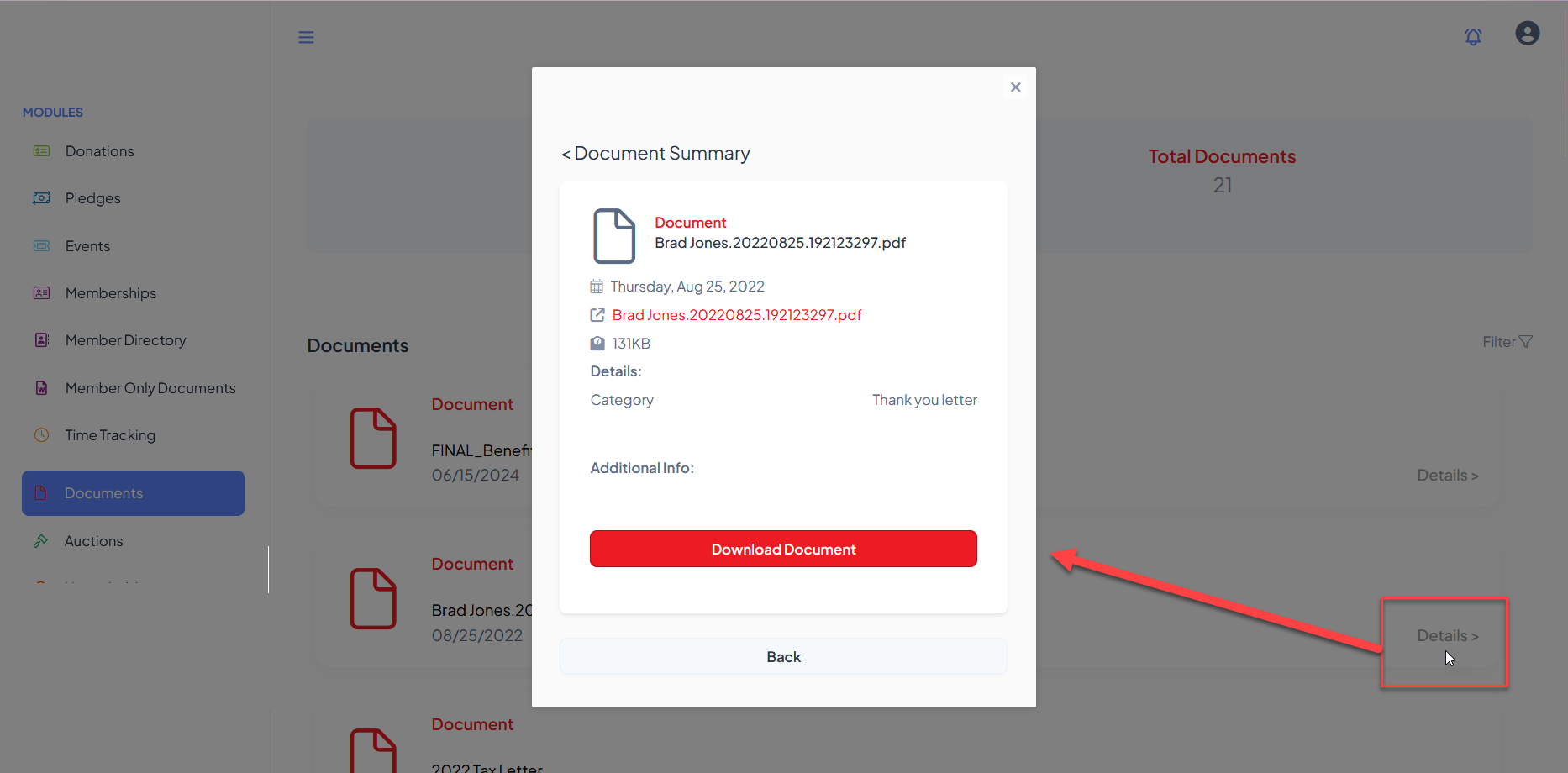
 Documents can be downloaded by clicking on the **Details** link on the row. From the new window, click **Download Document** to download the document to your computer.
 The user can navigate to another module using the links on the left menu or go to the homepage by clicking on the organization's logo in the top left corner.