# Portal Feature for Manage Households
> Source: https://support.donorview.com/portal-feature-for-manage-households | Updated: 2026-06-06T15:32:33Z
If you have the Advanced Portal activated and you have selected Households from the list of options, your constituents can use the portal to see a list of all their household relationships.
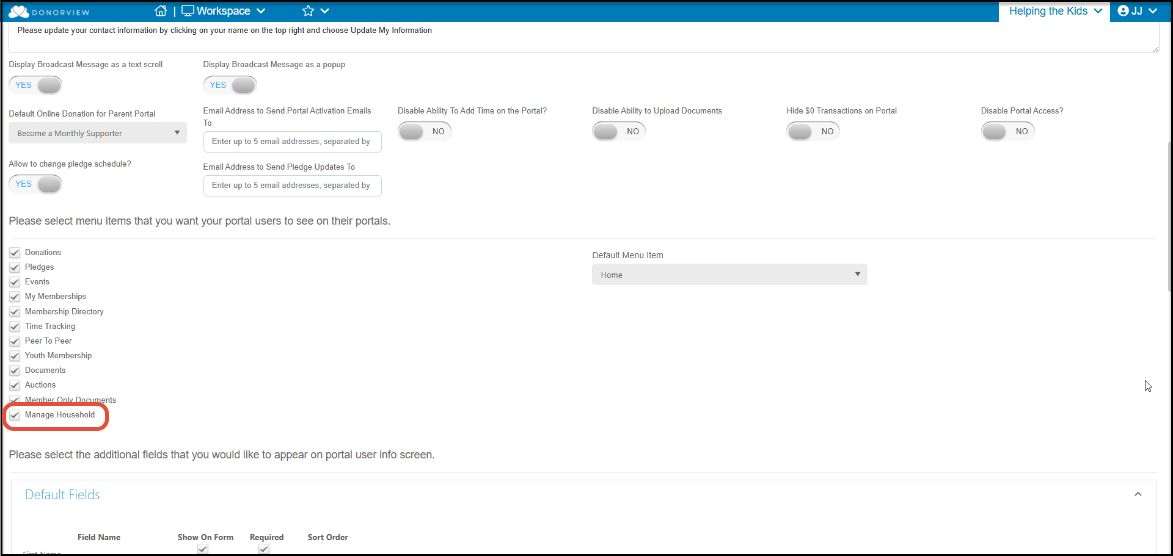
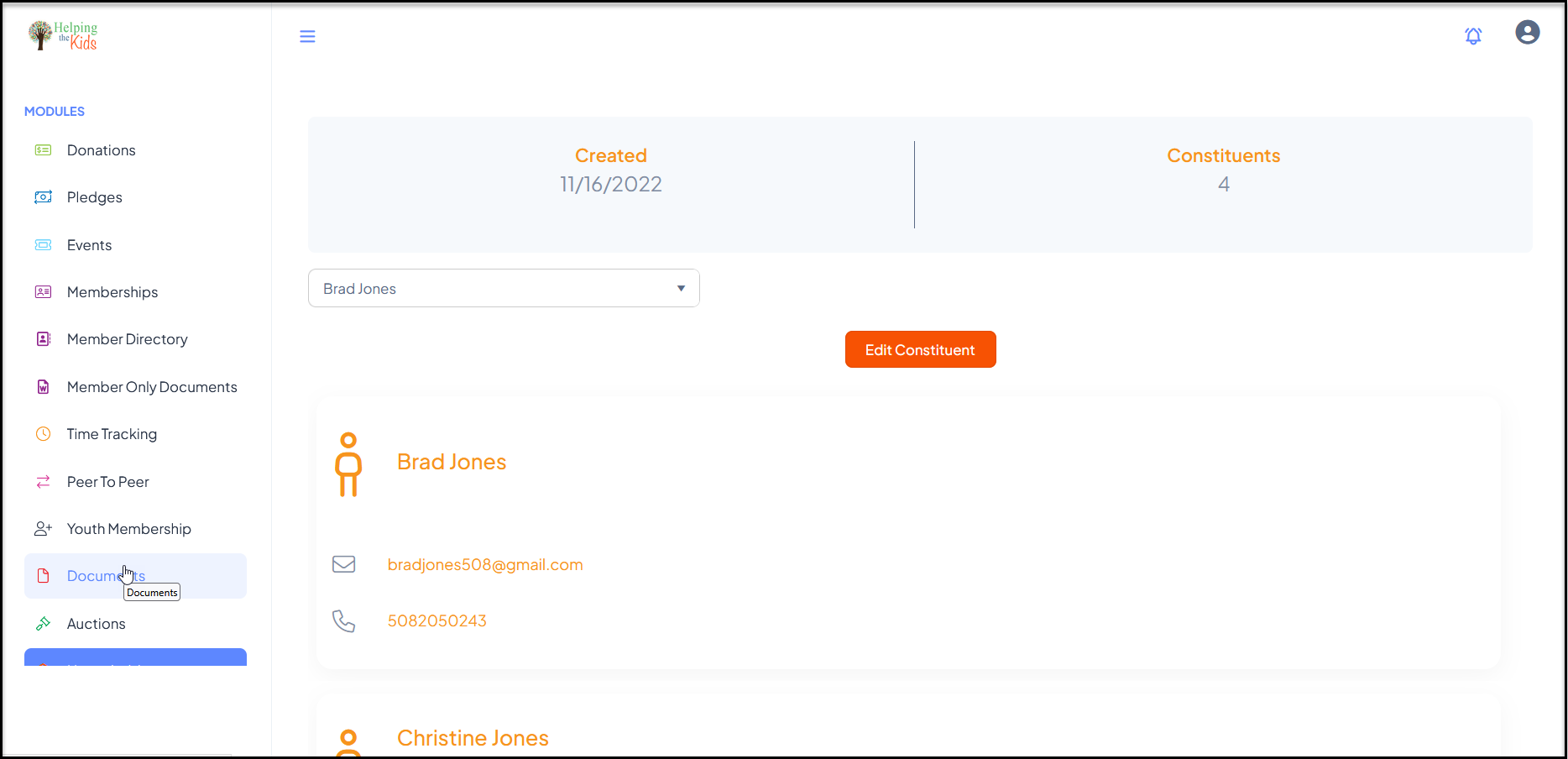
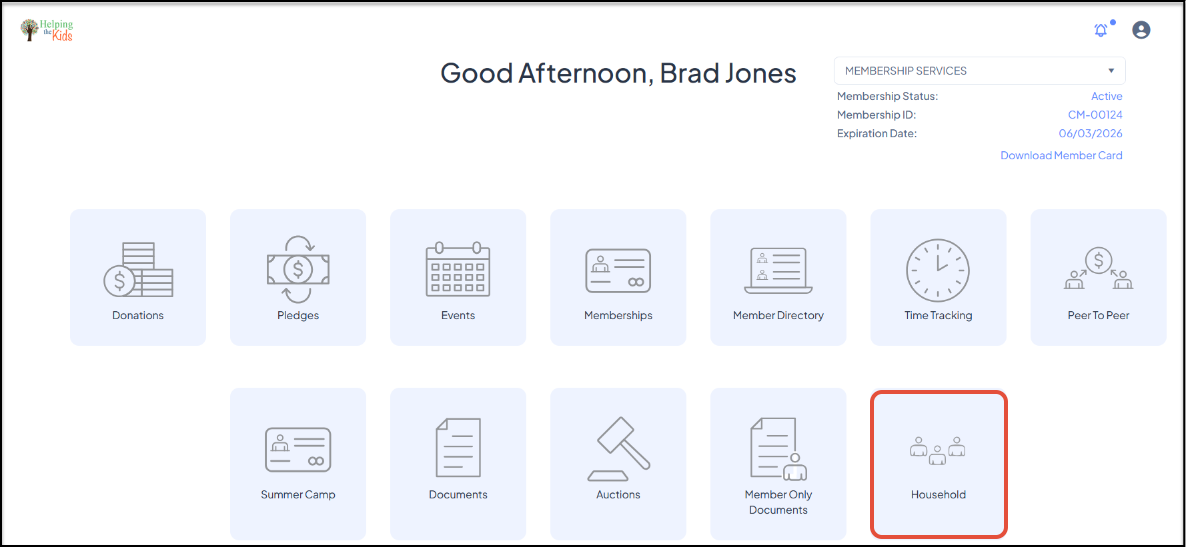 The list of who is a member of the household cannot be edited from the portal. However, the constituent who is listed as the Head of Household, will see a dropdown lists of the members of their household as well as a button to **Edit Constituent**. Those who are not the Head of Household will only see the list of who is included in their household.
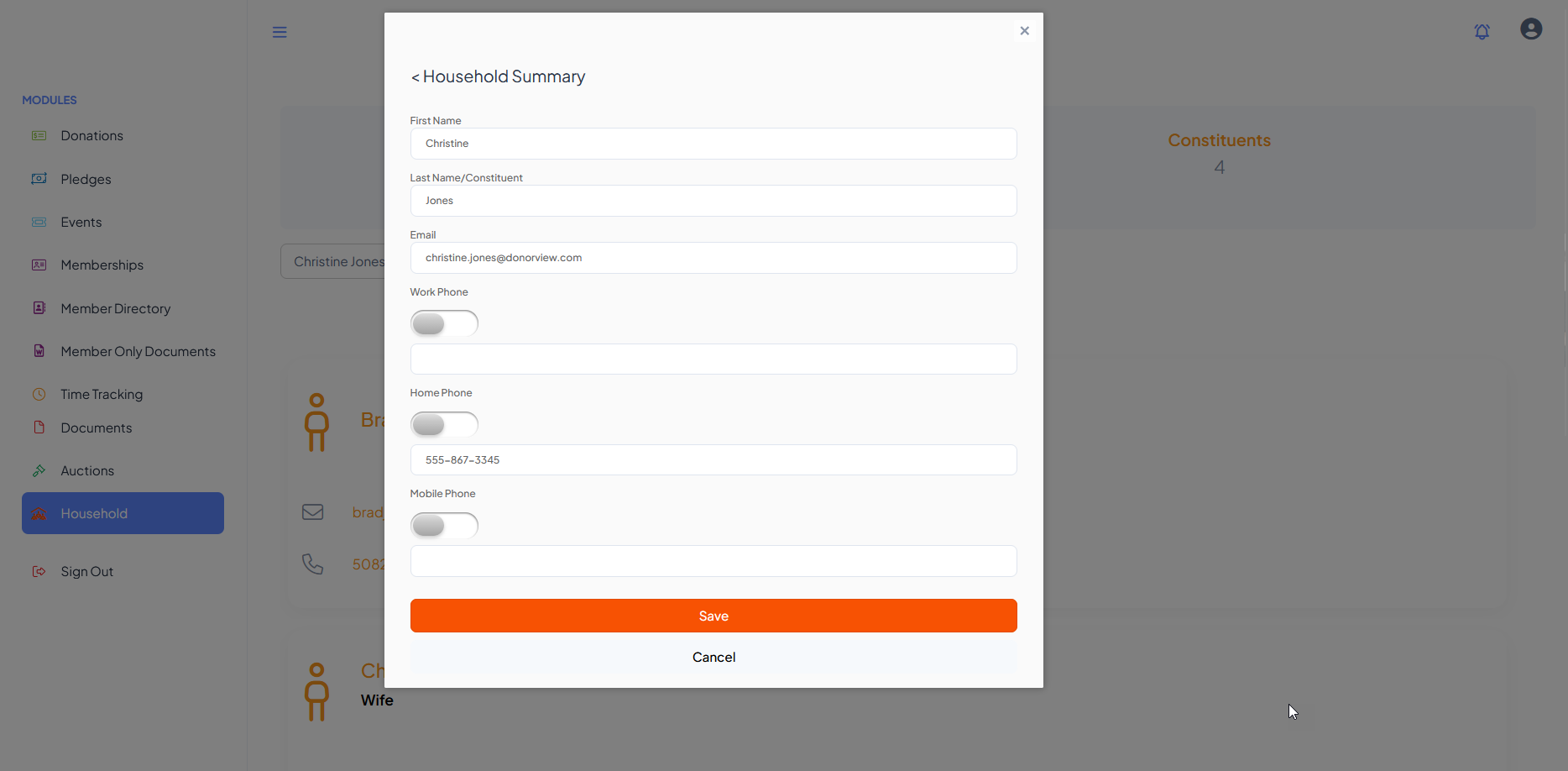
 With a household member selected from the list, when **Edit Constituent** is selected, a new window will open to update the name, email, and phone numbers for that constituent.
Click on **Save** to update the household member's profile information.
With a household member selected from the list, when **Edit Constituent** is selected, a new window will open to update the name, email, and phone numbers for that constituent.
Click on **Save** to update the household member's profile information.
 The user can navigate to another module using the links on the left menu or go to the homepage by clicking on the organization's logo in the top left corner.