# Membership Cards
> Source: https://support.donorview.com/membership-cards-dv | Updated: 2026-09-17T14:01:22Z
You can activate a feature to automatically send membership cards to members when they register. The membership owner will receive all of the member's cards via an email.
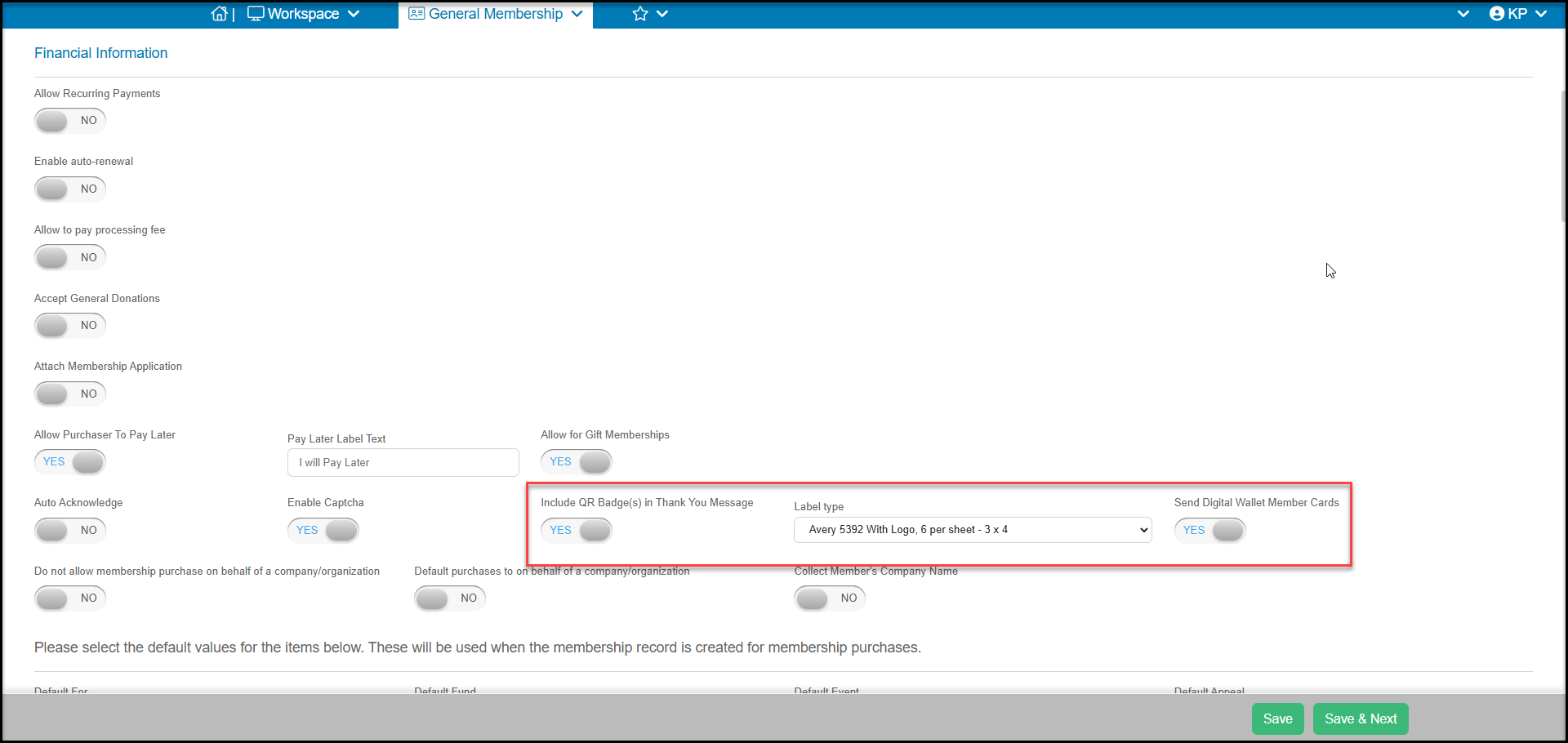
You can activate sending membership cards from the membership page's Membership Settings tab. Under the Financial Information section, set Include **QR Badge(s) in Thank You Message** to **YES**. You can then select the size of the membership card under the **Label Type** field. You can also include digital membership cards by setting **Send Digital Wallet Member Cards** to **YES**.
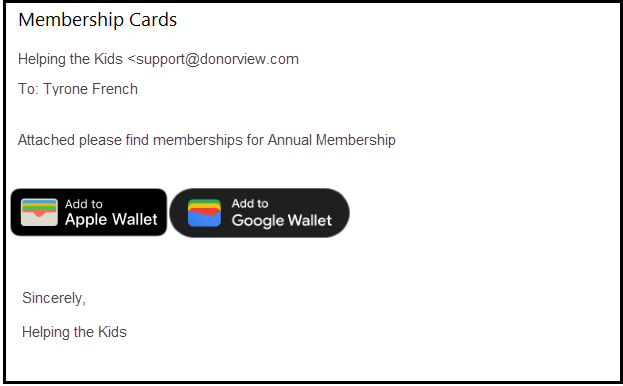
 The membership owner will receive two emails, one with the transaction information and a second email with their membership cards attached as a PDF file for printing. If you have activated the digital cards, they will also see two links to **Add to Apple Wallet** or **Add to Google Wallet.**
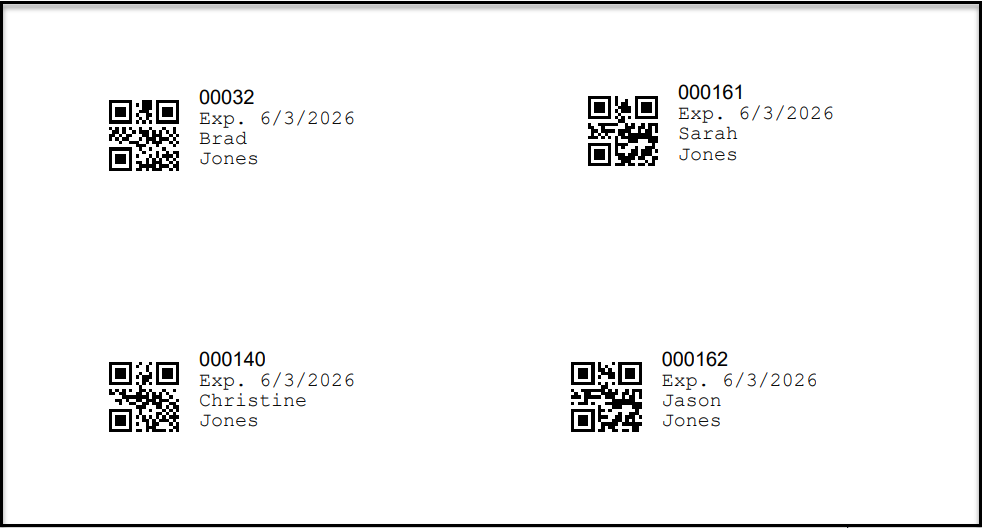
 The PDF version of the membership card contains the member's Member Profile ID, the expiration date and the name of the member. The QR Code is the Member Profile ID.
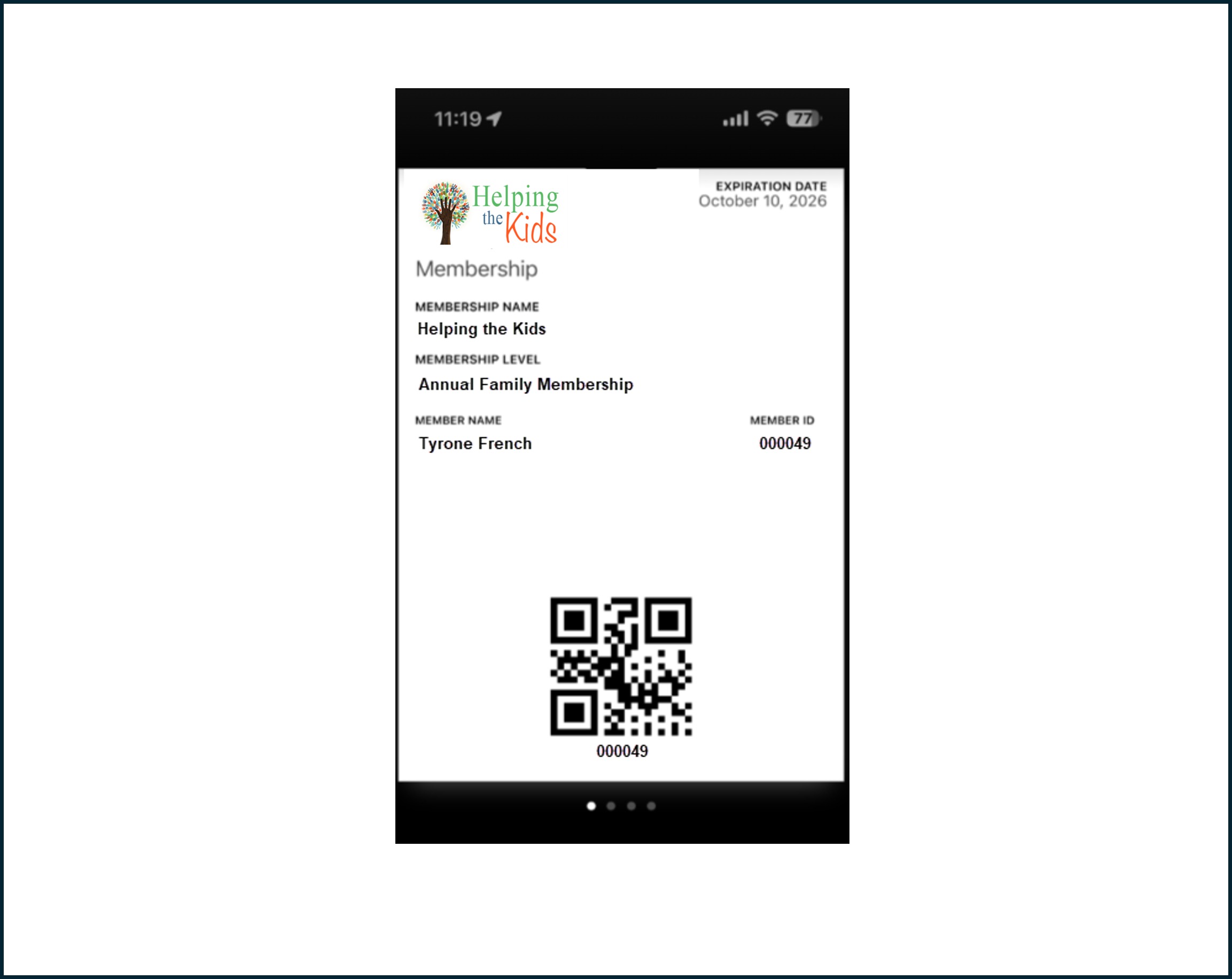
 The digital membership cards will include your organization's default logo, **Expiration Date**, the **Membership Name** (membership page name), **Membership Level, Member Name, Member ID** (Member Profile ID), and a QR code of the ID.
 **Printing Membership Badges**
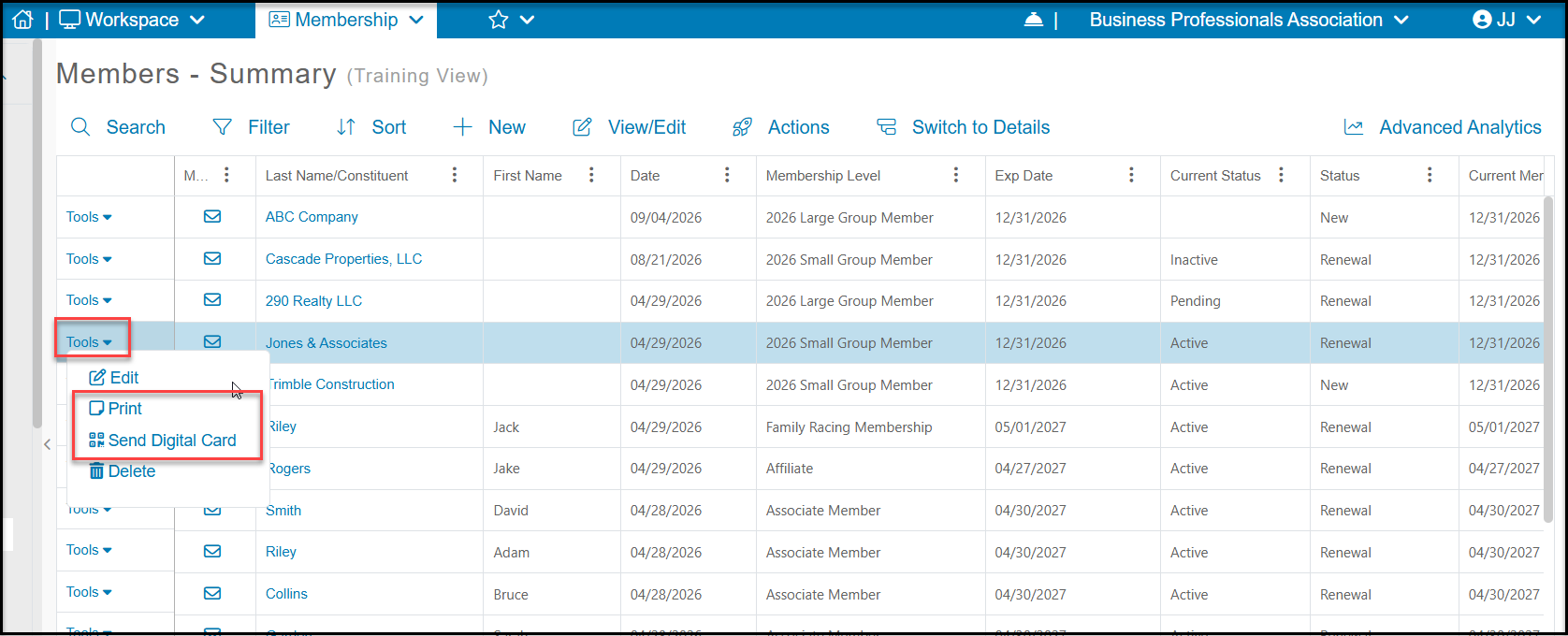
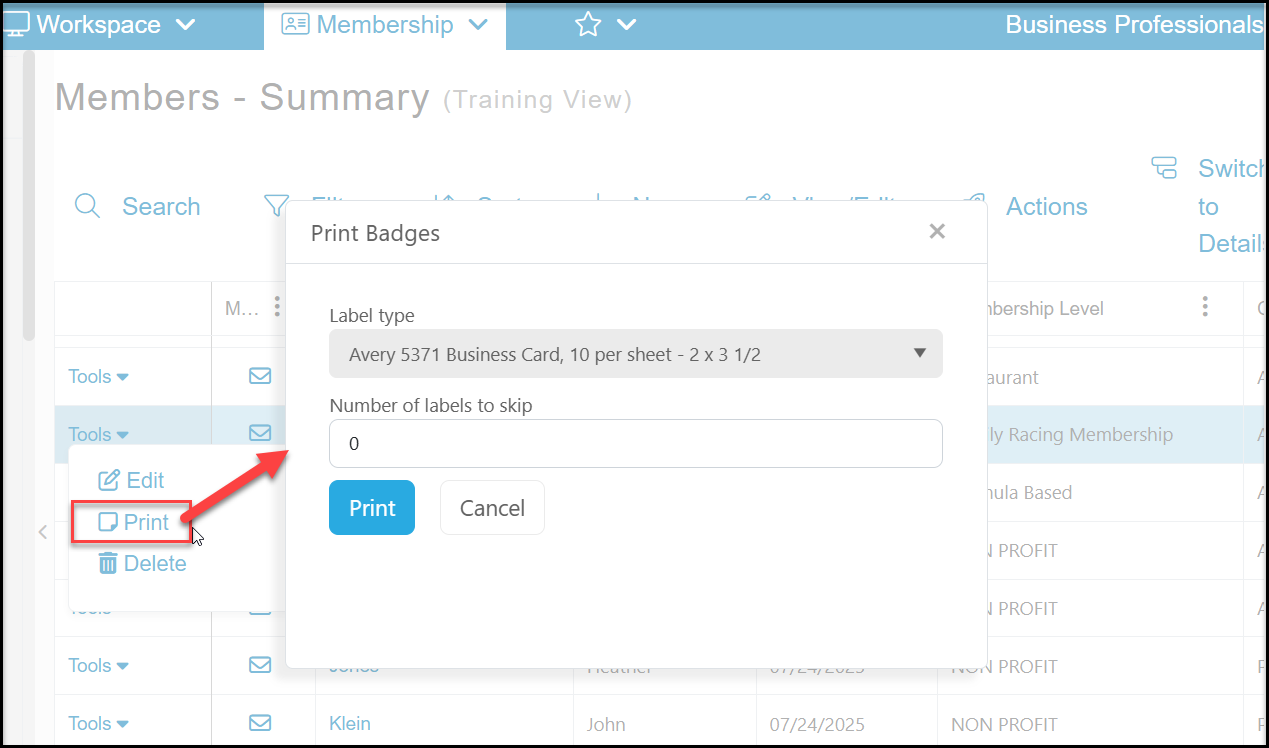
You can print membership badges from the Memberships - Summary grid. Using the **Tools** menu on the left side of the row, click on **Print** to select what type of label to print your cards.
**Printing Membership Badges**
You can print membership badges from the Memberships - Summary grid. Using the **Tools** menu on the left side of the row, click on **Print** to select what type of label to print your cards.
 You can also choose to skip labels, for example if you are reprinting on a page where you have already used some of the labels.
Click **Print** to produce a PDF file of membership cards for the membership owner and all the primary and secondary members that are part of that membership.
You can also choose to skip labels, for example if you are reprinting on a page where you have already used some of the labels.
Click **Print** to produce a PDF file of membership cards for the membership owner and all the primary and secondary members that are part of that membership.
 The example below shows a membership that includes four members and is printed on the Avery 5371 Business Card sheet.
 **Resending Digital Membership Cards**
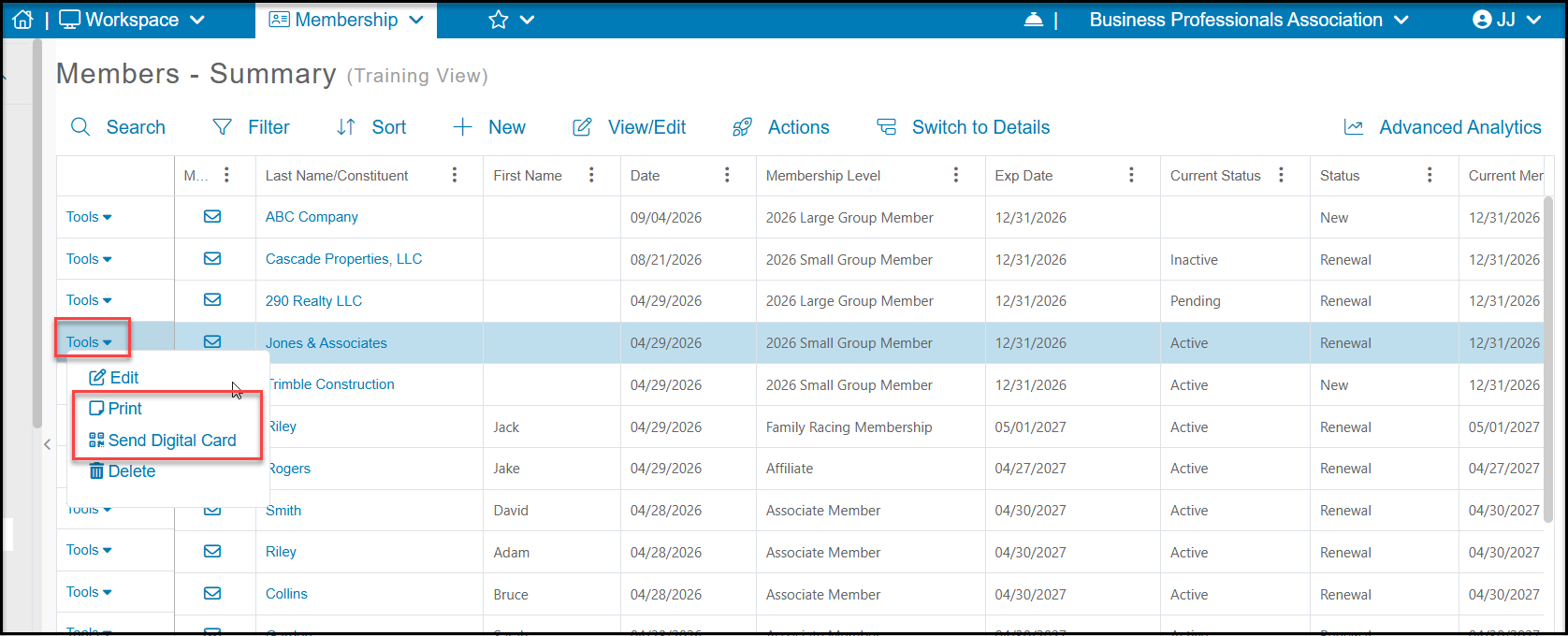
For members with an email address, you can resend the digital membership cards by choosing **Send Digital Card** from the **Tools** menu.
- If it is a single membership or group membership and you wish to send the owner all the digital cards for all members of their group, choose the Members - Summary grid.
- If you only need to send one digital membership card to someone who is part of a group membership, choose the Members - Details grid to send only one card.
**Resending Digital Membership Cards**
For members with an email address, you can resend the digital membership cards by choosing **Send Digital Card** from the **Tools** menu.
- If it is a single membership or group membership and you wish to send the owner all the digital cards for all members of their group, choose the Members - Summary grid.
- If you only need to send one digital membership card to someone who is part of a group membership, choose the Members - Details grid to send only one card.
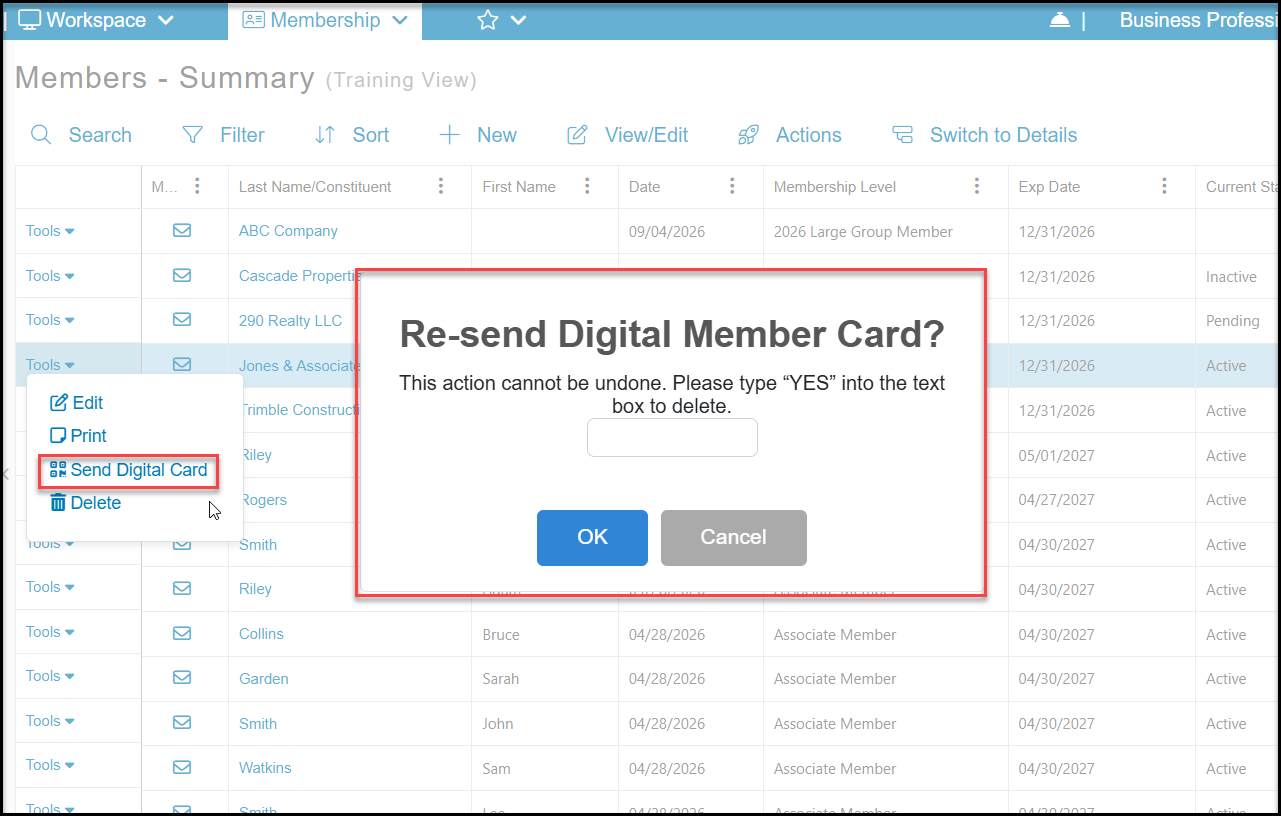
 In the new dialog box, enter **YES** in the box and click **OK** to send the card(s). Click **Cancel** to return to the grid without sending the cards.
 **Creating Custom Membership Cards**
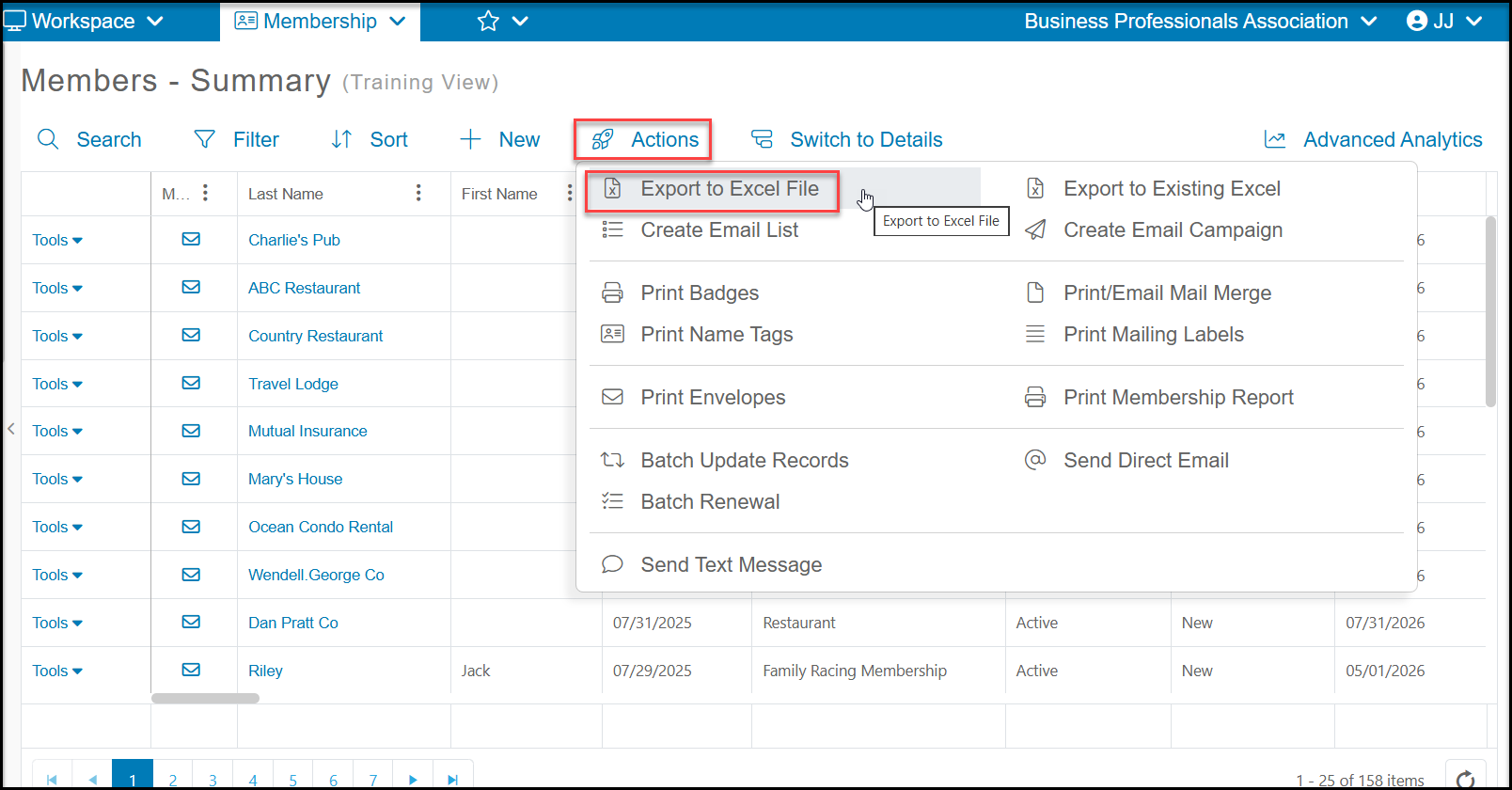
If you would like to create custom membership cards, you can use the Export to Excel feature on the Actions menu. From the Memberships - Details grid, filter the list to identify the members you wish to send the cards to. Click on **Export to Excel File** from the Actions menu to create your excel file. You could then create your membership cards using MS Word and it's mail merge label features.
The Print/Email Mail Merge feature will only print each record on one page, it does not have the ability to create labels or combine multiple rows onto one page.
**Creating Custom Membership Cards**
If you would like to create custom membership cards, you can use the Export to Excel feature on the Actions menu. From the Memberships - Details grid, filter the list to identify the members you wish to send the cards to. Click on **Export to Excel File** from the Actions menu to create your excel file. You could then create your membership cards using MS Word and it's mail merge label features.
The Print/Email Mail Merge feature will only print each record on one page, it does not have the ability to create labels or combine multiple rows onto one page.
 **Printing Membership Cards from the Constituent Portal**
Members who have created a Constituent Portal account can also download a member card from their account by clicking on Download Member Card.
**Printing Membership Cards from the Constituent Portal**
Members who have created a Constituent Portal account can also download a member card from their account by clicking on Download Member Card.
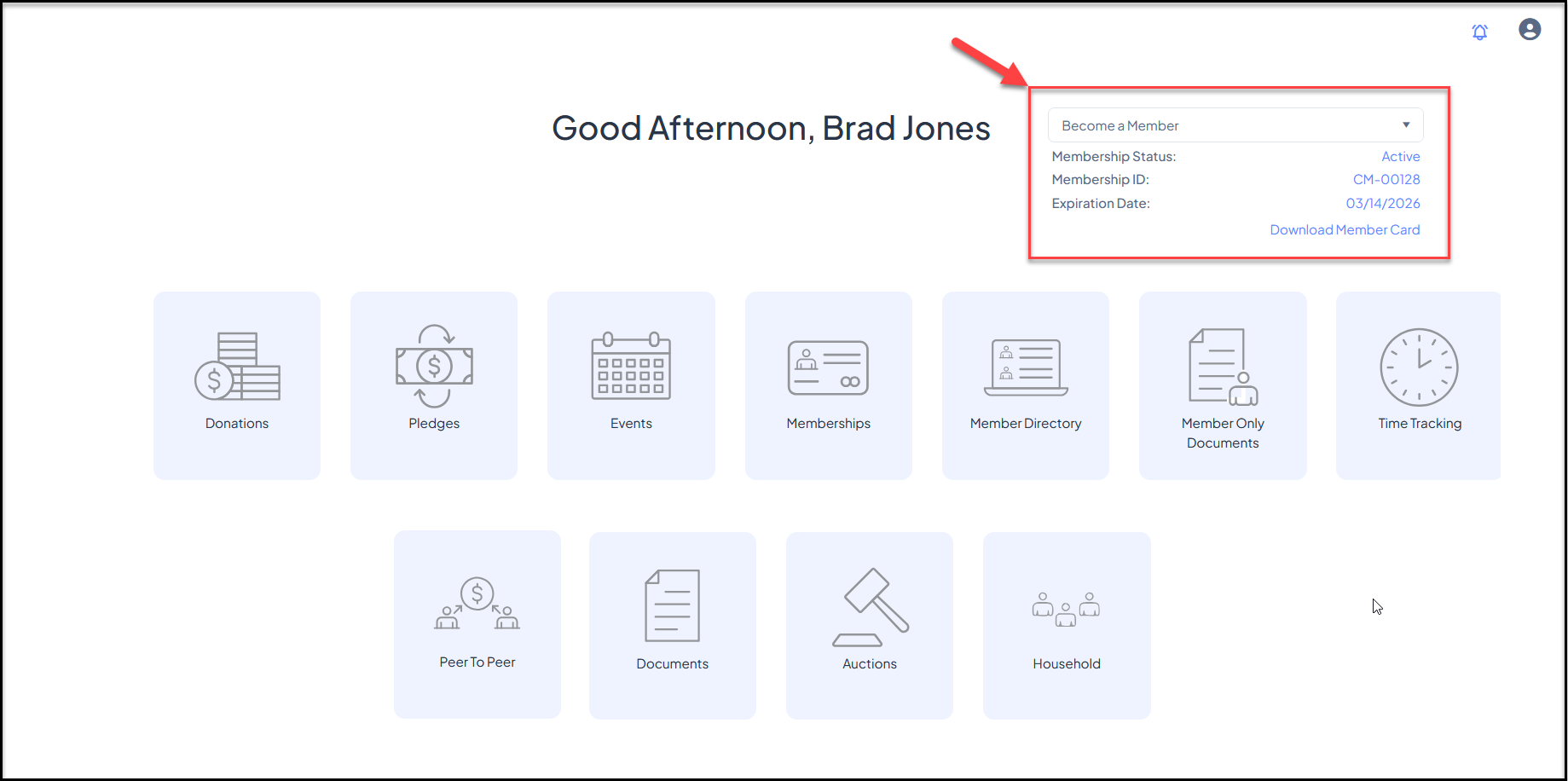 A new window will open to allow them to print the card from their browser.