# How to manually record volunteer time
> Source: https://support.donorview.com/how-to-manually-record-volunteer-time-dv | Updated: 2024-04-18T14:44:59Z
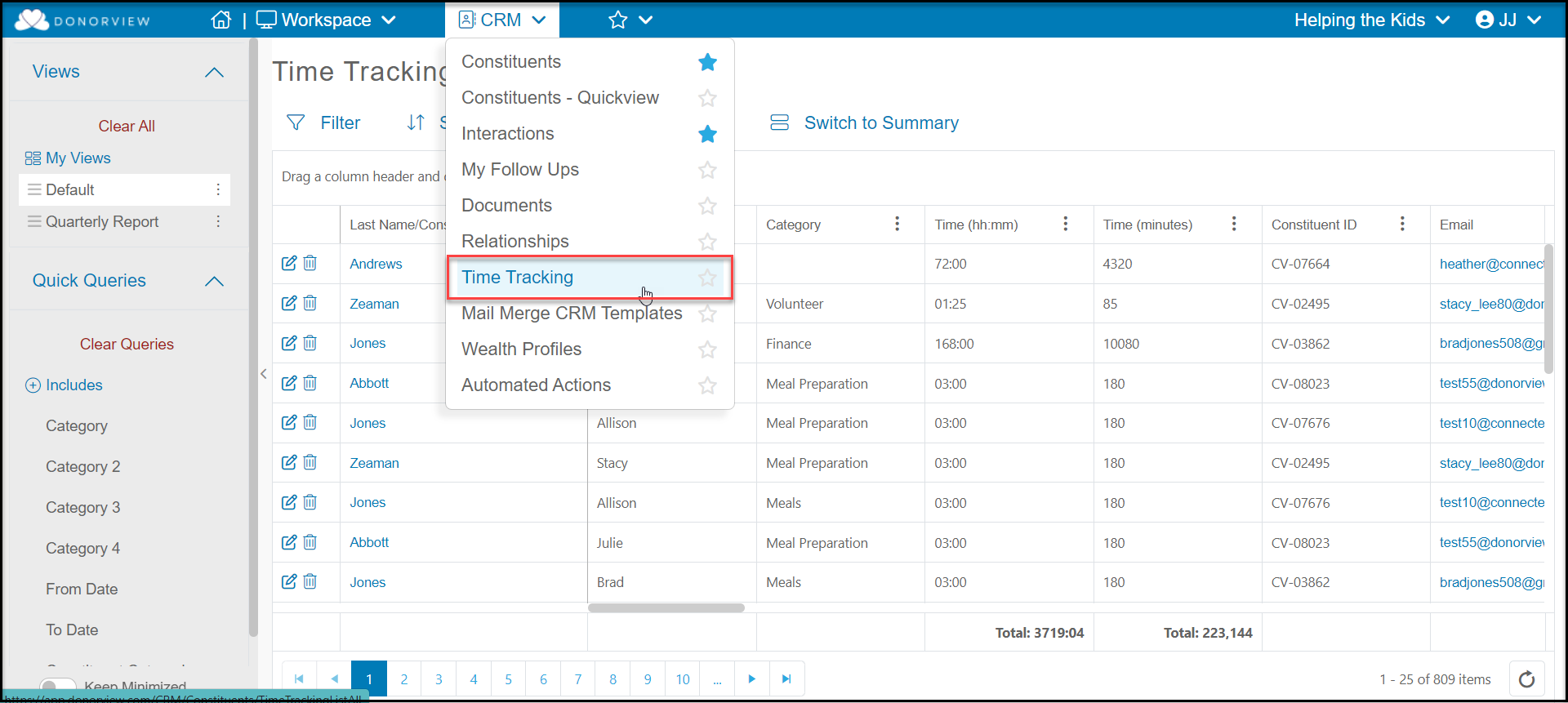
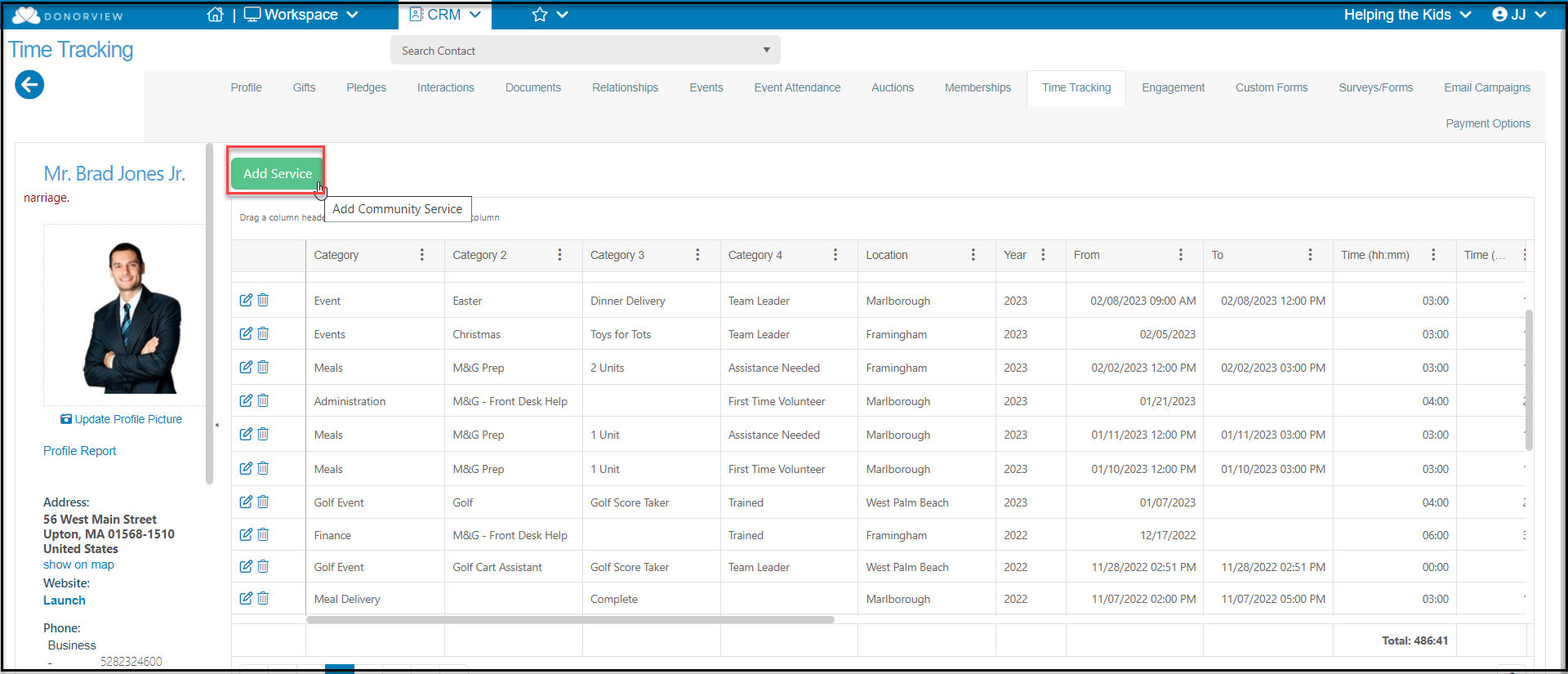
You can record volunteer time using the Time Tracking grid within the CRM module, or via the Time Tracking tab in a constituent's record. From the constituent's record, go to the Time Tracking tab and click on **Add Service**.
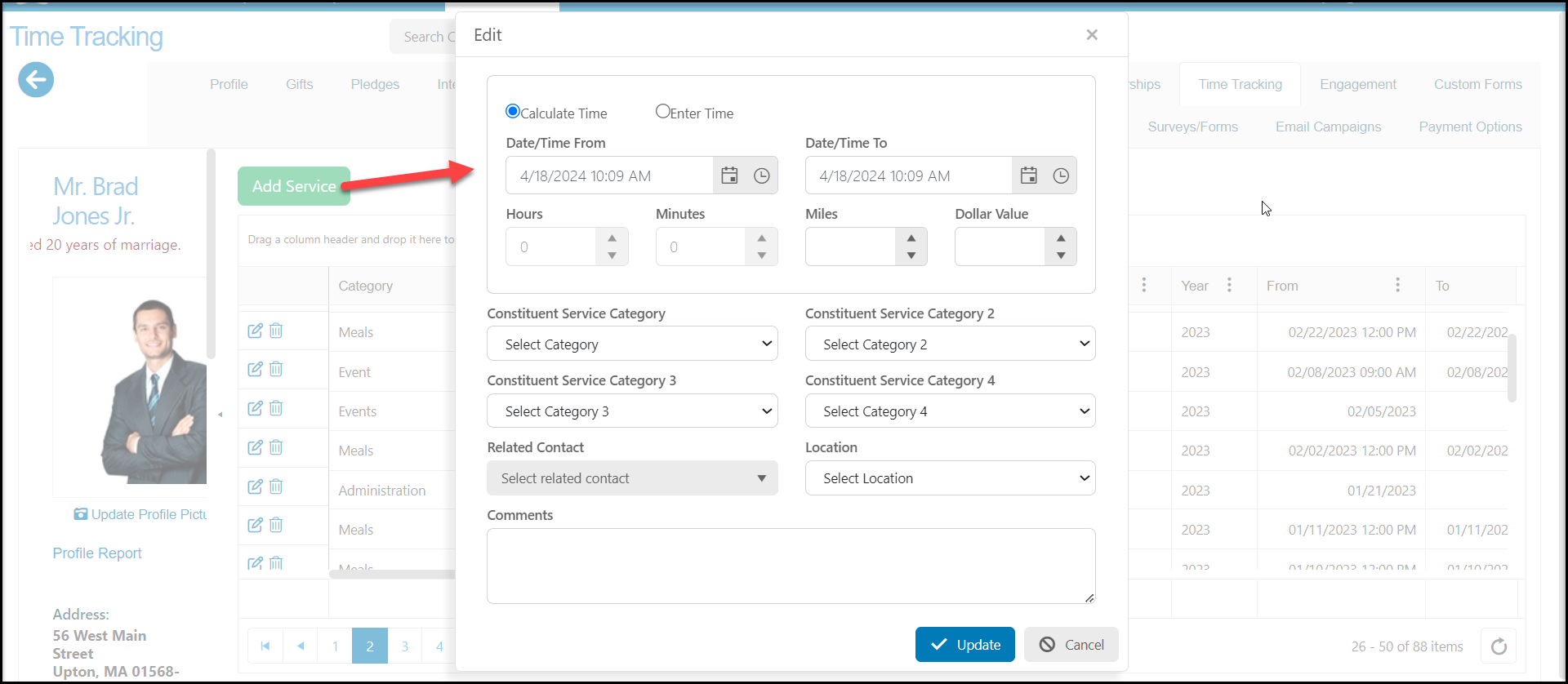
 - In the new window you can allow the software to calculate the time provided by entering the **Time/Date From** and **Time/Date To** fields.
- You have the option to select **Enter Time** and manually record the date and time.
- You can also include **Miles** and assign a **Dollar Value**. You can assign the service to up to four independent **Constituent Service Categories.** These service categories are editable like most dropdown fields within the software.
- Selecting a **Related Contact** will automatically assign the same hours and information to the related contact's record. A constituent relationship must have already be created using the Relationships tab.
- You can assign a **Location** for the services, and this list is editable as well.
- The **Comments** field allows you to add any other information necessary to the record.
- In the new window you can allow the software to calculate the time provided by entering the **Time/Date From** and **Time/Date To** fields.
- You have the option to select **Enter Time** and manually record the date and time.
- You can also include **Miles** and assign a **Dollar Value**. You can assign the service to up to four independent **Constituent Service Categories.** These service categories are editable like most dropdown fields within the software.
- Selecting a **Related Contact** will automatically assign the same hours and information to the related contact's record. A constituent relationship must have already be created using the Relationships tab.
- You can assign a **Location** for the services, and this list is editable as well.
- The **Comments** field allows you to add any other information necessary to the record.
 Time can also be added via the CRM Time Tracking grid by clicking on the **+New** to open the same window as is shown above.