# How to add a Payment to a Pay Later Event Purchase
> Source: https://support.donorview.com/how-to-add-a-payment-to-a-pay-later-event-purchase-dv | Updated: 2025-05-23T12:27:22Z
If a Registrant selects the pay later option during their purchase the Events Grid will show a dollar value under Amount Due. To add a Payment to that purchase click on the Tools menu on the left side of their row.
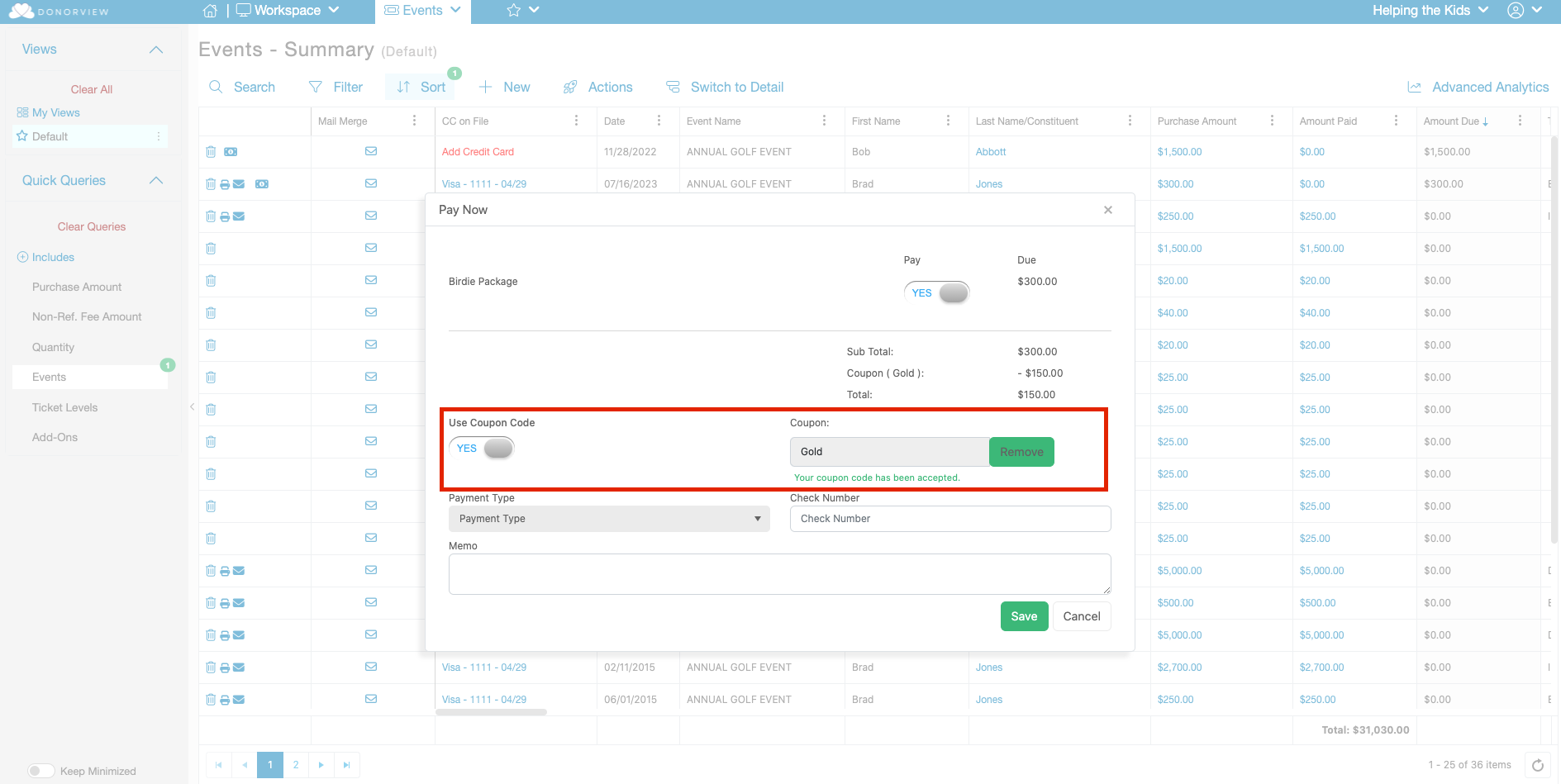
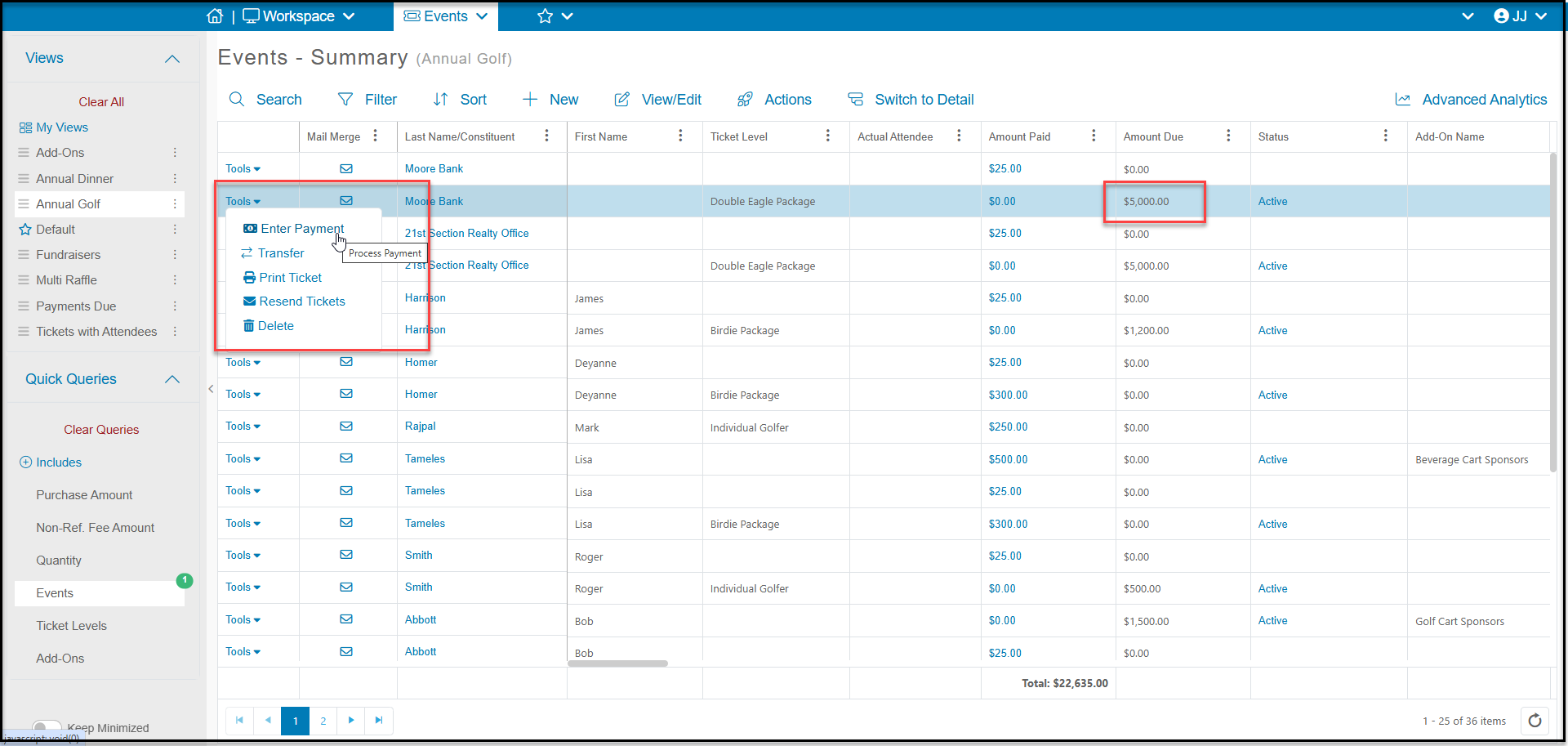 This will launch a dialog window where you can select which items you are including in the payment by setting the toggle to **YES** next to the ticket level or add-on. Once you have selected the items, the total will be displayed and you can enter the **Payment Type**, **Check Number** if applicable, and include a **Memo** if desired. Before selecting a payment type you have the option to enter in a **Coupon Code** to give the purchaser a discount on their Pay Later transaction.
**NOTE:** Partial payments cannot be made, other than selecting individual tickets to pay at that time. For example, an event purchase for $1000.00 with 5 tickets will be $200.00 per ticket. A payment for $250.00 or $500.00 cannot be applied, the payment would have to be $200.00, $400.00, $600.00, etc.
This will launch a dialog window where you can select which items you are including in the payment by setting the toggle to **YES** next to the ticket level or add-on. Once you have selected the items, the total will be displayed and you can enter the **Payment Type**, **Check Number** if applicable, and include a **Memo** if desired. Before selecting a payment type you have the option to enter in a **Coupon Code** to give the purchaser a discount on their Pay Later transaction.
**NOTE:** Partial payments cannot be made, other than selecting individual tickets to pay at that time. For example, an event purchase for $1000.00 with 5 tickets will be $200.00 per ticket. A payment for $250.00 or $500.00 cannot be applied, the payment would have to be $200.00, $400.00, $600.00, etc.
 If payment will be made with a credit card, you can select a card on file or enter a new credit card and billing information, and choose whether or not to include the processing fee.
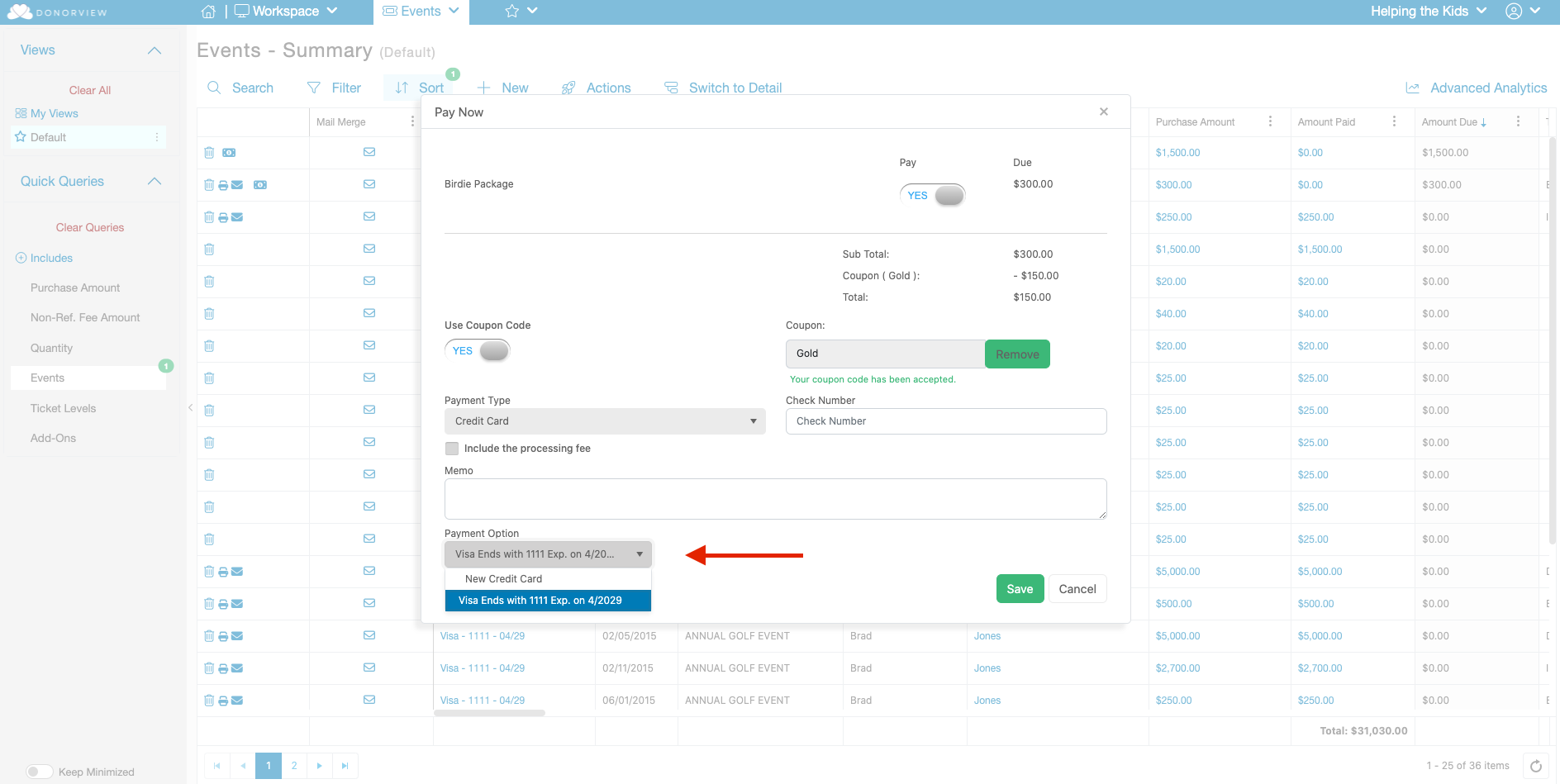 If the constituent does not have a credit card on file, you can manually type in a card number by clicking on **New Credit Card**. Or, you can send the constituent a link from the Payment Methods tab in their profile.
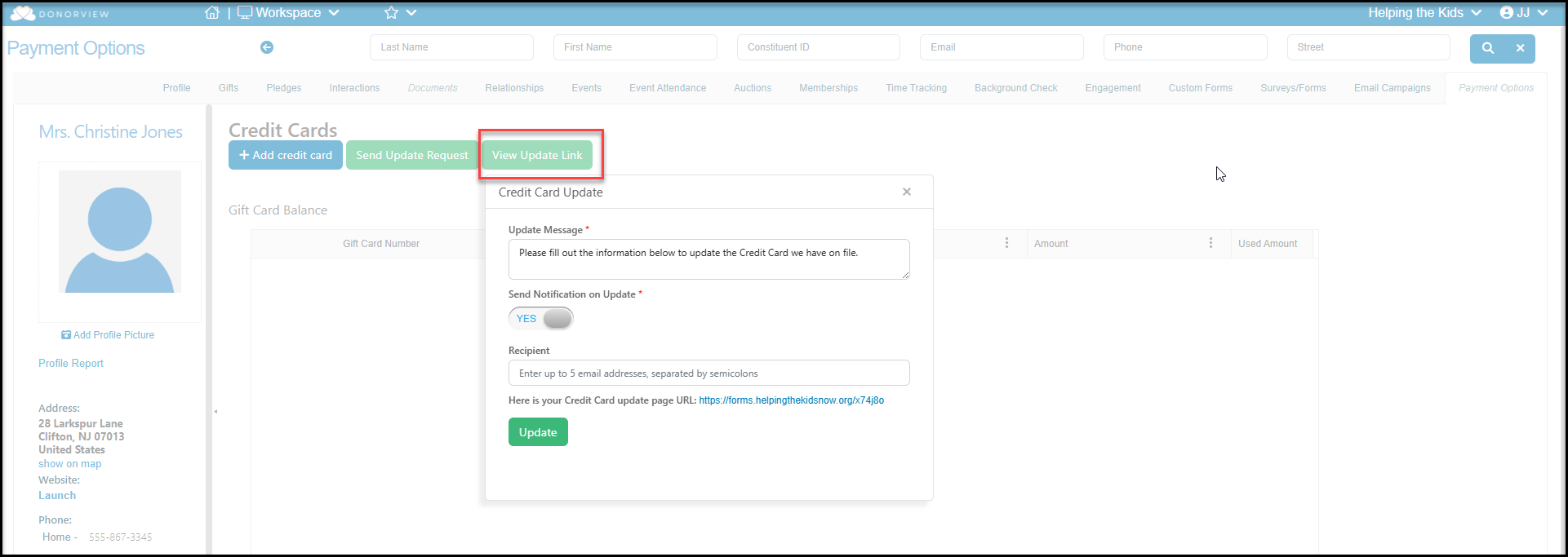
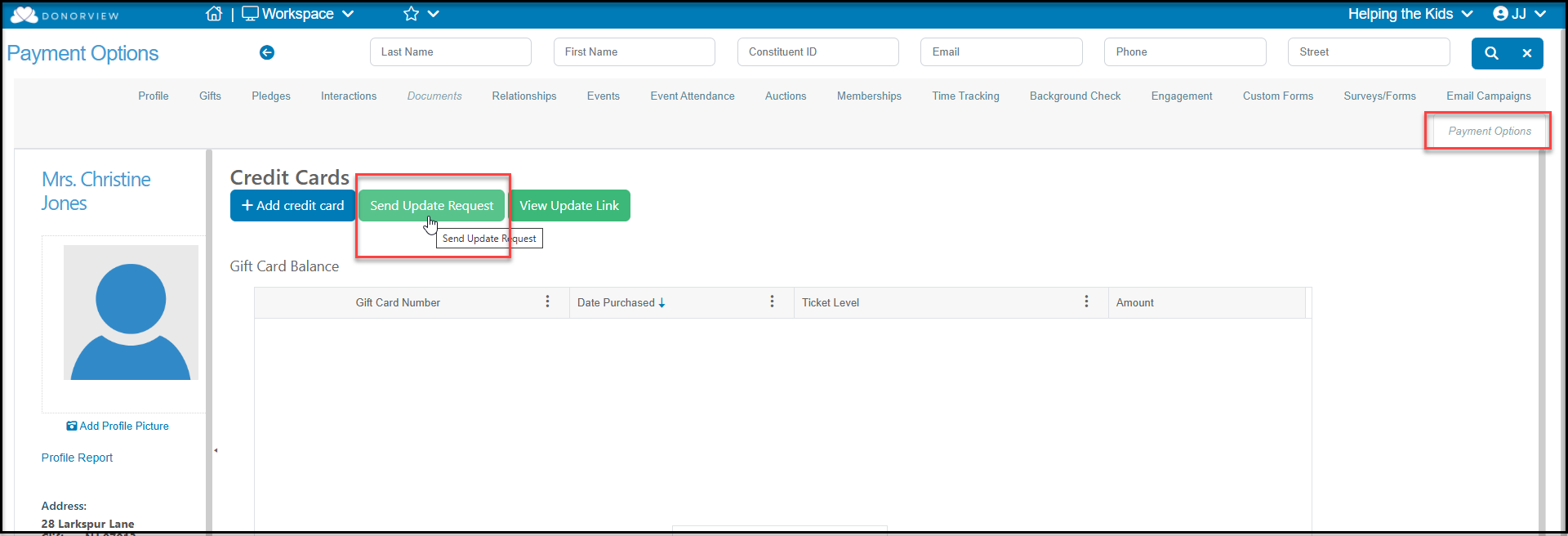 Click on the green **Send Update Request** to generate an email to the constituent to request that they add a credit card to their account.
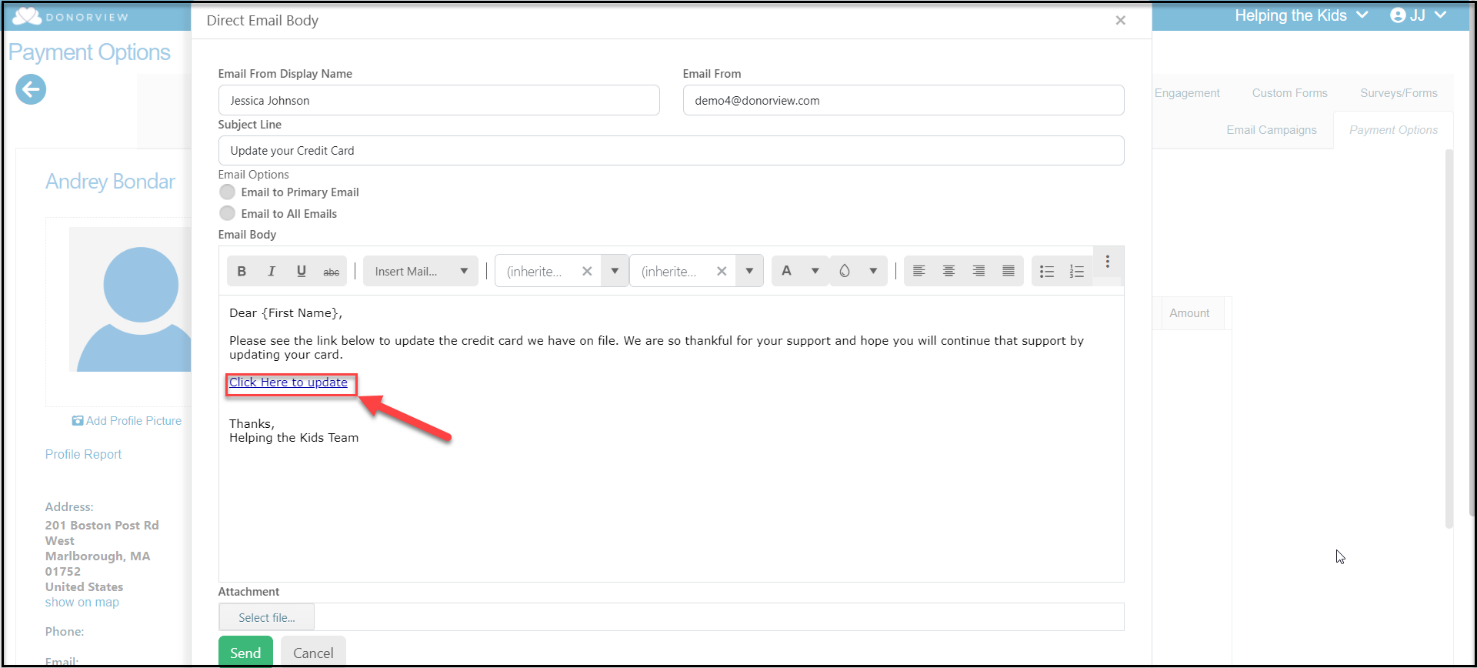
When the recipient clicks on the “**Click here to update**” link they will be directed to a unique, encrypted link to allow them to add their credit card information securely and it will be stored in their account.
Click on the green **Send Update Request** to generate an email to the constituent to request that they add a credit card to their account.
When the recipient clicks on the “**Click here to update**” link they will be directed to a unique, encrypted link to allow them to add their credit card information securely and it will be stored in their account.
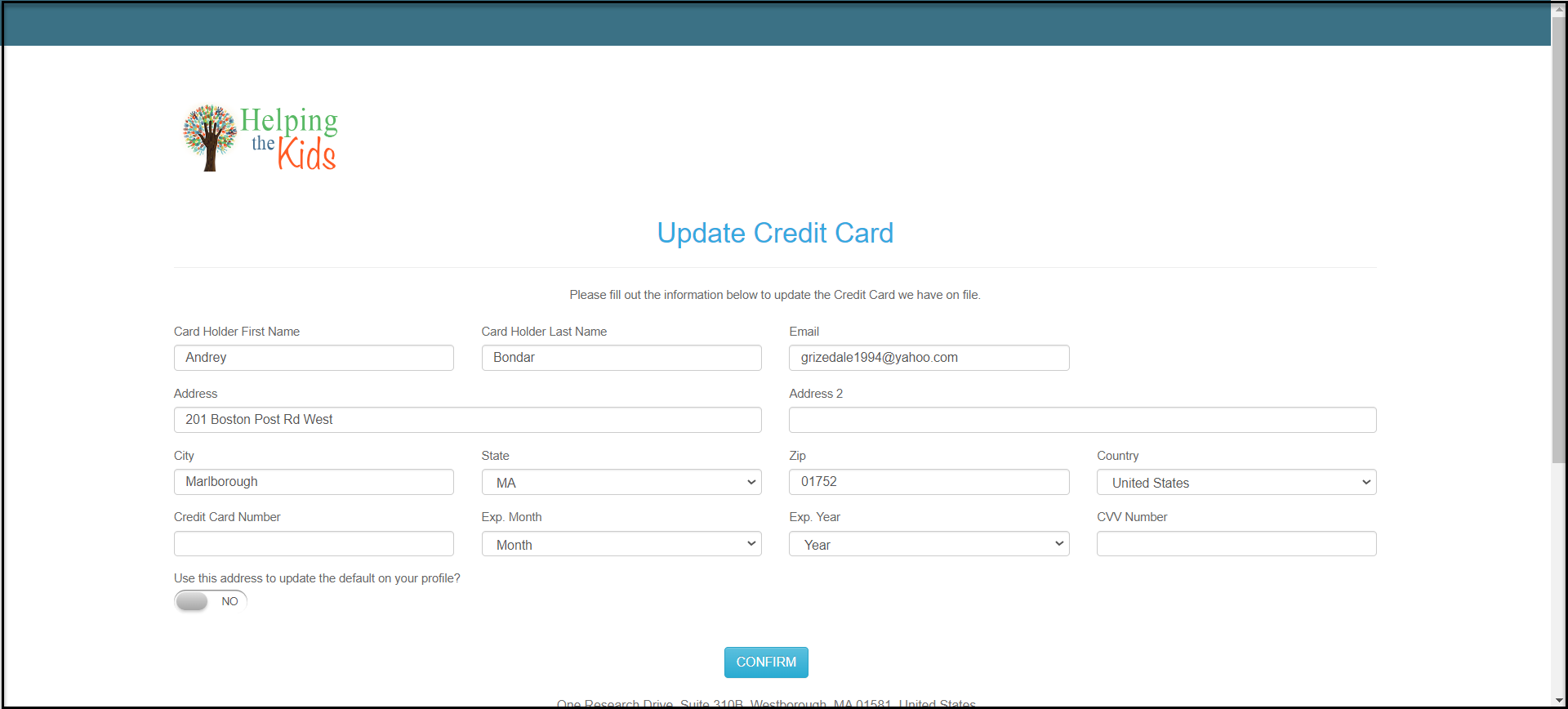 You can also turn on notifications when someone updates their information using the View Update link button.