# How I do print/create a PDF for a Thank You email?
> Source: https://support.donorview.com/how-i-do-printcreate-a-pdf-for-a-thank-you-email-dv | Updated: 2023-11-10T20:32:58Z
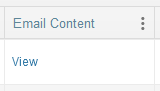
In **Workspace > Reports > Thank You Emails**, locate the thank you message and click View in the Email Content column.
 In Google Chrome,
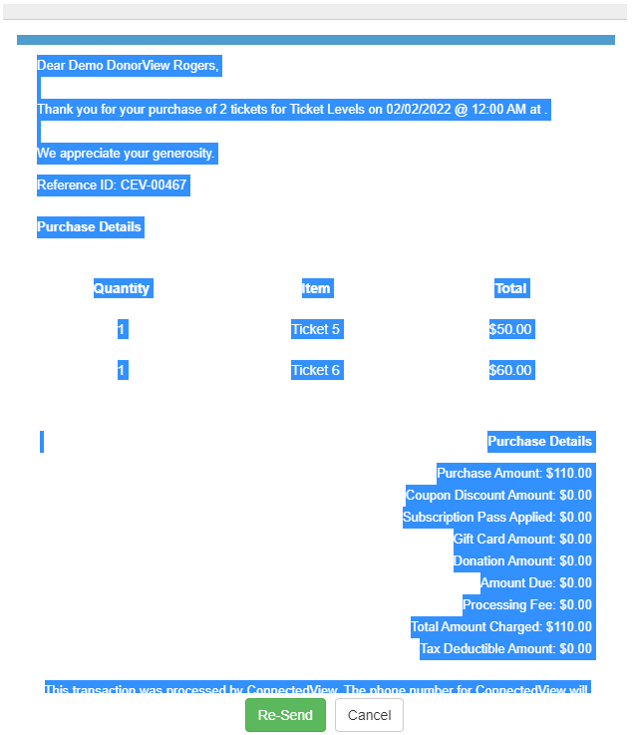
a) click somewhere in the content of the email and use Ctrl+A to select all of the email text.
In Google Chrome,
a) click somewhere in the content of the email and use Ctrl+A to select all of the email text.
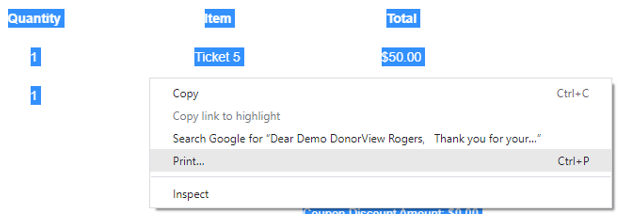
 b) then right-click and select Print...
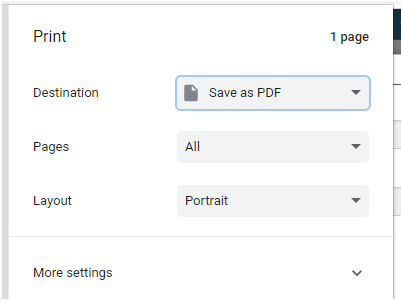
 c) Select the Destination: a printer, Save as PDF, etc.
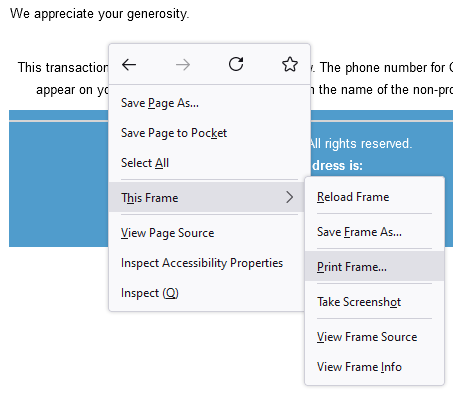
 In Firefox, right-click in the email body and select This Frame > Print Frame... and select the Destination.
 The email can also be resent by clicking the **Re-Send** button.