# How do I take Program Attendance?
> Source: https://support.donorview.com/how-do-i-take-program-attendance | Updated: 2025-06-20T16:45:12Z
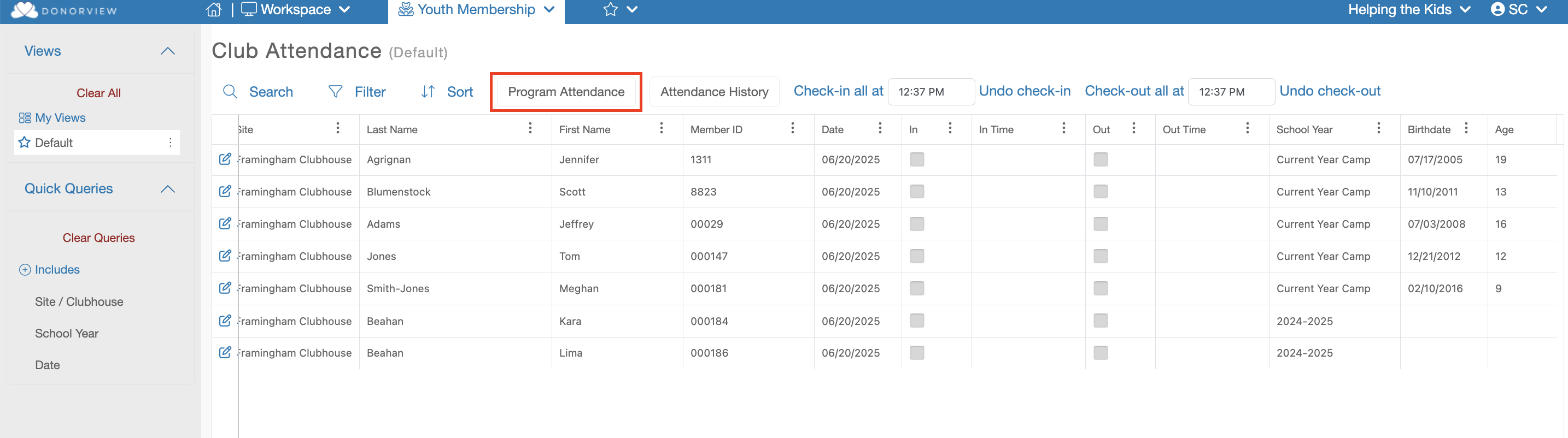
The default grid on the Attendance grid is for site
attendance, on this Dashboard you will need to click the grey, “Program
Attendance” button.
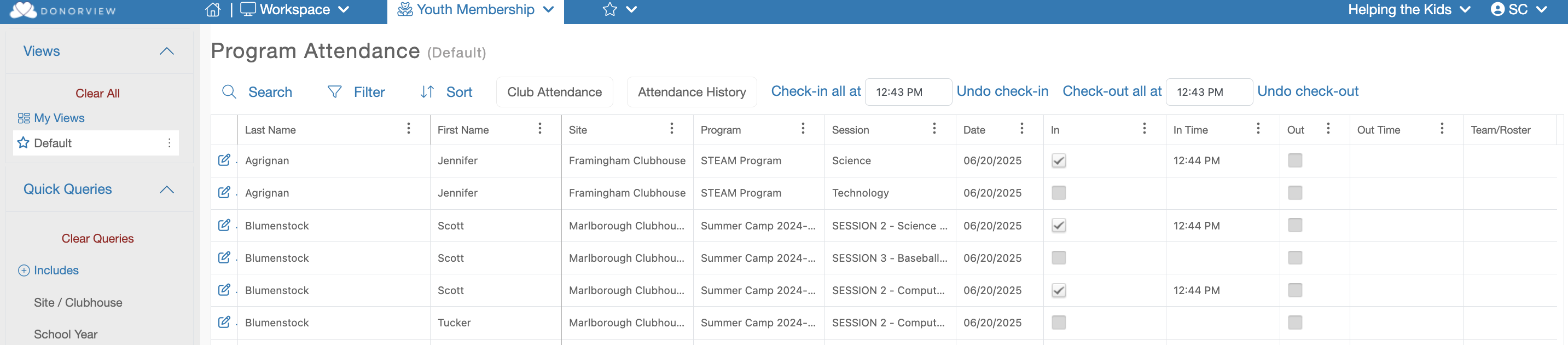
 On this grid will be a list of your Program enrolled
Members. On each row there is a checkbox under the “In” and “Out” columns. Checking
one of those boxes will record the Current time from that action. This Check
In/Out will also be automatically saved.
You also have the option to Check In/Out every member on the
grid at once. At the top of the grid you will see two time entry fields. One
for the In time and one for the Out time. You can enter the time desired and
then click the “Check-in all at” text link or the “Check-out all at” text link.
You also can undo every members Check In/Out by clicking
the, “Undo check-in” or Undo check-out” text links.
On this grid will be a list of your Program enrolled
Members. On each row there is a checkbox under the “In” and “Out” columns. Checking
one of those boxes will record the Current time from that action. This Check
In/Out will also be automatically saved.
You also have the option to Check In/Out every member on the
grid at once. At the top of the grid you will see two time entry fields. One
for the In time and one for the Out time. You can enter the time desired and
then click the “Check-in all at” text link or the “Check-out all at” text link.
You also can undo every members Check In/Out by clicking
the, “Undo check-in” or Undo check-out” text links.