# How do I set up an event where subscriptions can be used?
> Source: https://support.donorview.com/how-do-i-set-up-an-event-where-subscriptions-can-be-used | Updated: 2025-07-24T13:36:55Z
If your venue/event uses theater seating, please see the instructions listed under the Event Management>Theater Seating section. For general seating events or events where table or event assignments will be used, use the following instructions.
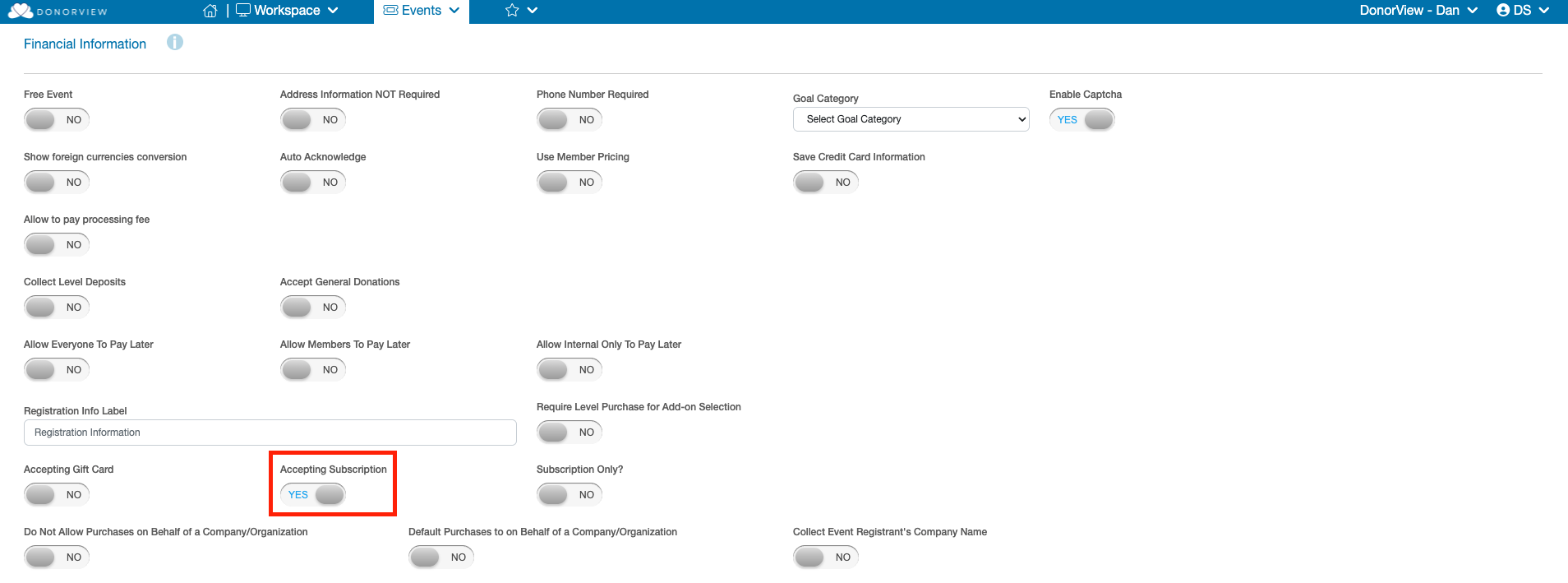
Start by going to your **Event Page.** Next, go to your **Event Settings** step and scroll down until you see **Financial Information.** Look for the **Accepting Subscription** toggle and click it so it says **“** Yes.”
 After this, move into the **Event Setup** step and either begin adding a level or click to edit an existing level.
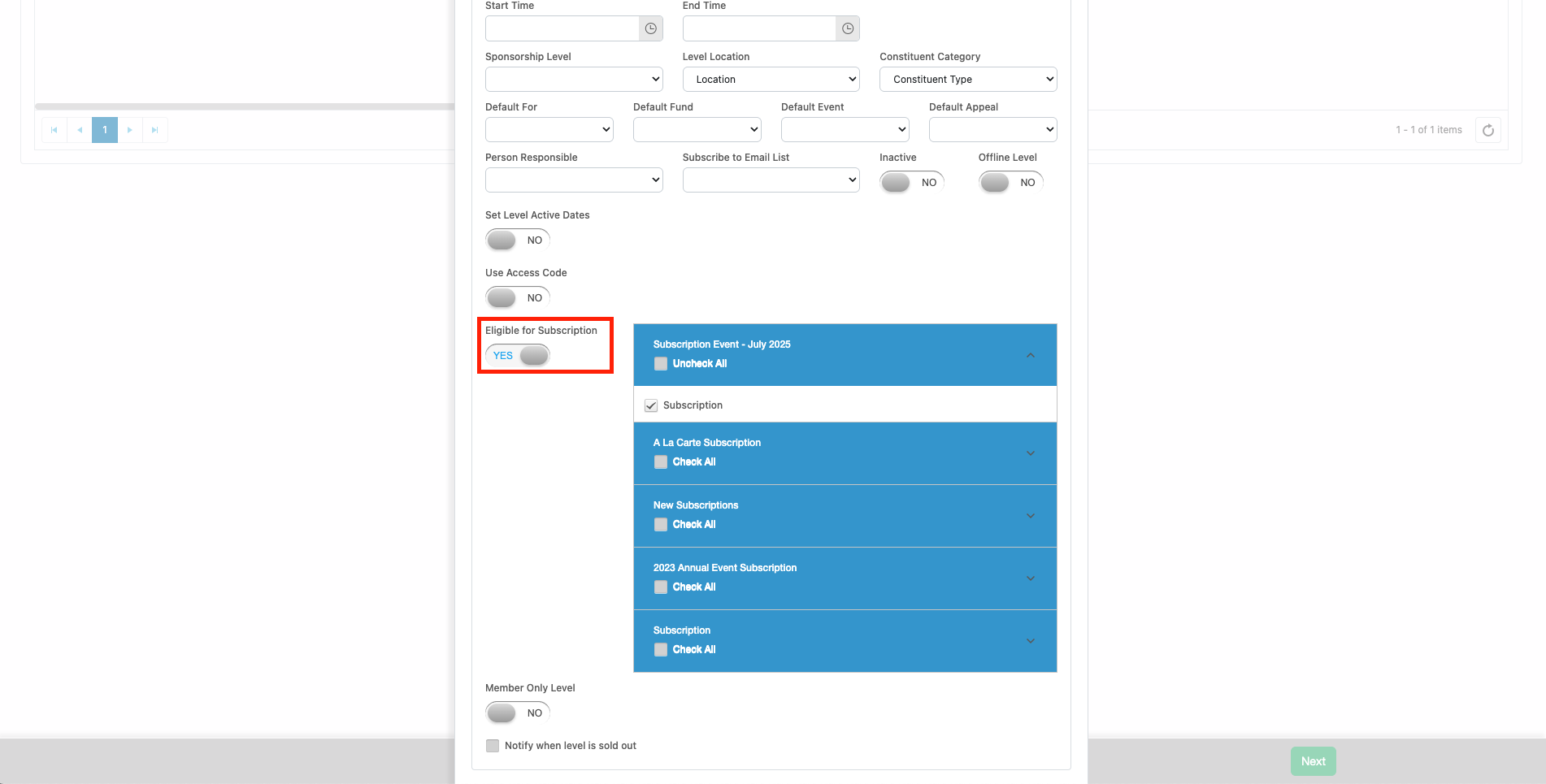
In the Add/Update Level window, turn the **Eligible for Subscription** toggle to “YES” to reveal the accordion menu to select which subscription events and levels you would like to make available for this level. Then, don't forget to **Update** your ticket level at the bottom.
After this, move into the **Event Setup** step and either begin adding a level or click to edit an existing level.
In the Add/Update Level window, turn the **Eligible for Subscription** toggle to “YES” to reveal the accordion menu to select which subscription events and levels you would like to make available for this level. Then, don't forget to **Update** your ticket level at the bottom.
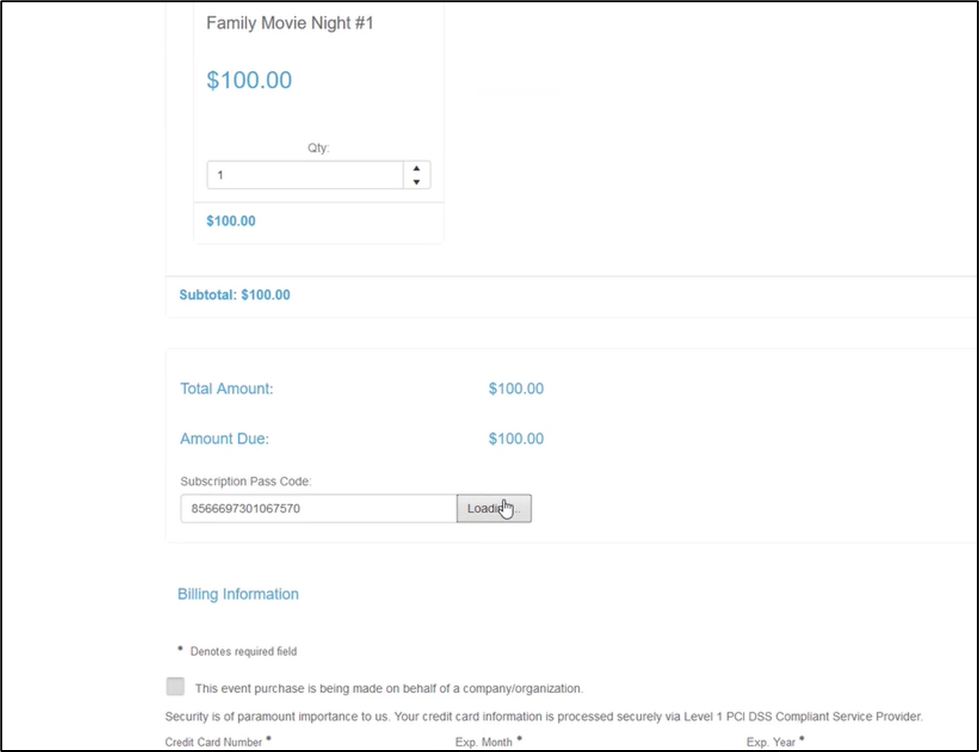
 Once this is done, attendees will be able to apply their subscription code to your event. Here is an example of what this will look like on the event page.