# How do I look up duplicate constituents?
> Source: https://support.donorview.com/how-do-i-look-up-duplicate-constituents-dv | Updated: 2026-10-12T20:41:56Z
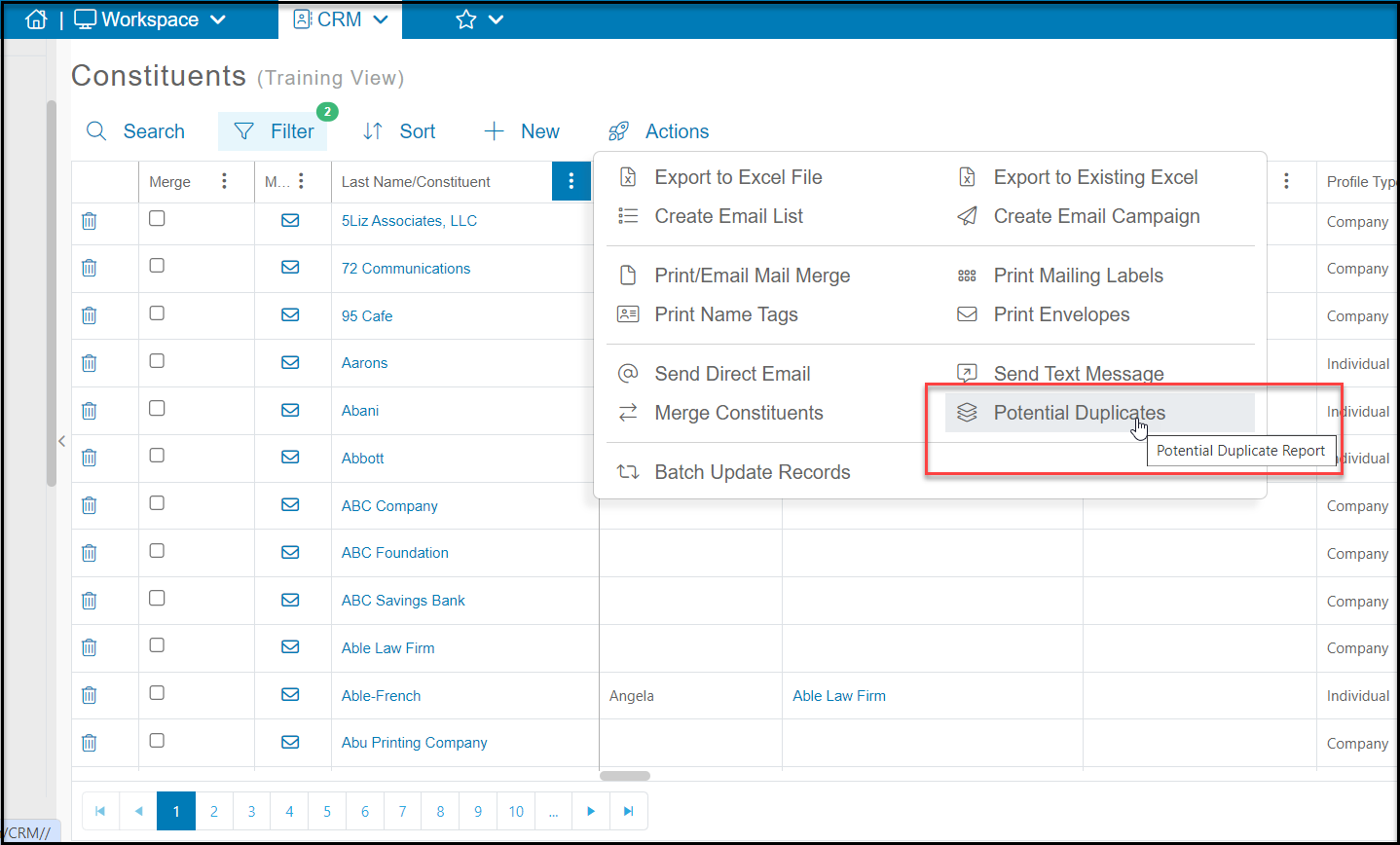
You can look up potential duplicates by using our Potential Duplicate Report. You can find this on the Constituents Grid by selecting **Actions** and select **Potential Duplicate Report.**
 Once you've selected this a pop up will appear that will allow you to select the type of search criteria you want to use.
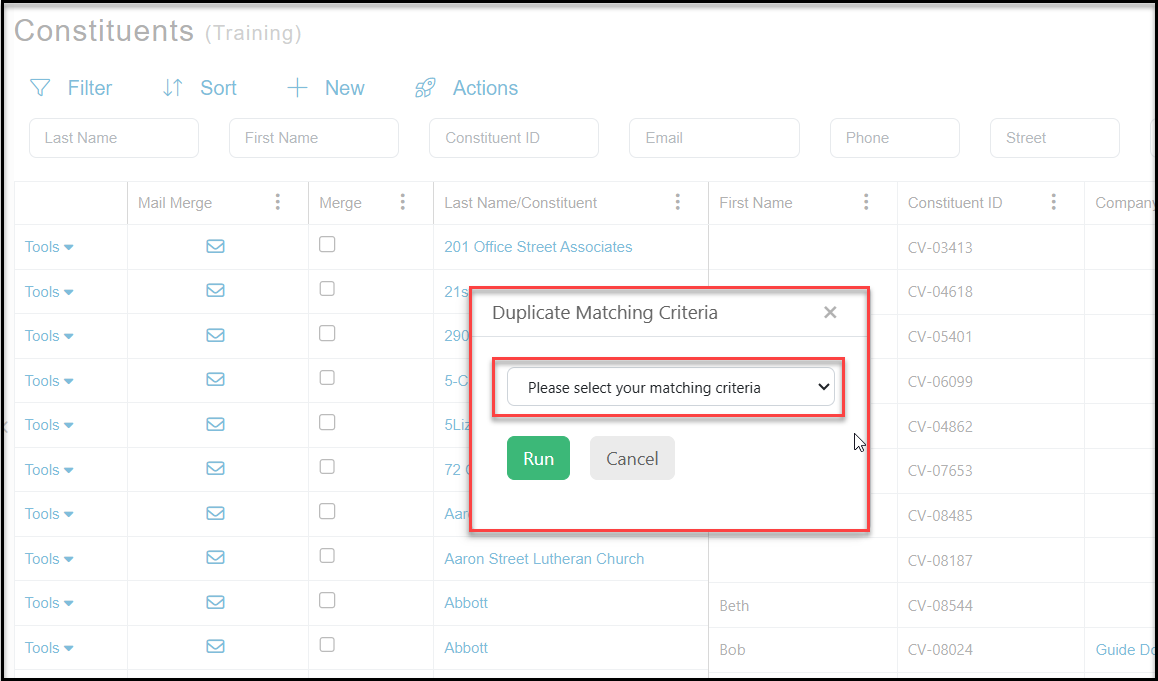 You can select from:
- **Exact Match on First and Last Names** - looks for matches with the exact text match in the First Name and Last Name/Constituent field in Individual Records
- **Exact Match on Company Name** - looks for matches in the Last Name/Constituent field for any records without text in the First Name field
- **Soundex Match on First and Last Names** - looks for matches in the Last Name/Constituent field and the First Name field that sound similar. This can produce a lot of names. For example it will find matches for Tiffany Bailey, Tammy Bailey, and Tommy Bailey because those first names all sound alike.
- **Soundex Match on Last Name** - looks for similar sounding names in the Last Name/Constituent field only. This can also produce a lot of names since Smith, Symthe, and Smithers all sound similar and may produce a lot of records that are not duplicates.
- **Exact Match on Email** - looks for matches on email by comparing both the primary email and the additional email fields. If a constituent has the same email address listed in both their primary and additional email fields, it will show on the list as a duplicate, even though both records share the same Constituent ID number.
- **Exact Match on Default Email Only** - this option looks for an exact match on in the primary email field. Remember that each individual-type constituent should have a unique email address, so it is important that two people do not share the same email address in the primary email field.
- **Exact Match on Phone Number** - this options looks for an exact match on phone number in any of the phone fields.
Once you've selected the criteria you'll select **Run**. This will then search the constituency for any records that match that criteria and show them on the grid.
Be sure to have your **Constituent ID** column in view when reviewing your duplicate record search. If you use a criteria like Exact Match on Email, you will be able to confirm if a record is an actual duplicate, or if there are just two of the same emails listed in the same record.
You can clear the search by opening the **Potential Duplicate Records** box again from the Actions menu and selecting **Clear**, then **Run**. You can also clear the search by navigating to another view or grid.
***Duplicate search criteria cannot be saved as a view, so it will need to be re-run if you clear or navigate away.***
For records that are duplicates, you can use the Merge function to merge them together, however you can only merge two records at a time. This article provides more details about merging constituent records: [Merging Duplicate Constituent Records](./merging-duplicate-constituent-records)
To clear the duplicate records view, click on another view or navigate away from the page and come back to see your default view.
You can select from:
- **Exact Match on First and Last Names** - looks for matches with the exact text match in the First Name and Last Name/Constituent field in Individual Records
- **Exact Match on Company Name** - looks for matches in the Last Name/Constituent field for any records without text in the First Name field
- **Soundex Match on First and Last Names** - looks for matches in the Last Name/Constituent field and the First Name field that sound similar. This can produce a lot of names. For example it will find matches for Tiffany Bailey, Tammy Bailey, and Tommy Bailey because those first names all sound alike.
- **Soundex Match on Last Name** - looks for similar sounding names in the Last Name/Constituent field only. This can also produce a lot of names since Smith, Symthe, and Smithers all sound similar and may produce a lot of records that are not duplicates.
- **Exact Match on Email** - looks for matches on email by comparing both the primary email and the additional email fields. If a constituent has the same email address listed in both their primary and additional email fields, it will show on the list as a duplicate, even though both records share the same Constituent ID number.
- **Exact Match on Default Email Only** - this option looks for an exact match on in the primary email field. Remember that each individual-type constituent should have a unique email address, so it is important that two people do not share the same email address in the primary email field.
- **Exact Match on Phone Number** - this options looks for an exact match on phone number in any of the phone fields.
Once you've selected the criteria you'll select **Run**. This will then search the constituency for any records that match that criteria and show them on the grid.
Be sure to have your **Constituent ID** column in view when reviewing your duplicate record search. If you use a criteria like Exact Match on Email, you will be able to confirm if a record is an actual duplicate, or if there are just two of the same emails listed in the same record.
You can clear the search by opening the **Potential Duplicate Records** box again from the Actions menu and selecting **Clear**, then **Run**. You can also clear the search by navigating to another view or grid.
***Duplicate search criteria cannot be saved as a view, so it will need to be re-run if you clear or navigate away.***
For records that are duplicates, you can use the Merge function to merge them together, however you can only merge two records at a time. This article provides more details about merging constituent records: [Merging Duplicate Constituent Records](./merging-duplicate-constituent-records)
To clear the duplicate records view, click on another view or navigate away from the page and come back to see your default view.