# How do I Import a document for a Member?
> Source: https://support.donorview.com/how-do-i-import-a-document-for-a-member | Updated: 2025-06-20T13:48:09Z
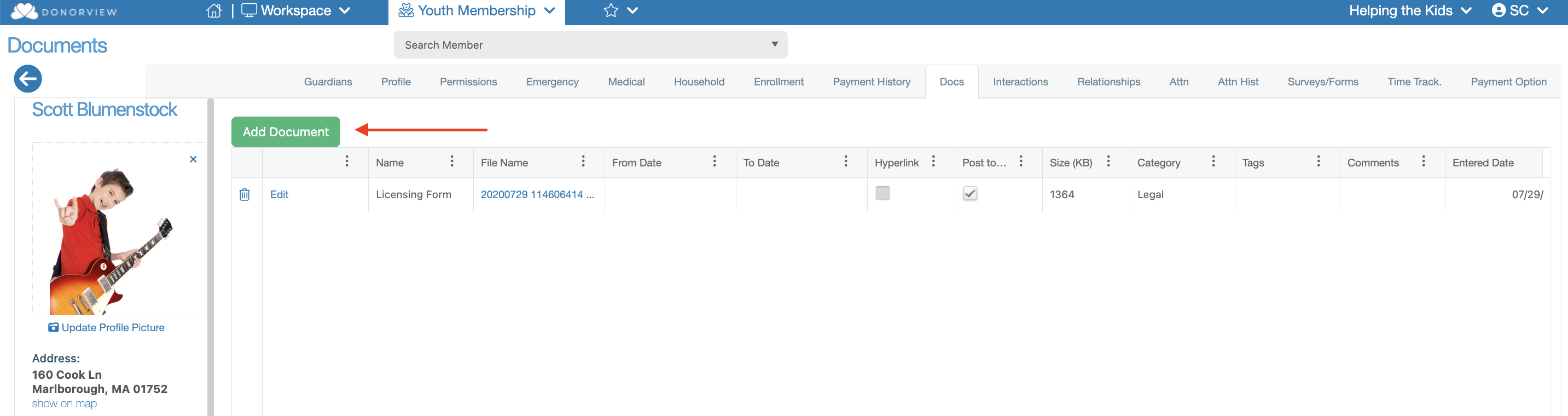
Once inside a Member’s record navigate to the Documents tab by clicking on the “Docs” tab. Once there you will see any documents that were previously uploaded. You will also see a green, “Add Document” button. Click this button and a new document form will appear.
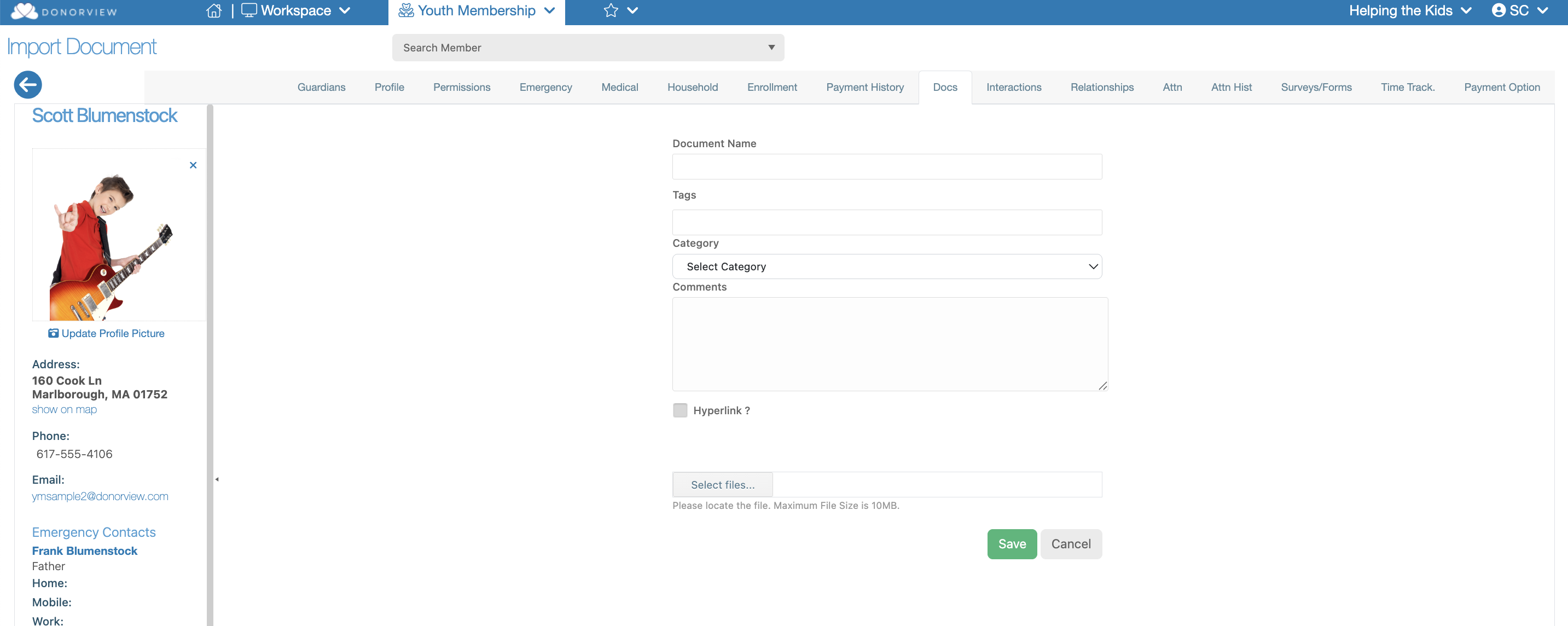
 On this import form you can fill out the following:
- **Document Name** – Enter the name your document will appear as.
- **Tags** – Enter keywords that will make it easier to find your document in a search.
- **Category** – Select or create a label the best fits your document.
- **Comments** – Write a description about what your document contains.
- **Hyperlink** – If the document is already hosted online you can enter the URL for it and we will import the document from that link
- **Select** – If the document is saved on your device then you can hit this button and find the file for import.
On this import form you can fill out the following:
- **Document Name** – Enter the name your document will appear as.
- **Tags** – Enter keywords that will make it easier to find your document in a search.
- **Category** – Select or create a label the best fits your document.
- **Comments** – Write a description about what your document contains.
- **Hyperlink** – If the document is already hosted online you can enter the URL for it and we will import the document from that link
- **Select** – If the document is saved on your device then you can hit this button and find the file for import.