# How do I enter Time Tracking for a Member inside their record?
> Source: https://support.donorview.com/how-do-i-enter-time-tracking-for-a-member-inside-their-record | Updated: 2025-06-20T14:06:14Z
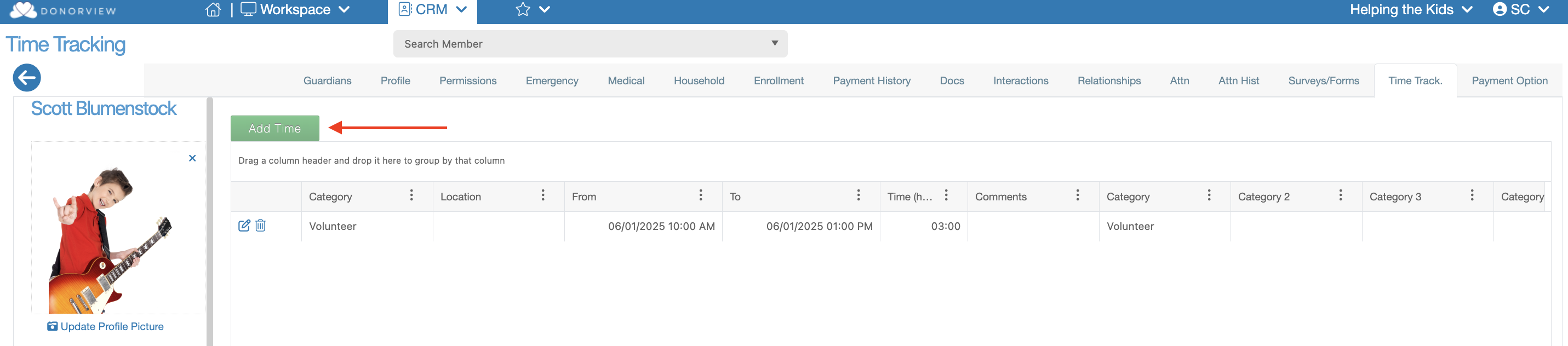
Inside a Member’s record there is a tab called, “Time Track.”. This tab allows you to enter records of
Time Tracking for this Member. To enter a new record, click the green, “Add
Time” button.
 This will launch a dialog window that allows you to enter the
following:
**Calculate Time** - The hours and minutes will be automatically calculated based on the entered Date/Time From and Date/Time To.
**Enter Time** - The hours and minutes can be entered in manually, only a Date From is required.
- **Date/Time From**
- **Date/Time To**
- **Miles** - Enter how many miles where traveled as a part of this Time Tracking event.
- **Dollar Value** - What is the estimated cost of the labor hours entered into the Time Tracking record.
- **Constituent Service Category (x4)** - Create and Select values that will label the Time Tracking record.
- **Related Contact** - Select a Constituent who has a relationship with the Time Tracking Constituent which should be connected to this Time Tracking record. Making this selection will create a copy of the Time Tracking record and insert it under the Related Contacts Constituent record.
- **Location** - Create and Select a value to tab the Time Tracking record with a Location of where it took place.
- **Comments** - Input additional details about the Time Tracking event.
**
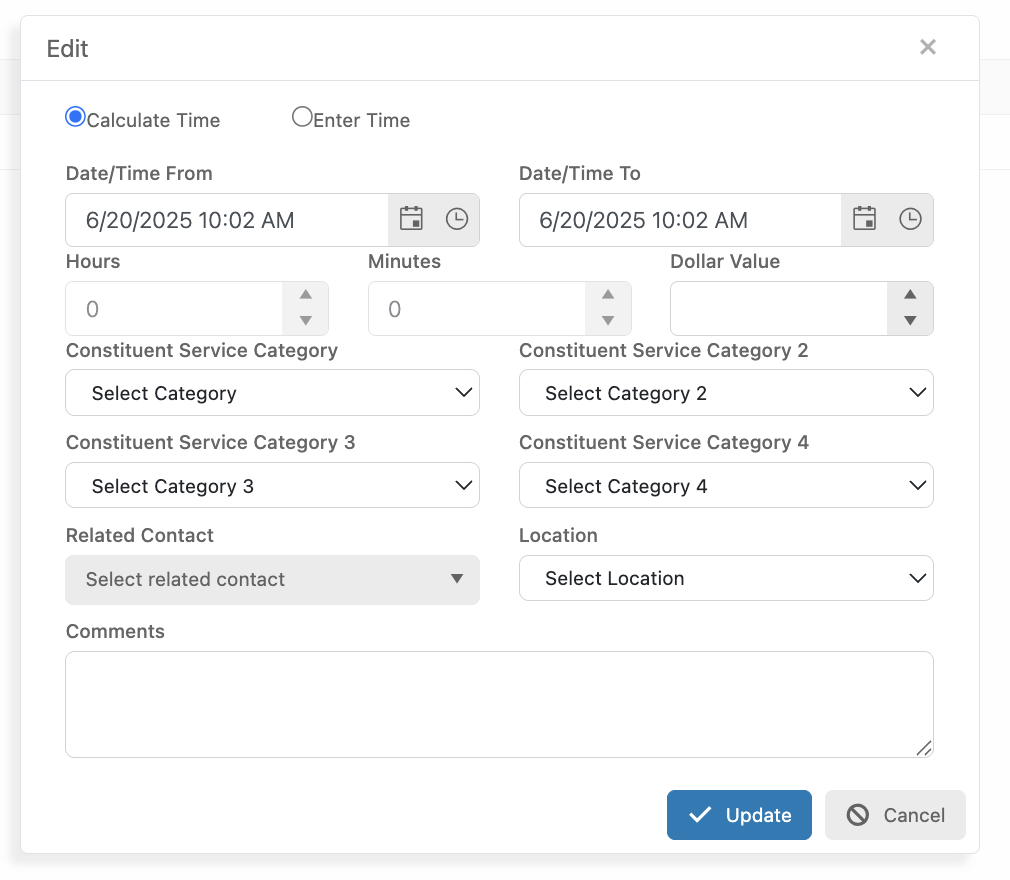
This will launch a dialog window that allows you to enter the
following:
**Calculate Time** - The hours and minutes will be automatically calculated based on the entered Date/Time From and Date/Time To.
**Enter Time** - The hours and minutes can be entered in manually, only a Date From is required.
- **Date/Time From**
- **Date/Time To**
- **Miles** - Enter how many miles where traveled as a part of this Time Tracking event.
- **Dollar Value** - What is the estimated cost of the labor hours entered into the Time Tracking record.
- **Constituent Service Category (x4)** - Create and Select values that will label the Time Tracking record.
- **Related Contact** - Select a Constituent who has a relationship with the Time Tracking Constituent which should be connected to this Time Tracking record. Making this selection will create a copy of the Time Tracking record and insert it under the Related Contacts Constituent record.
- **Location** - Create and Select a value to tab the Time Tracking record with a Location of where it took place.
- **Comments** - Input additional details about the Time Tracking event.
** **
**