# How do I enter payment on pay later membership transaction?
> Source: https://support.donorview.com/how-do-i-enter-payment-on-pay-later-membership-transaction-dv | Updated: 2026-09-15T15:56:43Z
Payment can be entered on the **Memberships - Detail** grid or within the constituent record of the Head of Household or membership owner on their Memberships tab.
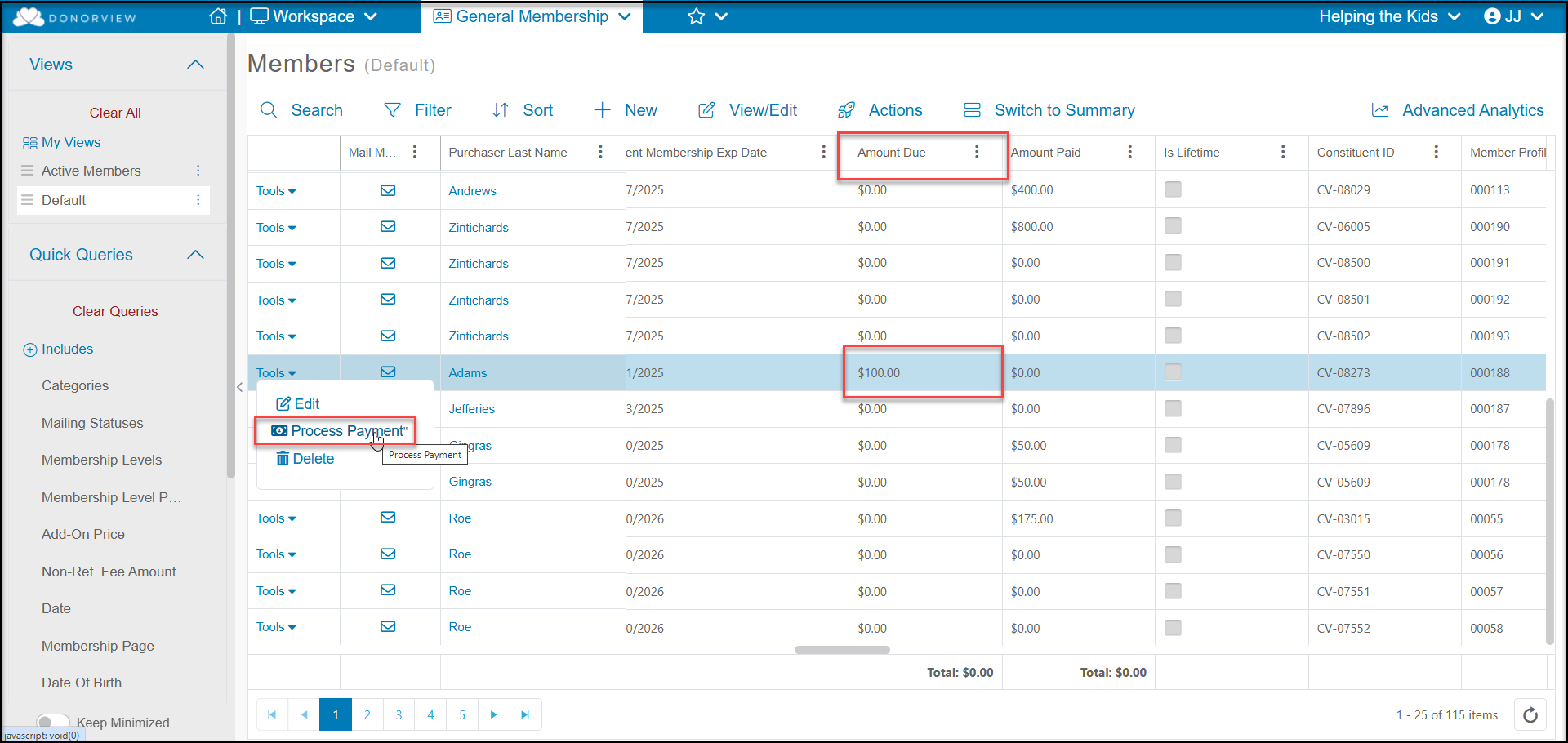
On the Memberships grid, for any memberships with an outstanding balance you will see an amount greater than $0 in the Amount Due column. You will use the Tools menu to record the payment using **Process Payment**.
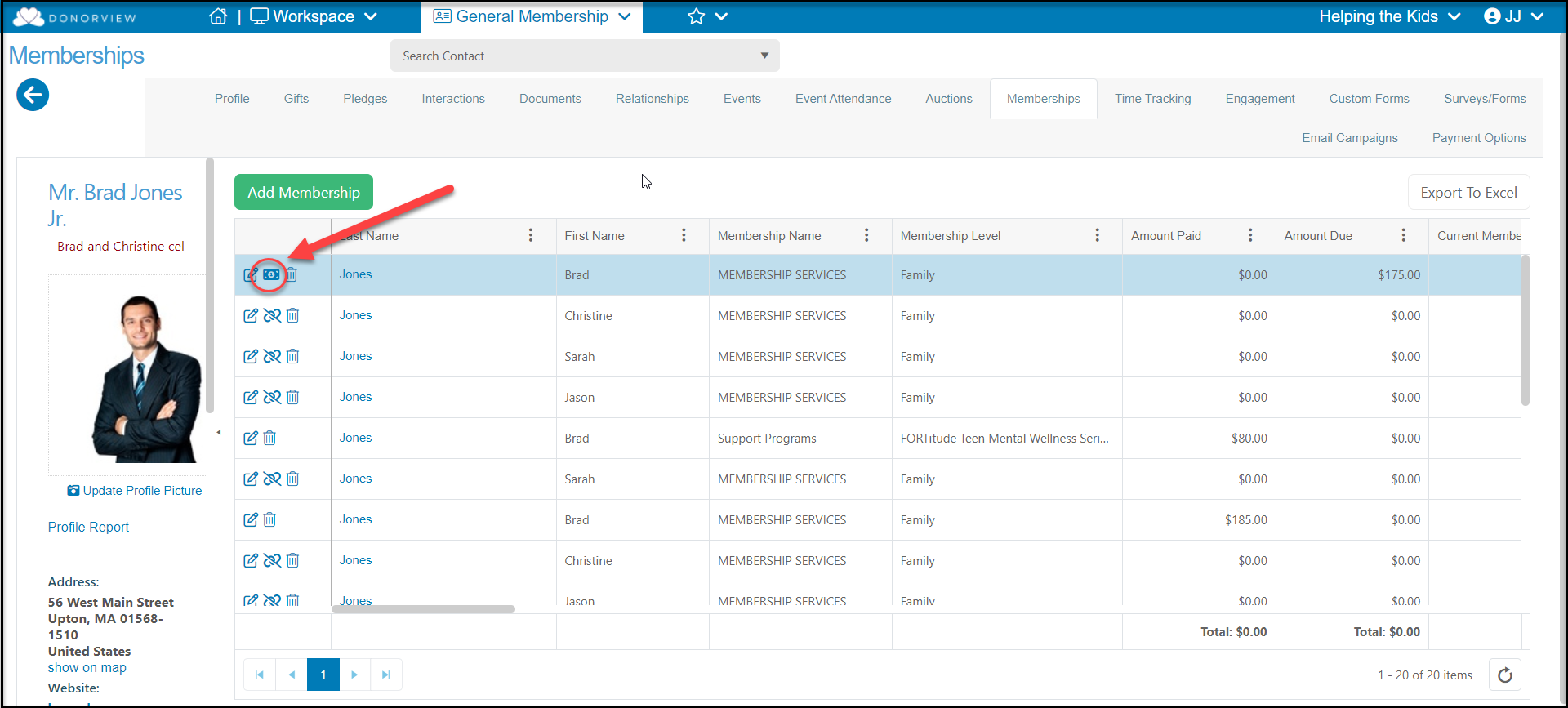
 On the constituent's Memberships tab, you will see a dollar bill icon next to the membership transaction. Click on the dollar bill icon to enter the payment details.
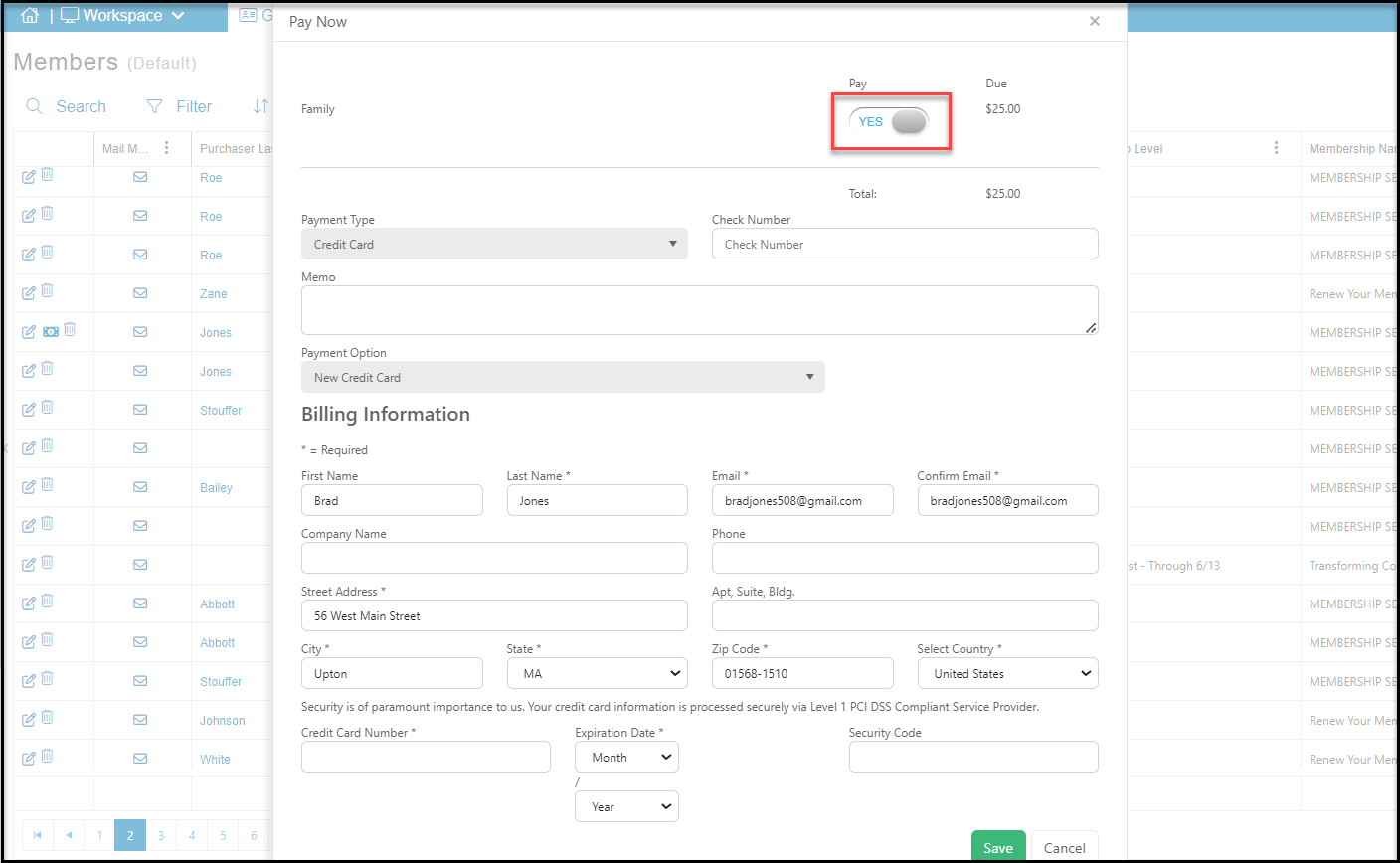
 Select the **Pay** toggle to **YES** and record the **Payment Type**, **Check Number** (if applicable), **Memo**, and select the **Payment Option** if credit card was selected as the Payment Type. If the constituent has a credit card on file, you can select it. Or, if you need to enter a new card number it can be entered by selecting **New Credit Card** and entering the information at the bottom of the window. Click the green **Save** button to record the payment.
Once the payment is recorded, the Current Status will change to Active overnight and the member(s) will be able to access the Member Directory and Member's Only Documents in Portal as well as enjoy any membership discounts you offer for event purchases.
Select the **Pay** toggle to **YES** and record the **Payment Type**, **Check Number** (if applicable), **Memo**, and select the **Payment Option** if credit card was selected as the Payment Type. If the constituent has a credit card on file, you can select it. Or, if you need to enter a new card number it can be entered by selecting **New Credit Card** and entering the information at the bottom of the window. Click the green **Save** button to record the payment.
Once the payment is recorded, the Current Status will change to Active overnight and the member(s) will be able to access the Member Directory and Member's Only Documents in Portal as well as enjoy any membership discounts you offer for event purchases.