# How do I enter a pledge payment?
> Source: https://support.donorview.com/how-do-i-enter-a-pledge-payment-dv | Updated: 2026-07-30T15:47:05Z
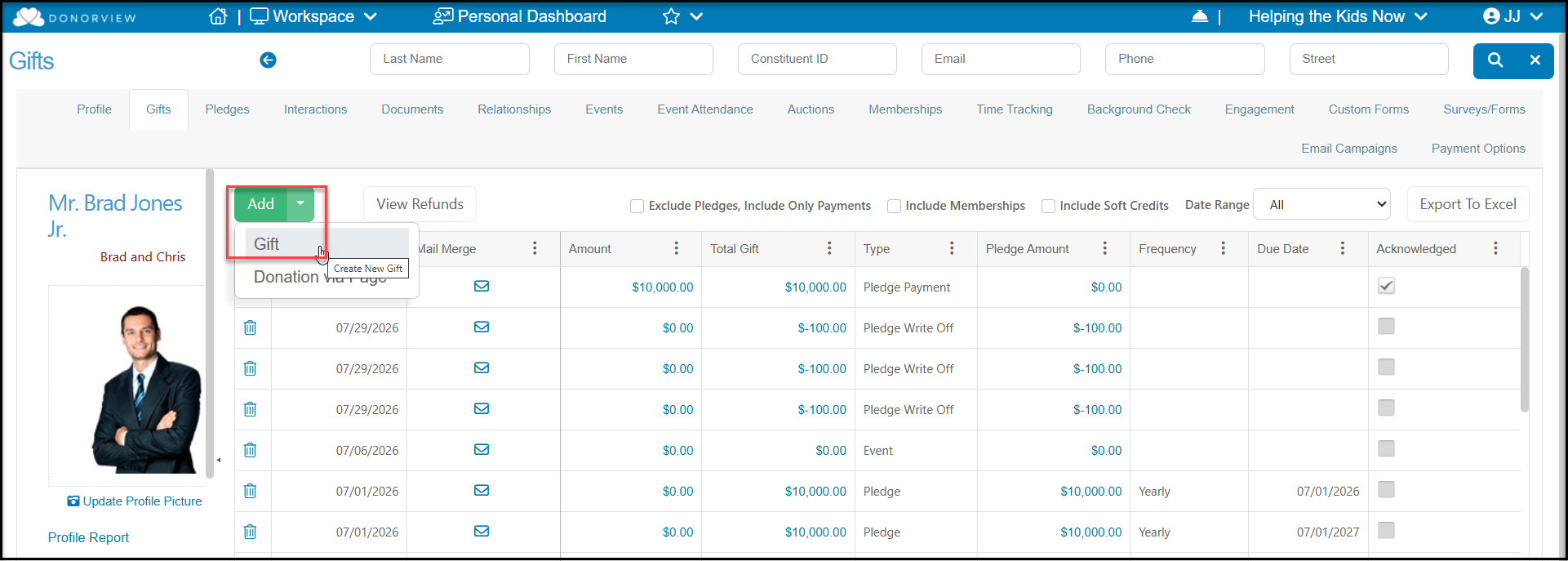
To enter a pledge payment, you can add a new gift from the Constituents Grid in the CRM Module or the Gifts Grid in the Fundraising Module by selecting the **+New** menu and choosing **Gift**, or from the constituent's record under their Gift tab by clicking on **Add** then **Gift**.
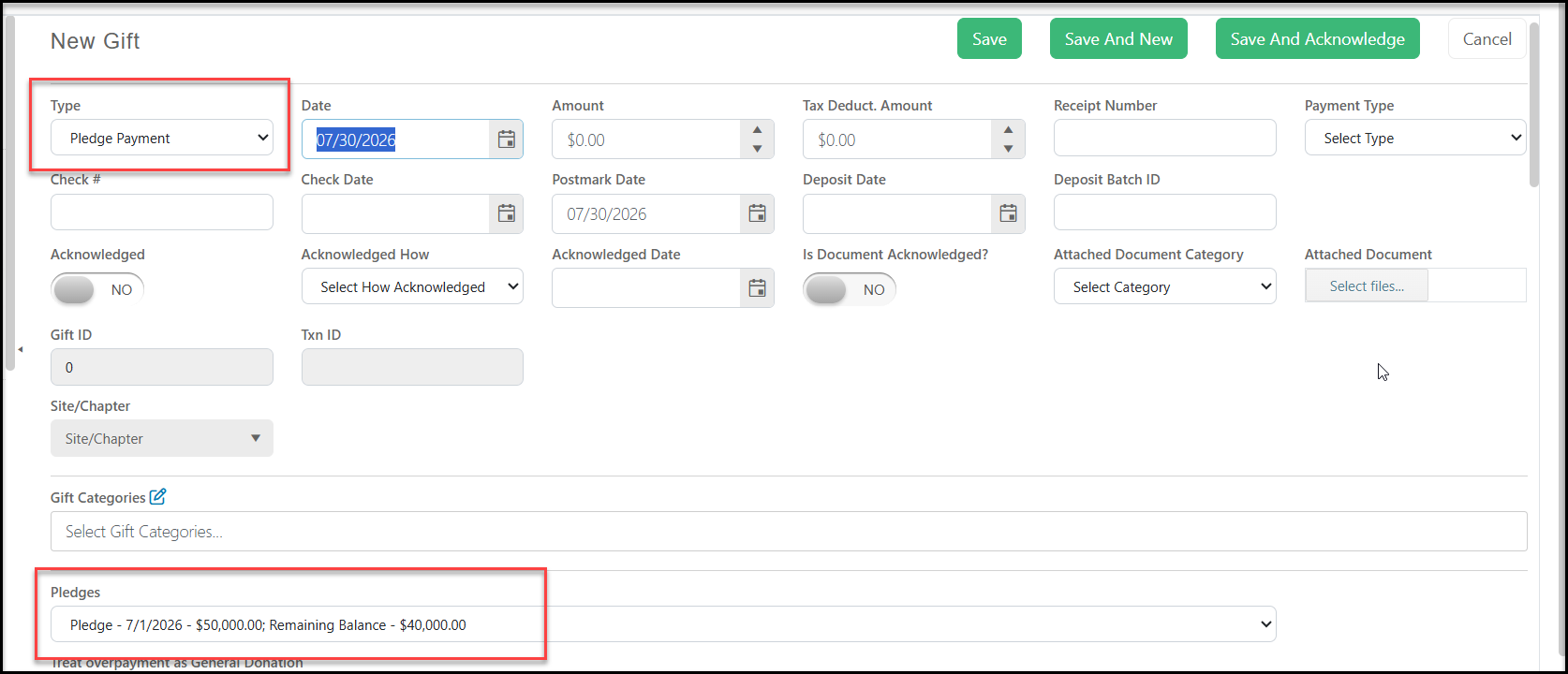
 From the New Gift Screen, select **Pledge Payment** as the gift **Type**. Once Pledge Payment is selected, the screen will update and show the pledges in the drop down menu under **Pledges**. Be sure to select the correct pledge to pay, then enter the Date, Payment Amount, and other information as needed. Note that the revenue categories, For-Fund-Event-Appeal-Fundraising Goal Category will auto-populate with what was assigned for the original pledge.
When finished entering the information, click on the green **Save** or Save and Acknowledge buttons at the top or bottom of the page to complete the transaction.
From the New Gift Screen, select **Pledge Payment** as the gift **Type**. Once Pledge Payment is selected, the screen will update and show the pledges in the drop down menu under **Pledges**. Be sure to select the correct pledge to pay, then enter the Date, Payment Amount, and other information as needed. Note that the revenue categories, For-Fund-Event-Appeal-Fundraising Goal Category will auto-populate with what was assigned for the original pledge.
When finished entering the information, click on the green **Save** or Save and Acknowledge buttons at the top or bottom of the page to complete the transaction.