# How do I enter a new Payment on the Enrollment Dashboard?
> Source: https://support.donorview.com/how-do-i-enter-a-new-payment-on-the-enrollment-dashboard | Updated: 2025-06-20T14:44:42Z
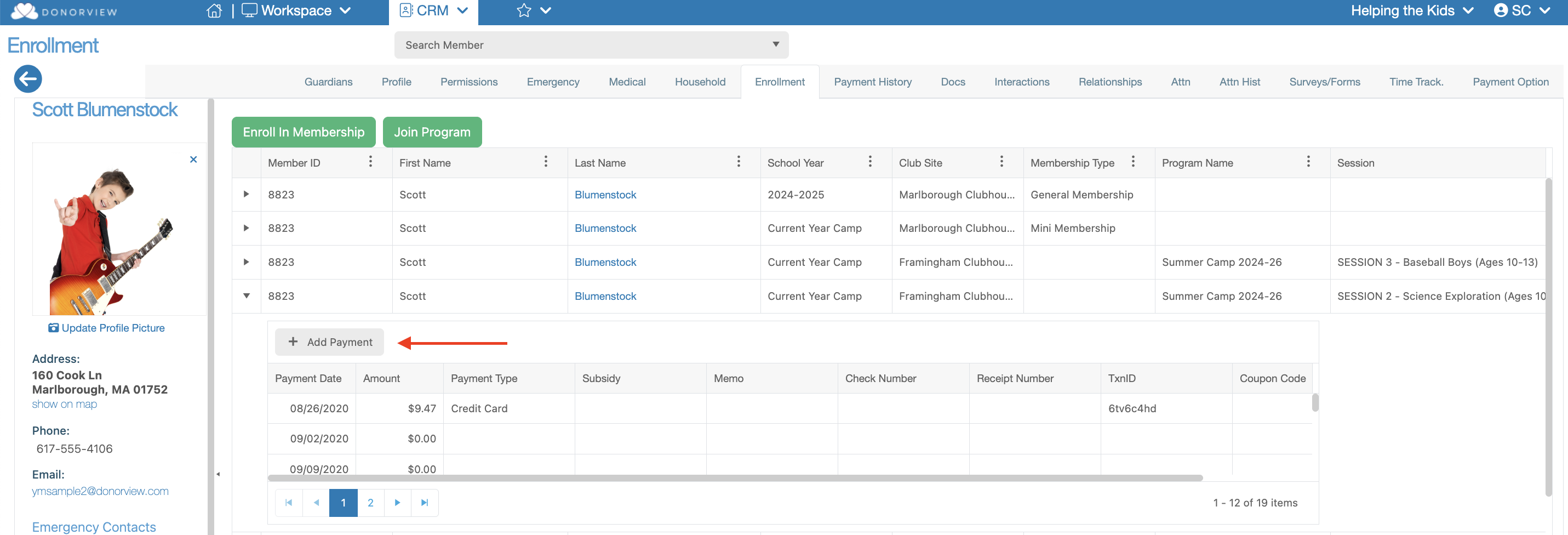
A new payment can be entered either by clicking on the
Dollar icon or when you expand the payment details on an Enrollment you will
find a, “+ Add Payment” button.
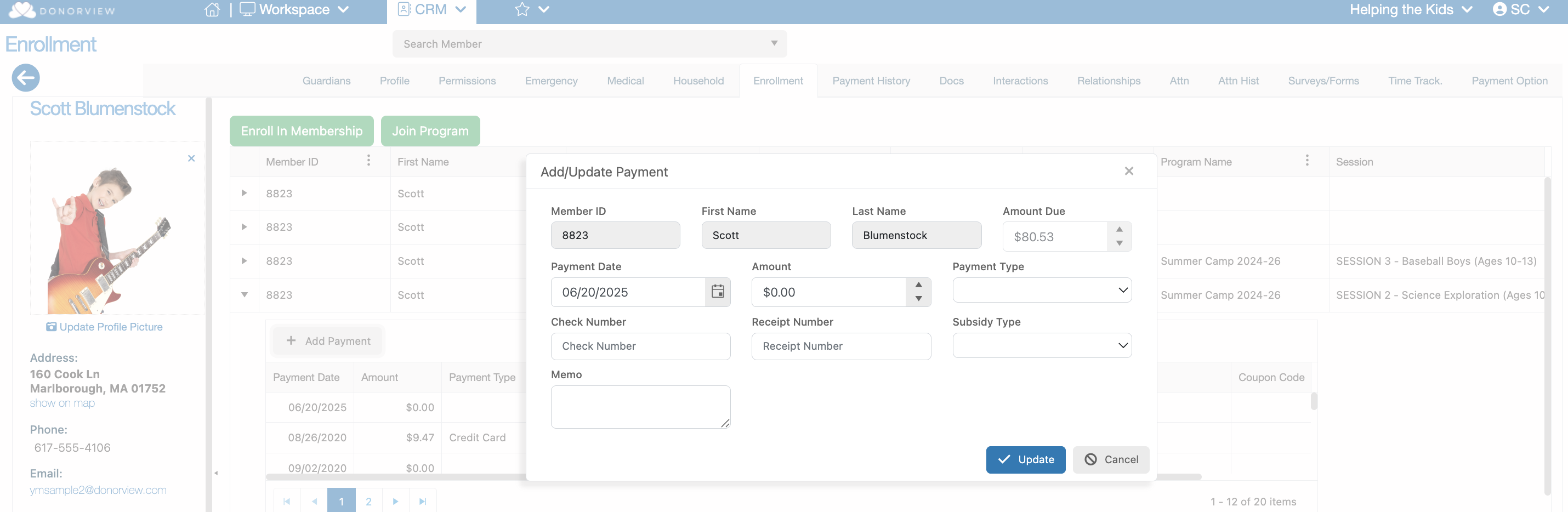
 This button will launch a dialog window that
will allow you to enter the following:
- **Payment Date**
- **Amount**
- **Payment Type**
- **Check Number**
- **Receipt Number**
- **Subsidy –** This is a customizable dropdown that allows you to create labels for things like scholarships and other subsidies.
- **Memo**
This button will launch a dialog window that
will allow you to enter the following:
- **Payment Date**
- **Amount**
- **Payment Type**
- **Check Number**
- **Receipt Number**
- **Subsidy –** This is a customizable dropdown that allows you to create labels for things like scholarships and other subsidies.
- **Memo**