# How do I enroll a Member?
> Source: https://support.donorview.com/how-do-i-enroll-a-member | Updated: 2025-06-20T14:11:07Z
A member can be enrolled in either a Membership School Year
or a Program from inside of their Member record. Once inside the record there
is a tab called “Enrollment”. On this tab there is a grid that will list any
previous enrollments for this Member. The grid will also contain the details of
each enrollment.
Above the grid there will be one or two green buttons. If
the Member has never been enrolled you will only see a single green button
titled, “Enroll in Membership”.
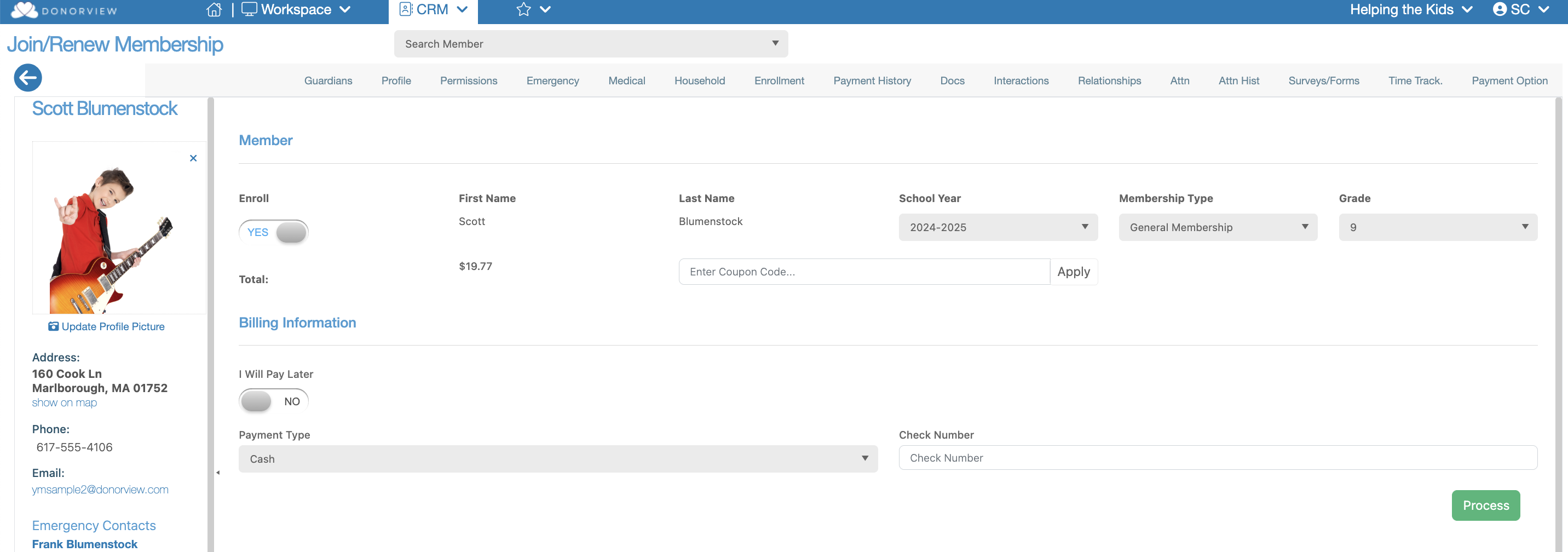
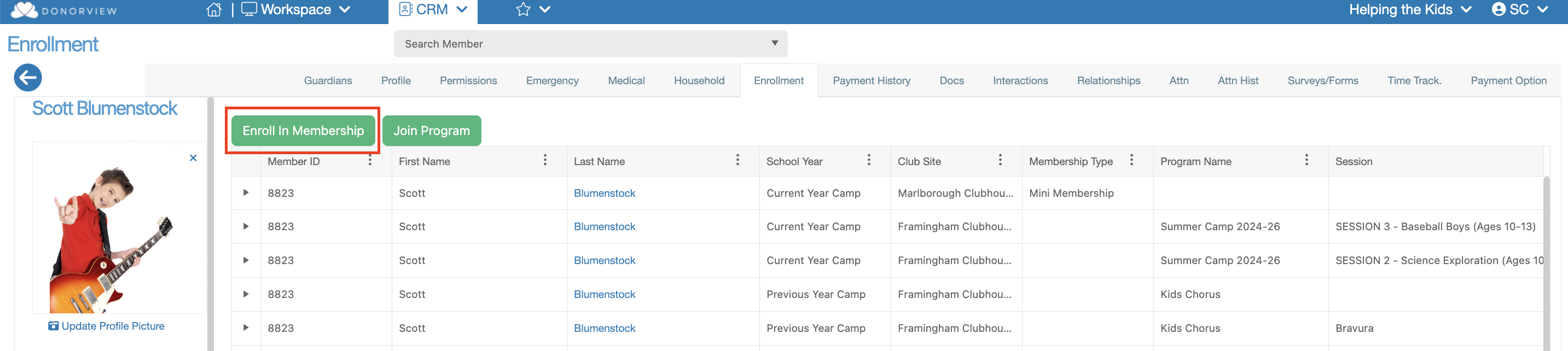 Clicking this button will allow you to select
the School Year, Membership Type and Grade of the member. Then you can select
Pay Later if available and the Payment Type. Once you have made all your
selections, click “Process”.
Clicking this button will allow you to select
the School Year, Membership Type and Grade of the member. Then you can select
Pay Later if available and the Payment Type. Once you have made all your
selections, click “Process”.
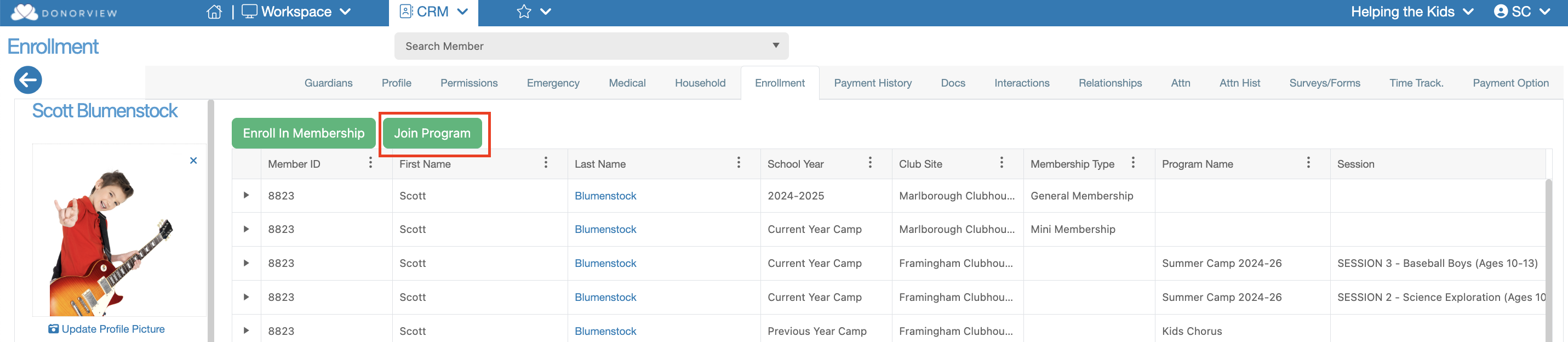
 The second green button above the grid is called, “Join
Program”. This button is only visible after the Member has been enrolled in a
Membership.
The second green button above the grid is called, “Join
Program”. This button is only visible after the Member has been enrolled in a
Membership.
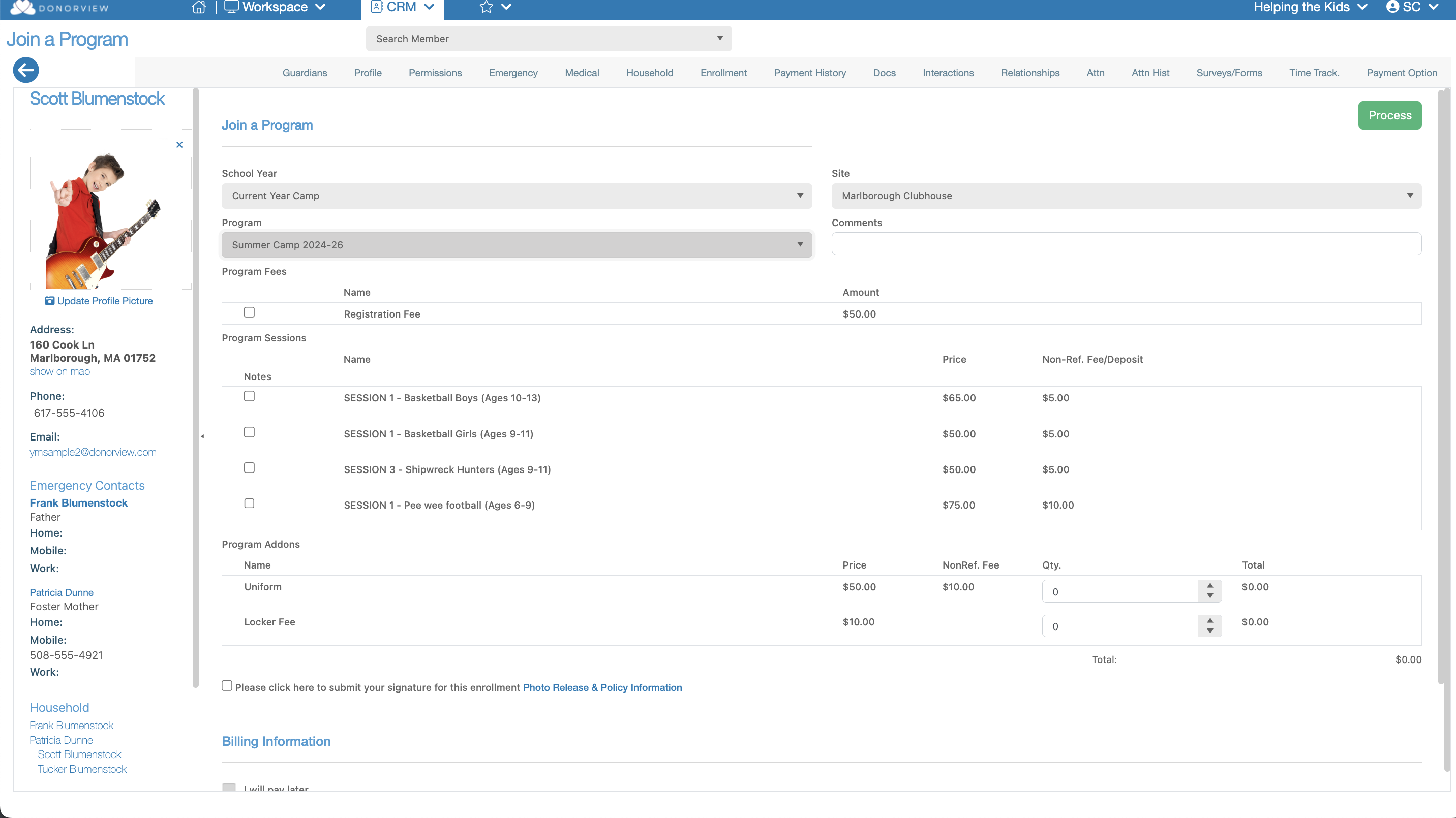
 Clicking this button will allow you to select the School Year,
Site, Program, Session and any available Add Ons. Then you can select Pay Later
if available and the Payment Type. Once you have made all your selections click
“Process”.
Clicking this button will allow you to select the School Year,
Site, Program, Session and any available Add Ons. Then you can select Pay Later
if available and the Payment Type. Once you have made all your selections click
“Process”.