# How do I create an Interaction for a Member?
> Source: https://support.donorview.com/how-do-i-create-an-interaction-for-a-member | Updated: 2025-06-20T13:55:41Z
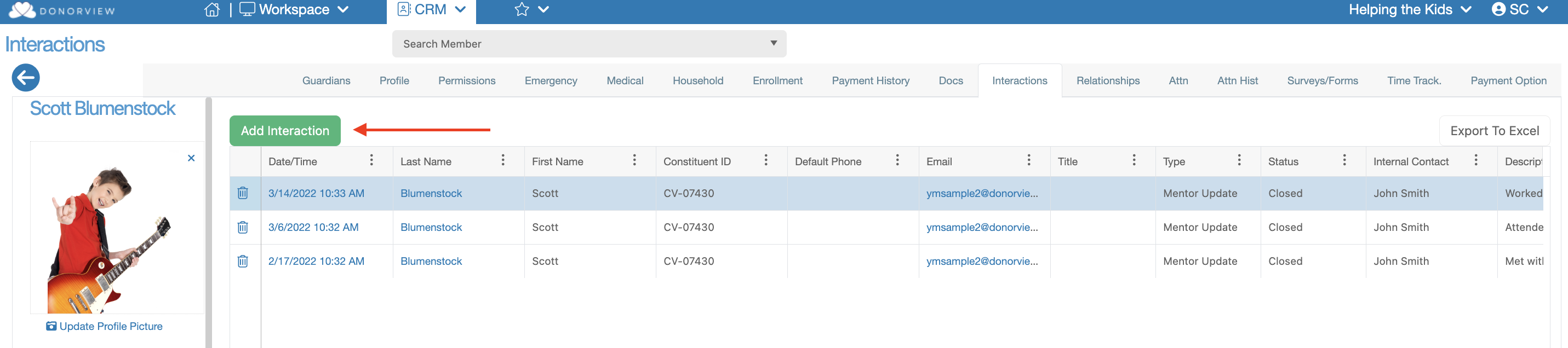
Once inside a Member’s record you just need to click on the
“Interactions” tab. Once there you will see any Interactions that were
previously created. You will also see a green, “Add Interaction” button. Click
this button and a new Interaction form will appear.
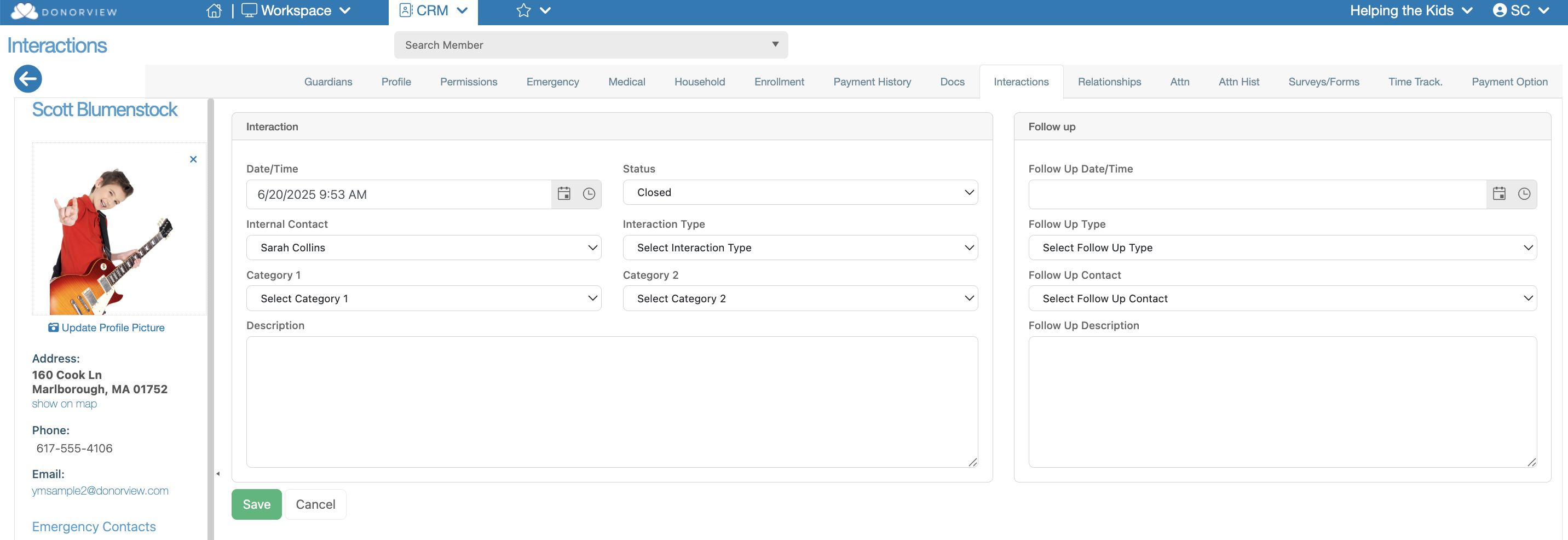
 On this import form you can
fill out the following:
**Interaction:**
- **Time/Date** – This will default to the current date and time but you may change it.
- **Status** – Select whether the Interaction is open or closed.
- **Internal Contact** – This will default to your Name but you can change who the contact is.
- **Interaction Type** – Select the type of interaction, you can customize this list.
- **Category 1/Category 2** – Select tags for the Interaction to make it easier to find or identify. You can customize these dropdowns.
- **Description** – Enter comments on what took place during the Interaction.
**Follow Up:**
- **Follow Up Time/Date** – If a follow up is required, enter the date and time it will occur.
- **Follow Up Type** – Enter how the follow up will take place.
- **Follow Up Contact** – Select which contact will be following up.
- **Follow Up Description** - Enter comments on what should occur during the Follow Up.
On this import form you can
fill out the following:
**Interaction:**
- **Time/Date** – This will default to the current date and time but you may change it.
- **Status** – Select whether the Interaction is open or closed.
- **Internal Contact** – This will default to your Name but you can change who the contact is.
- **Interaction Type** – Select the type of interaction, you can customize this list.
- **Category 1/Category 2** – Select tags for the Interaction to make it easier to find or identify. You can customize these dropdowns.
- **Description** – Enter comments on what took place during the Interaction.
**Follow Up:**
- **Follow Up Time/Date** – If a follow up is required, enter the date and time it will occur.
- **Follow Up Type** – Enter how the follow up will take place.
- **Follow Up Contact** – Select which contact will be following up.
- **Follow Up Description** - Enter comments on what should occur during the Follow Up.