# How do I create an email list that includes all constituents?
> Source: https://support.donorview.com/how-do-i-create-an-email-list-that-includes-all-constituents | Updated: 2026-10-12T20:40:12Z
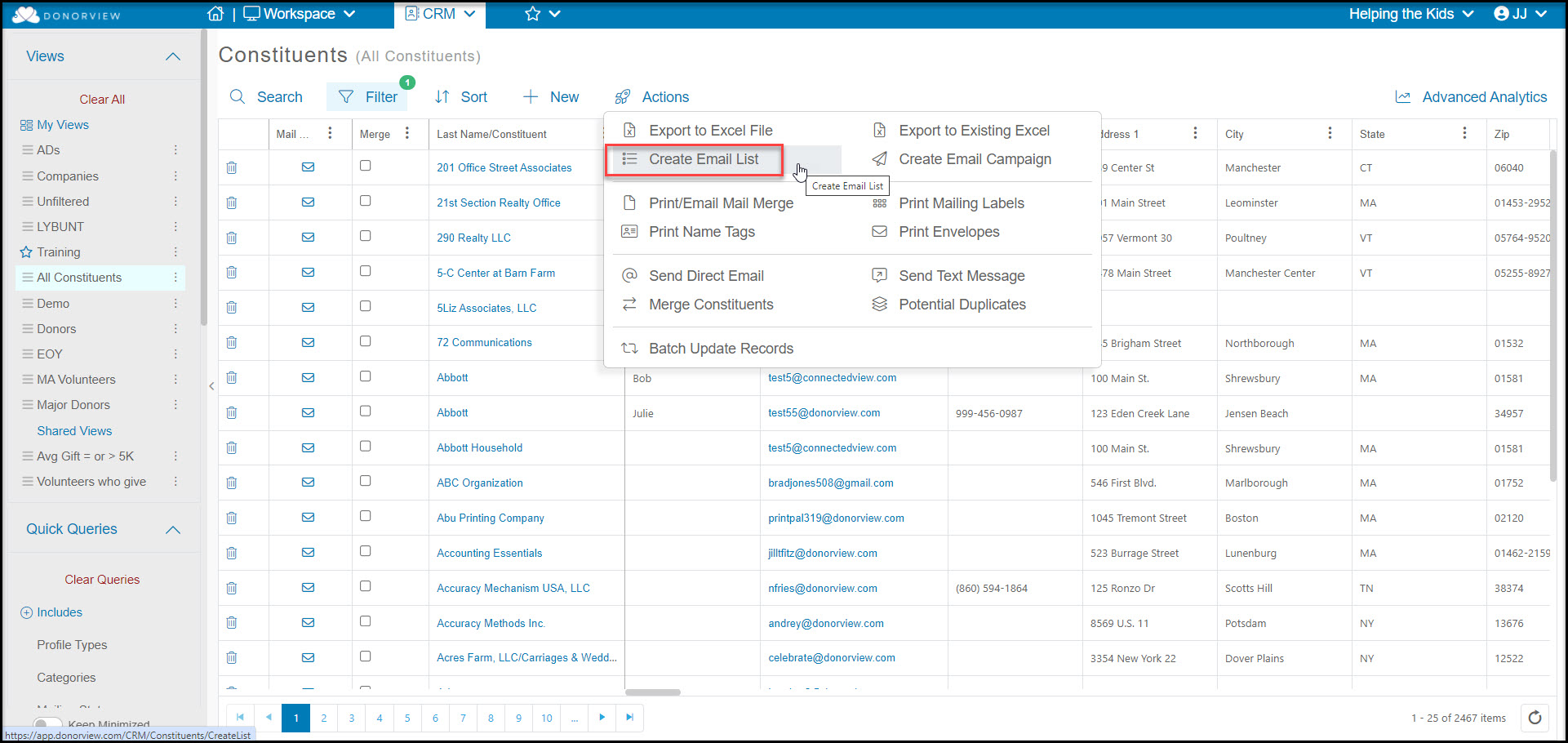
You can use the Actions menu from the Constituents grid. Go to Workspace>CRM>Constituents. Select **Actions**, then select **Create Email List**.
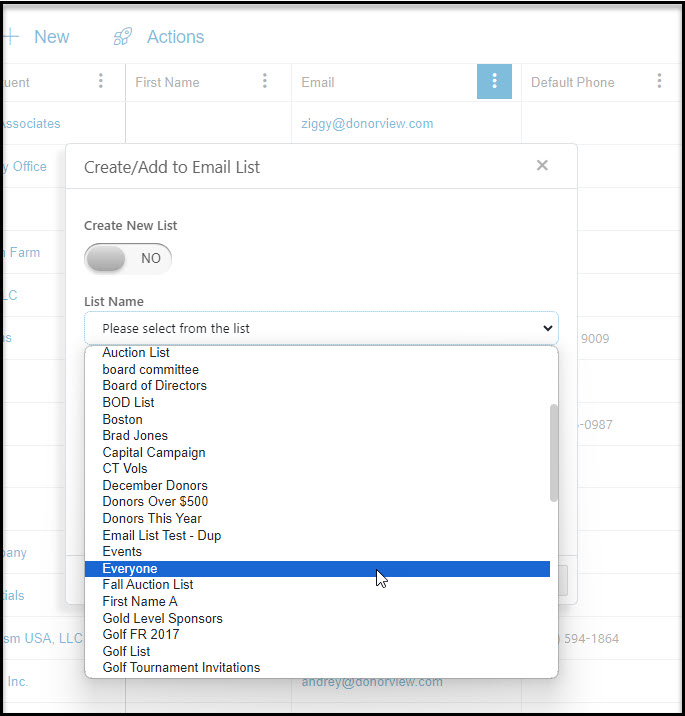
 A new window will open to allow you to add the constituents to an existing list or create a new list. With **Create New List** selected as **NO**, you will select from a list of your existing email lists. Once you select the list, click on **Save** to add everyone showing on the grid who has a primary email address to that email list. If they are already on the list, it will not add them again.
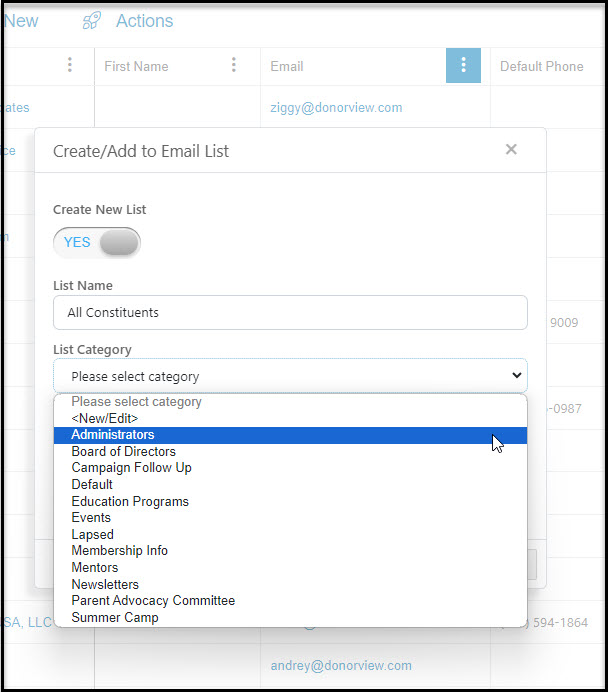
 Selecting **YES** for **Create New List** will allow you to enter a name for the **List Name** and select a **List Category** that this new email list will be associated with. List Category can be considered an area of interest. You can learn more about List Categories here: [How can I create or edit my email list categories?](./how-can-i-create-or-edit-my-email-list-categories-dv) Click **Save** to add your new email list to all the constituents with email addresses showing on the grid.