# How do I create a report?
> Source: https://support.donorview.com/how-do-i-create-a-report-dv | Updated: 2024-08-21T19:22:55Z
In DonorView terminology, a report is generally a view created on a grid. You can add queries, filters and sorts to a grid to produce the specific data you want to see.
When creating a new view, begin with the end in mind. What data do you want to see? What needs to be included and excluded? On what grid can I find this information? For example, to create a report of recent memberships, you will go to the Membership grid and use the Quick Queries menu and select **Date**. Here you can enter the data range for membership transactions. You can continuing refining your view by adding other filters and sorts. You can save this view using the **Save As** feature on the View, or share it with other DonorView users using **Share View.** Views can also be exported to Excel using the Actions menu on top of the grid.
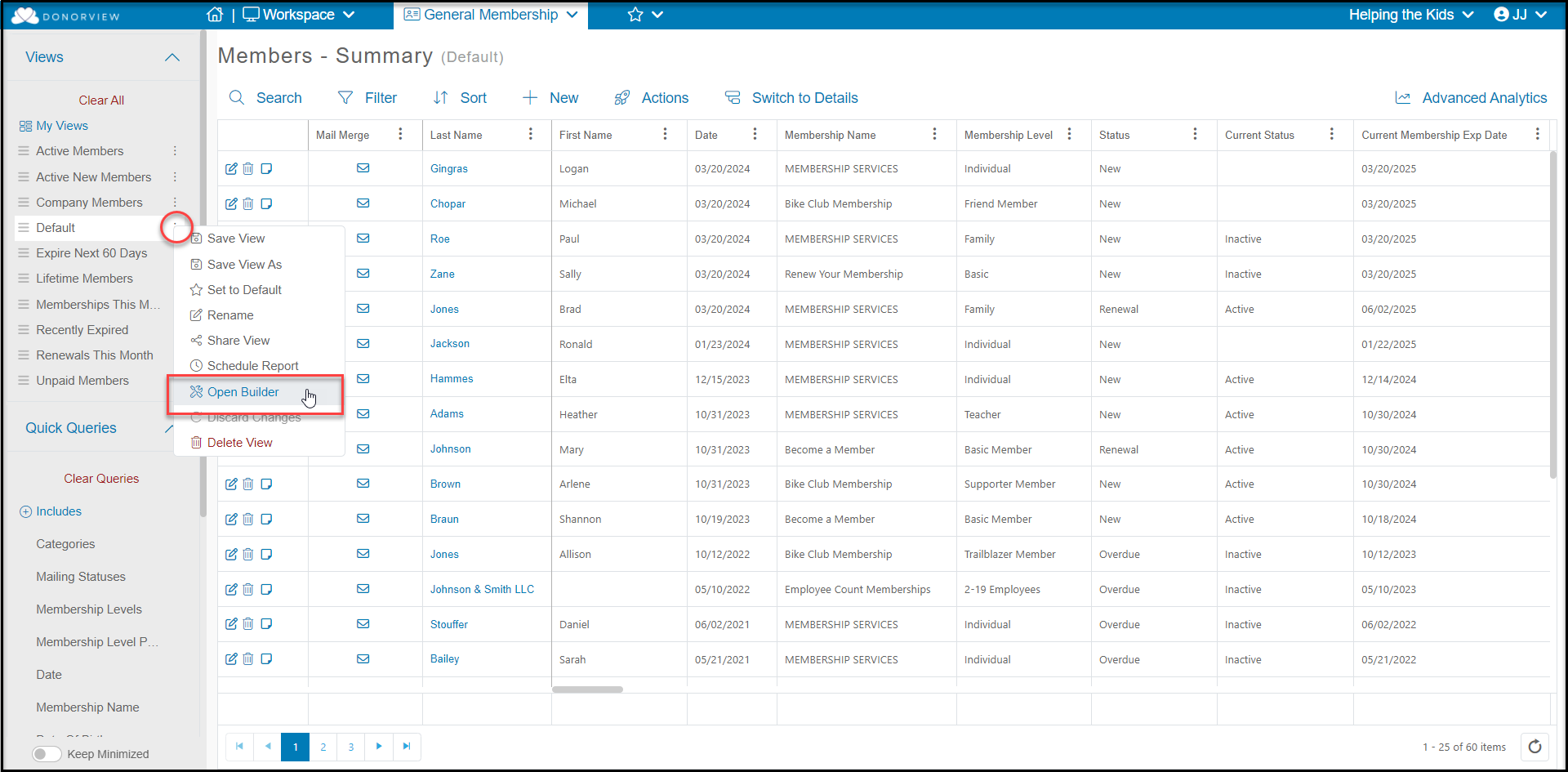
You can find many pre-made views in the View Builder library. You can find the View Library for a specific grid by clicking on the three dots next to any view, then clicking on **Open Builder.**
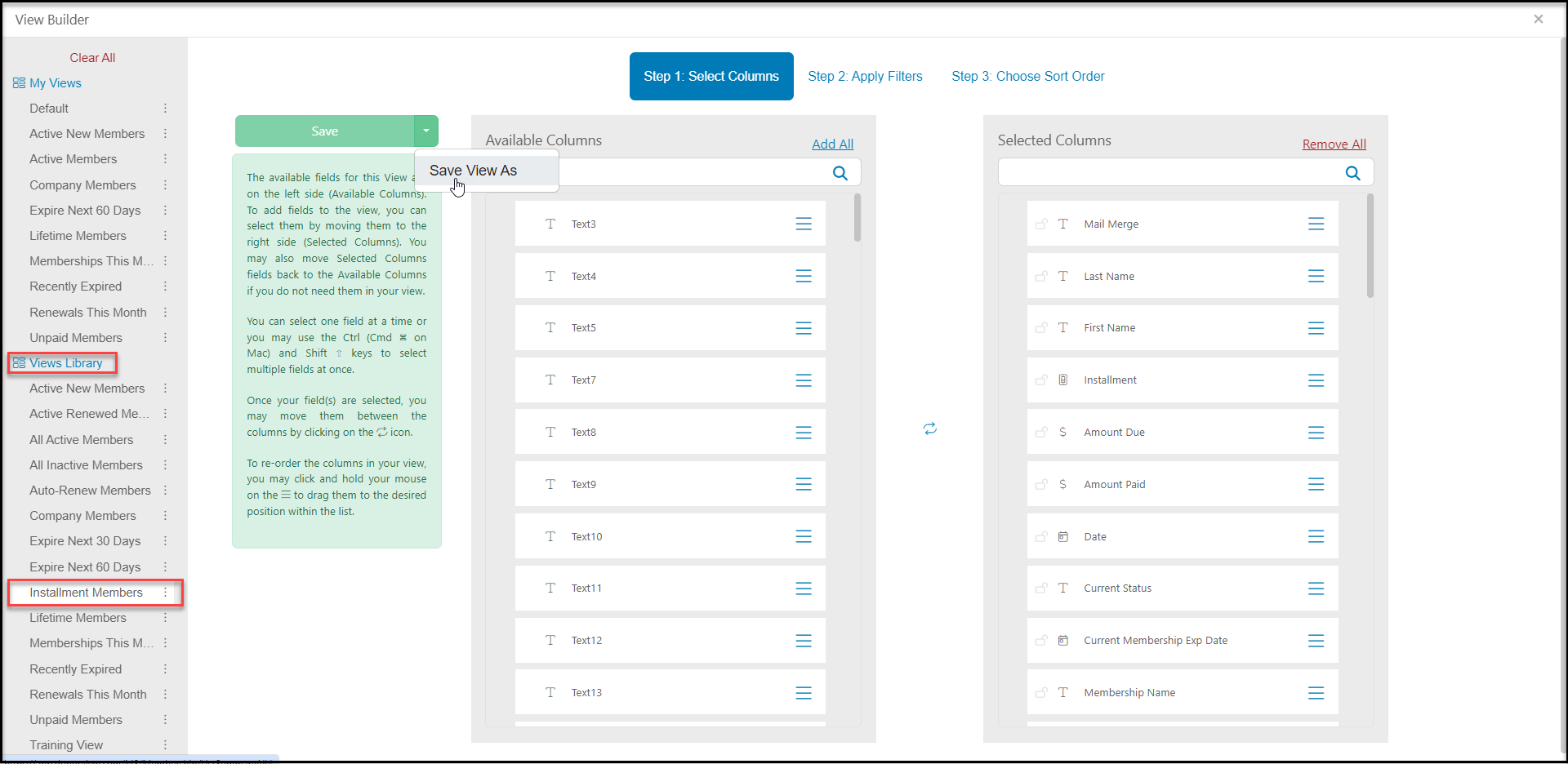
 Click on the view you'd like to use then click the **Save** arrow, click **Save View As**, and you can rename the view as desired. You can modify the column arrangements, filters, and sorts as well. Close the builder by clicking on the small "**x**" in the upper right hand corner of the window.
 You can learn more about creating views in these articles: [https://support.donorview.com/en/support/solutions/folders/9000199002](https://support.donorview.com/en/support/solutions/folders/9000199002). If you need assistance creating a special view or report, please reach out to the support team [support@donorview.com](mailto:support@donorview.com) for guidance and suggestions.