# How do I add or edit a bidder number?
> Source: https://support.donorview.com/how-do-i-add-or-edit-a-bidder-number | Updated: 2026-04-14T16:45:51Z
1. Within the Event page editor, on the Event Settings tab, the **Allow To Edit Bidder #** must be set to **YES** in order to add or edit bidder numbers.
 2. Check the Auction Bidders grid to find the highest bidder number assigned so far. You will be using the next one to assign to your event attendee.
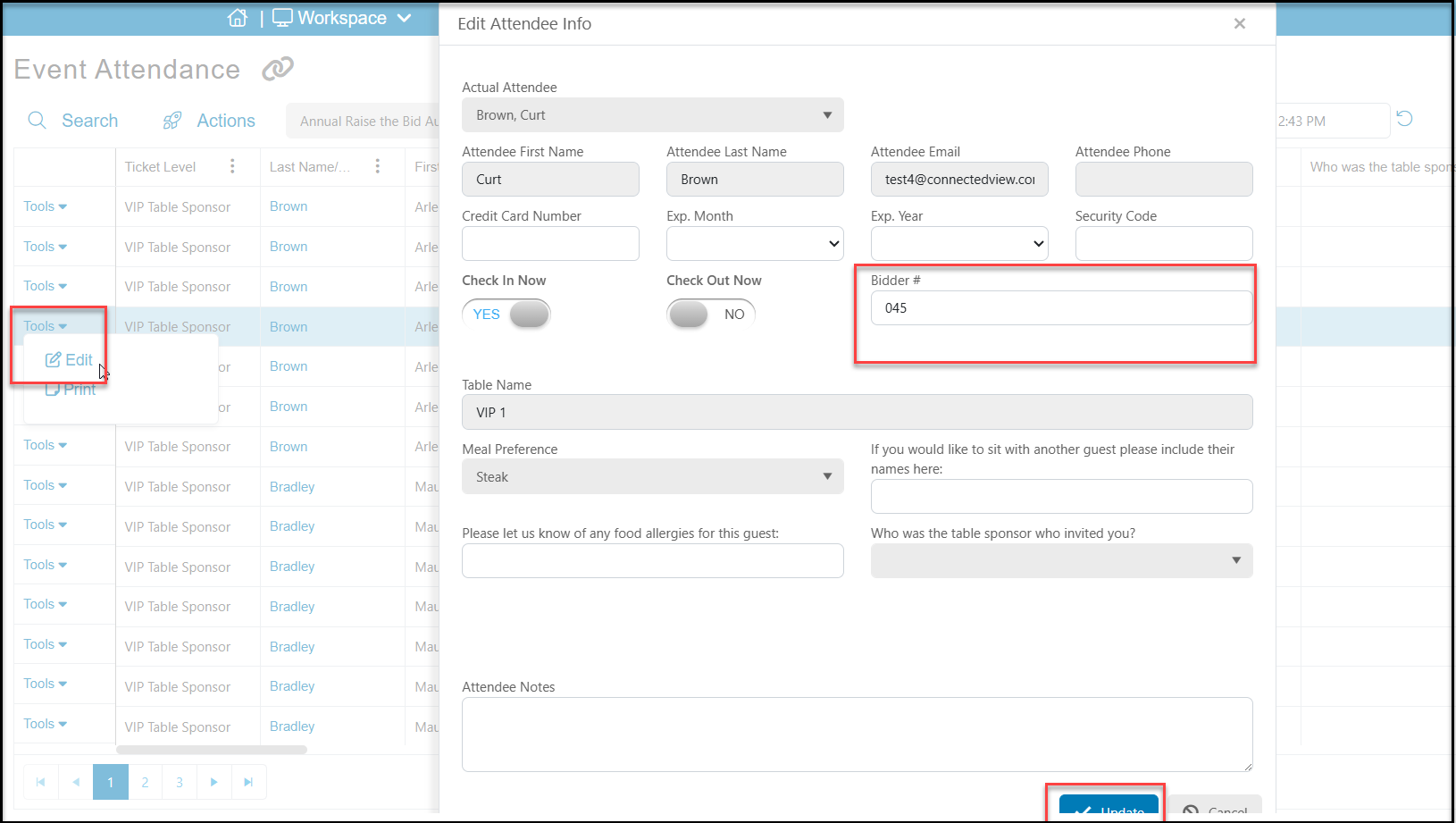
3. Bidder numbers can then be added by clicking on Tools from the left side of the row on the Event Attendance grid.
4. Bidder numbers can only be added one at a time, not in a batch.
5. Be sure to click the blue Update button at the bottom of the window to save your changes.
2. Check the Auction Bidders grid to find the highest bidder number assigned so far. You will be using the next one to assign to your event attendee.
3. Bidder numbers can then be added by clicking on Tools from the left side of the row on the Event Attendance grid.
4. Bidder numbers can only be added one at a time, not in a batch.
5. Be sure to click the blue Update button at the bottom of the window to save your changes.