# How can I make a correction to a seating chart used for an event?
> Source: https://support.donorview.com/how-can-i-make-a-correction-to-a-seating-chart-used-for-an-event | Updated: 2026-10-12T20:39:50Z
**Changing a seating chart for an event where tickets are already sold is extremely complicated and is not recommended. Contact [support@donorview.com](mailto:support@donorview.com) for assistance.**
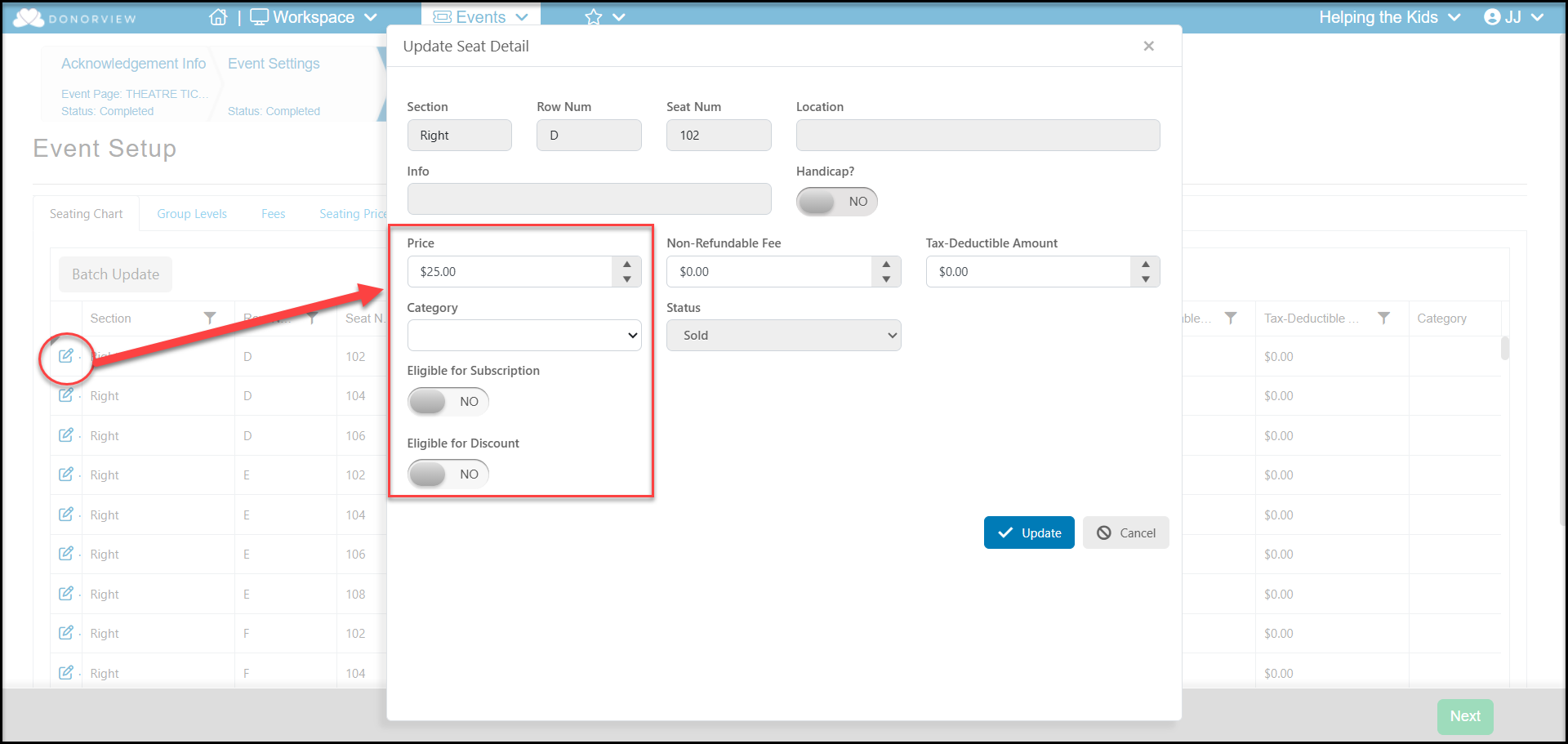
Once a seating chart has been uploaded for an event, the only changes you can make from the event page are to the Price, Category, and Subscription/Discount options for seats that have not already been sold. You cannot change the row, seat number or handicap accessibility from the event page.
To edit the available fields, click on the **Edit Icon** on the right side of the row/seat to be edited. Make applicable changes and click **Update** to save the changes.
 If changes are necessary to the seating chart itself, you must go back to the seating chart saved under **Events > Seating Charts.**
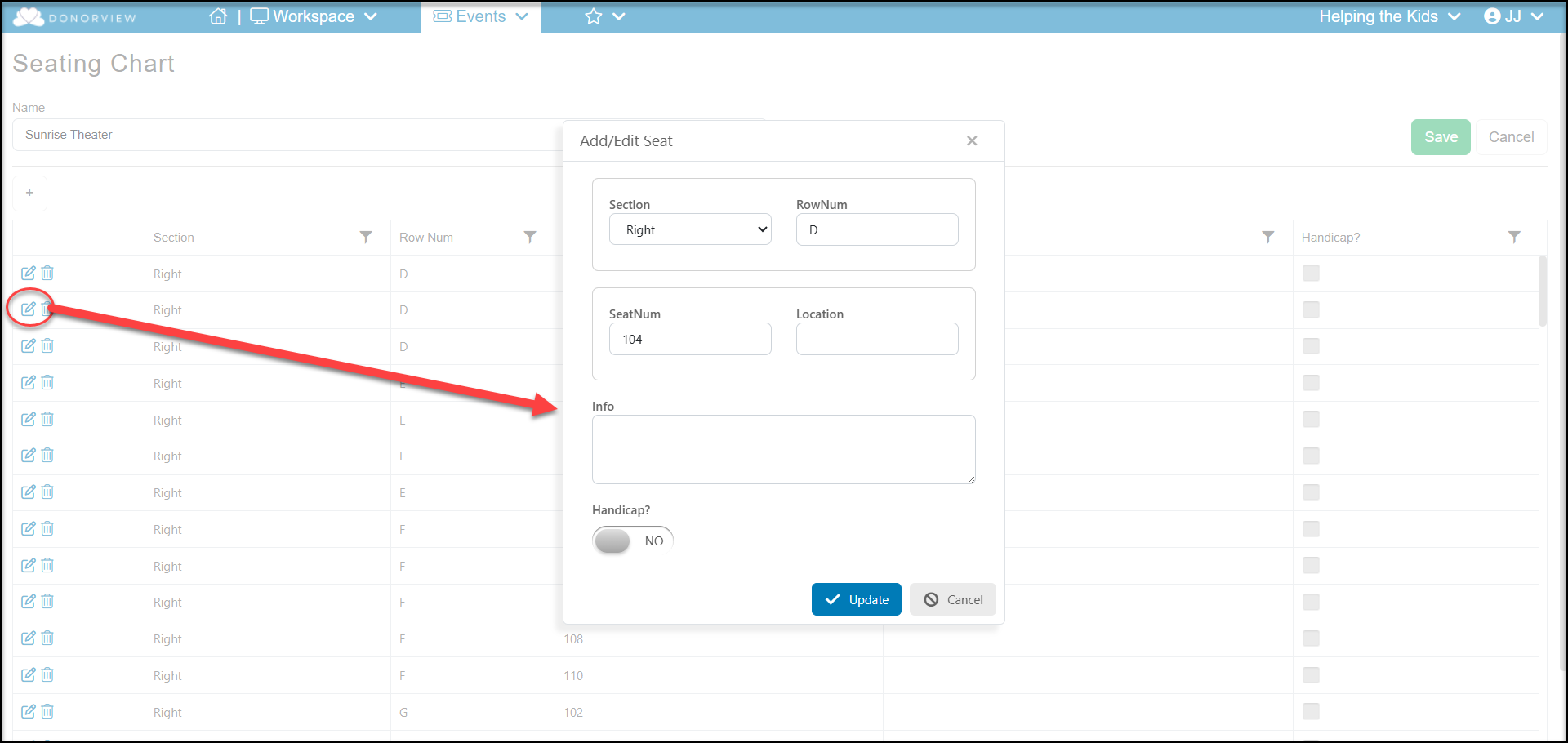
Select the seating chart to change and click on **View/Edit**. Changes can only be made one seat at a time, there is no batch update option available. Select the seat to edit and click on the **Edit Icon** on the left side of the row. Make your changes and click **Update** to save the changes. Be sure to click **Save** in the at the top left of the screen to save the changes to the chart.
If changes are necessary to the seating chart itself, you must go back to the seating chart saved under **Events > Seating Charts.**
Select the seating chart to change and click on **View/Edit**. Changes can only be made one seat at a time, there is no batch update option available. Select the seat to edit and click on the **Edit Icon** on the left side of the row. Make your changes and click **Update** to save the changes. Be sure to click **Save** in the at the top left of the screen to save the changes to the chart.
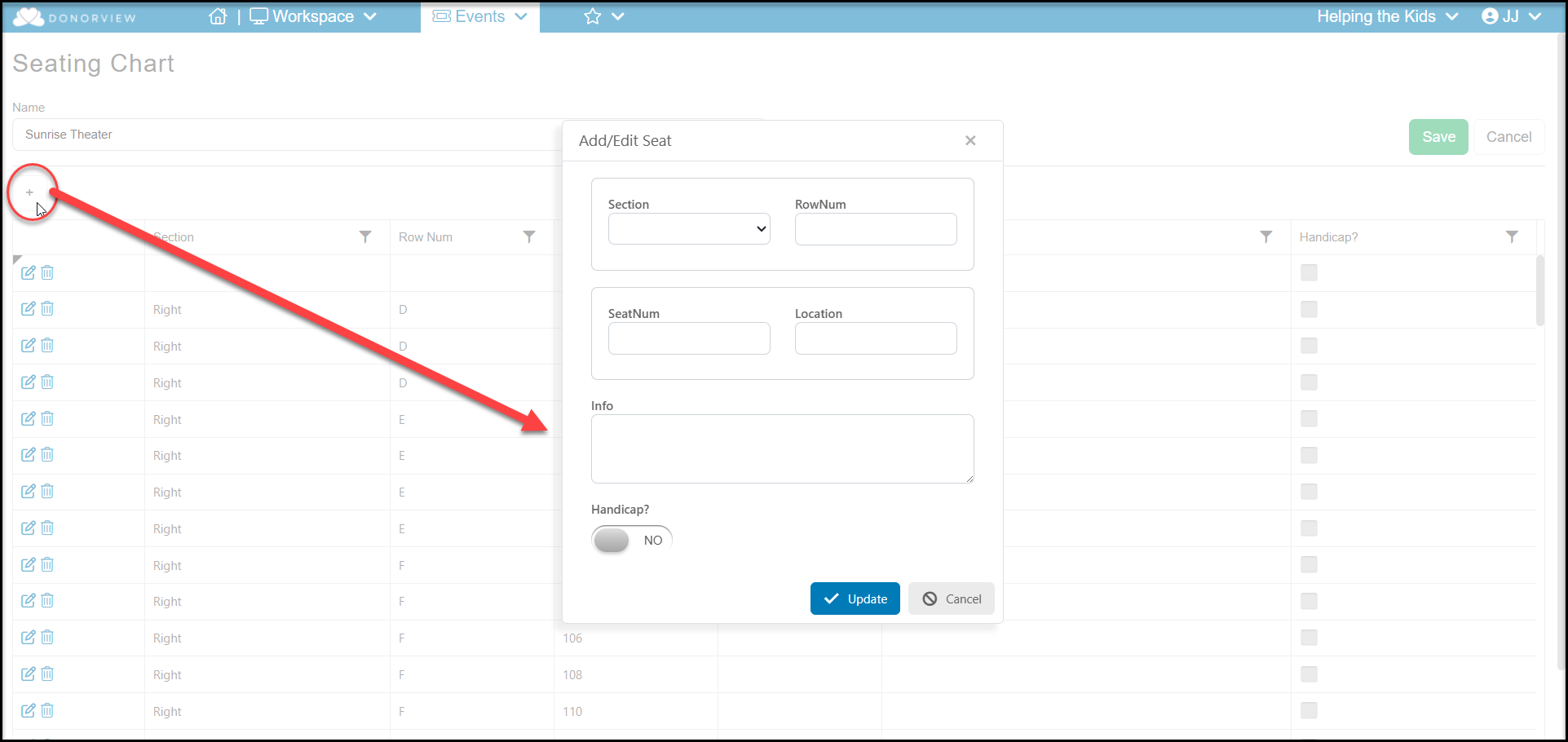
 You can add seats by clicking on the **"+**" icon at the top of the grid. This will only allow you to add seats to the end of a row. You cannot insert a seat. To add a seat to the middle of a row, you would need to renumber the seats affected. Editing each affected seat, then add a seat with the applicable seat number to the end of the row. The added seat numbers will not be shown in numerical order on the chart, they will be added to the end of the entire grid.
 These seating chart changes are not automatically reflected in the event you will need to reselect the seating chart. **If tickets have already been sold for the event, contact support for assistance.** Changing a seating chart for an event where tickets are already sold is extremely complicated and is not recommended.
If no tickets have been sold for an event, you can replace the seating chart with the updated chart. **Changing the seating chart will clear all the pricing, category, status and subscription info for all the seats.** To proceed, go to Events > Event Pages. Select the event and click on **View/Edit**. Go to the Event Settings page and change the Seating Chart to “Select Seating Chart” to clear the selection. Click **Save** at the bottom of the page.
These seating chart changes are not automatically reflected in the event you will need to reselect the seating chart. **If tickets have already been sold for the event, contact support for assistance.** Changing a seating chart for an event where tickets are already sold is extremely complicated and is not recommended.
If no tickets have been sold for an event, you can replace the seating chart with the updated chart. **Changing the seating chart will clear all the pricing, category, status and subscription info for all the seats.** To proceed, go to Events > Event Pages. Select the event and click on **View/Edit**. Go to the Event Settings page and change the Seating Chart to “Select Seating Chart” to clear the selection. Click **Save** at the bottom of the page.
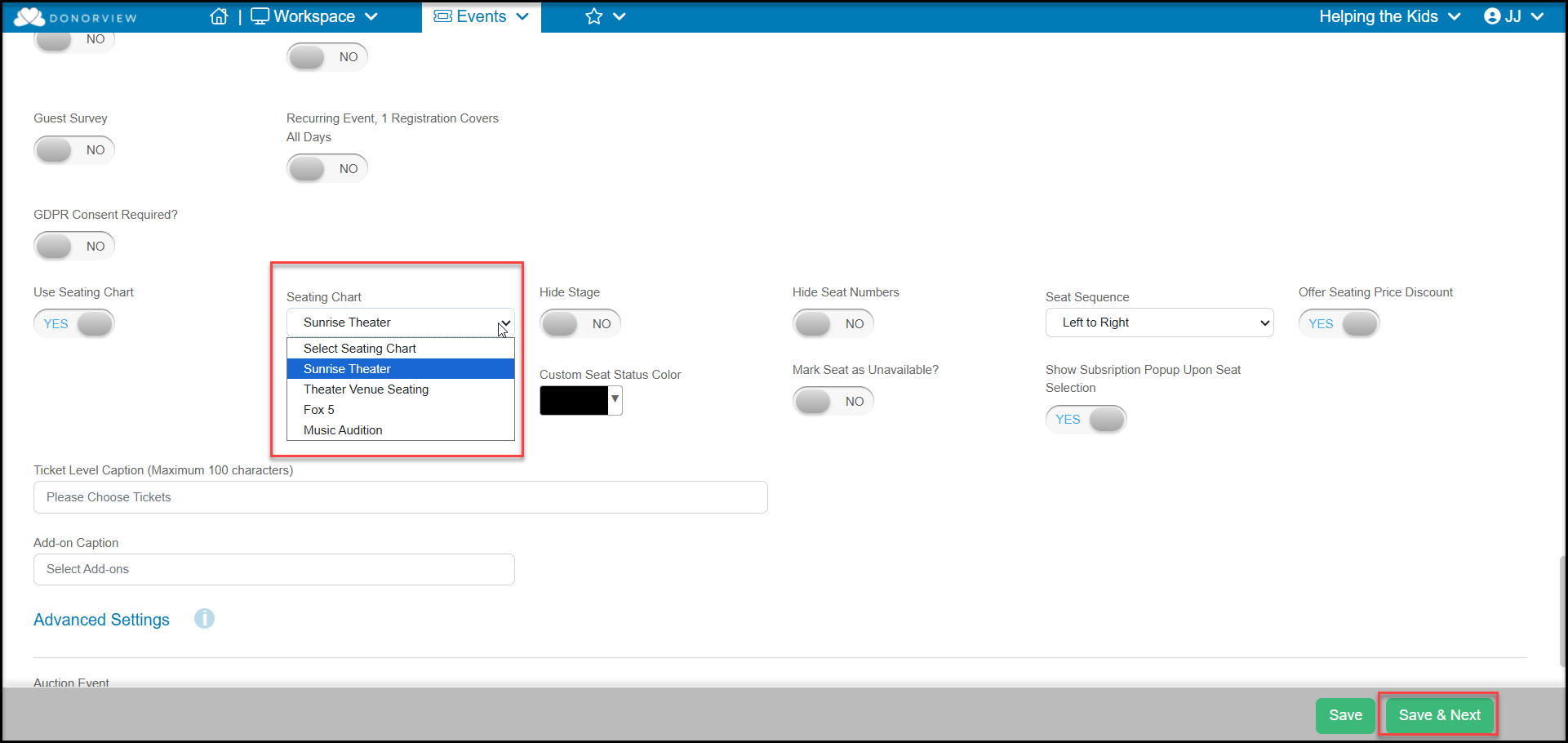 Go back to the Seating Chart and select the newly updated seating chart. Click Save & Next at the bottom of the page. This will take you to the Event Setup page. You will need to repeat the process of assigning price, category, status, and subscription information for the seats. Review the article **“**[**Using Seating Charts for Events”**](./using-seating-charts-for-events) for more instruction on these assignments and completing the event page.