# How can I add a non-binary option to the gender selections?
> Source: https://support.donorview.com/how-can-i-add-a-non-binary-option-to-the-gender-selections-dv | Updated: 2026-10-09T12:55:50Z
The default values for the **Gender** field picklist are: Male, Female and Not Provided. However, if you wish to also have “non-binary” as a picklist option you can turn on a setting under your Account Settings.
Mouse over your Organization’s name in the upper right corner of the software and click on Account. Once on your Account Settings select the “Options” tab and under the General area, set **Show Non-Binary in Gender Dropdown?** to **YES**. Click the **Save** button at the bottom of the page.
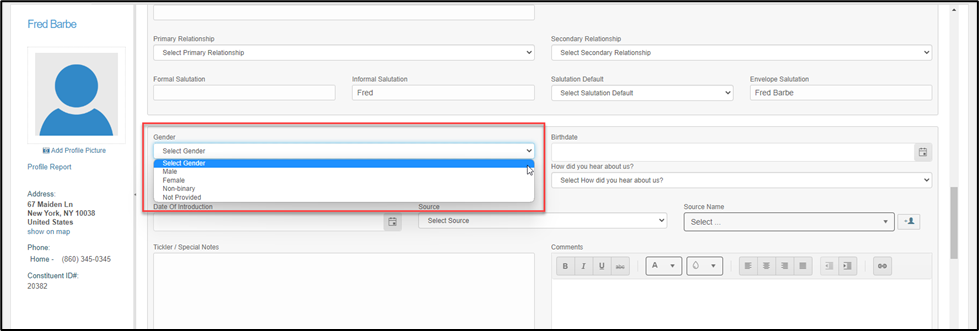
 With this setting to “Yes” the **Gender** field will include “non-binary” as a choice on a individual constituent's profile page. This will also update choices wherever this field is used to collect information like the Constituent Portal, membership pages, and surveys.
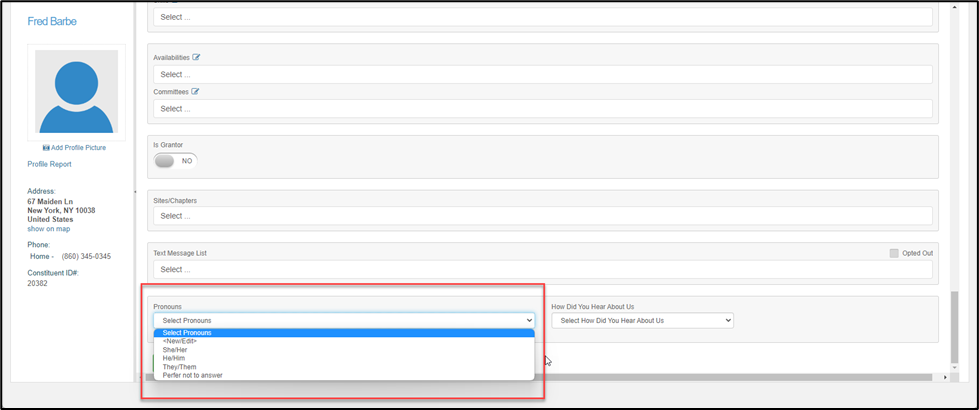
 Turning this setting on will also add a brand-new picklist field called **Pronouns** onto the Constituent profile. The **Pronouns** field will have an editable picklist so you can customize the values you wish to make available for selection.