# How can I add a credit card to an attendee’s record?
> Source: https://support.donorview.com/how-can-i-add-a-credit-card-to-an-attendees-record-dv | Updated: 2026-08-03T14:15:40Z
There are several ways to add a credit card to an attendee's record.
**Manually Via the Event Attendance Grid**
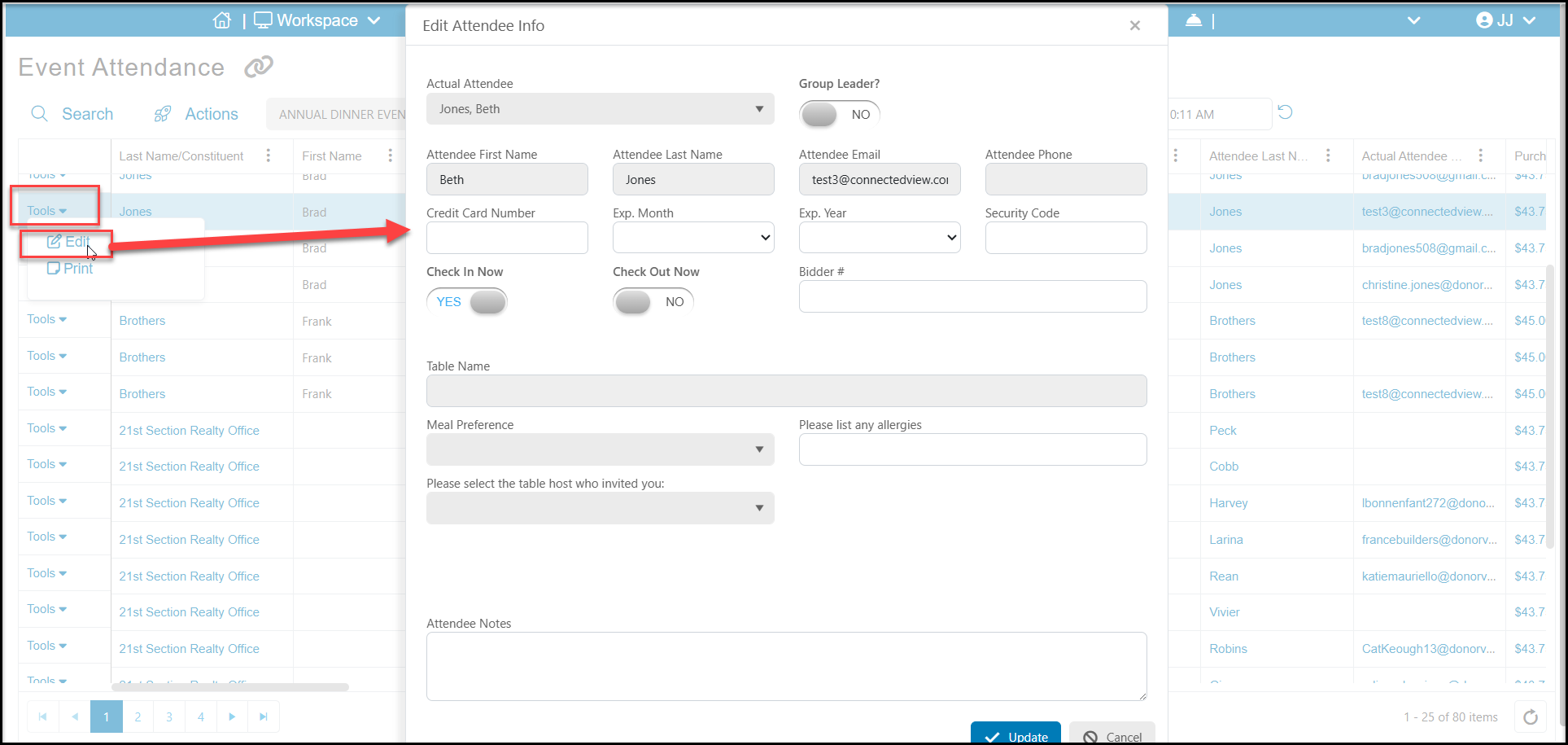
The fastest way to enter a credit card manually is to click on the **Tools** on the left side of the row for the attendee. Select **Edit** and in the new window enter the **Credit Card Number**, **Expiration Month and Year** and **Security Code**. Click **Update** at the bottom to save the information.
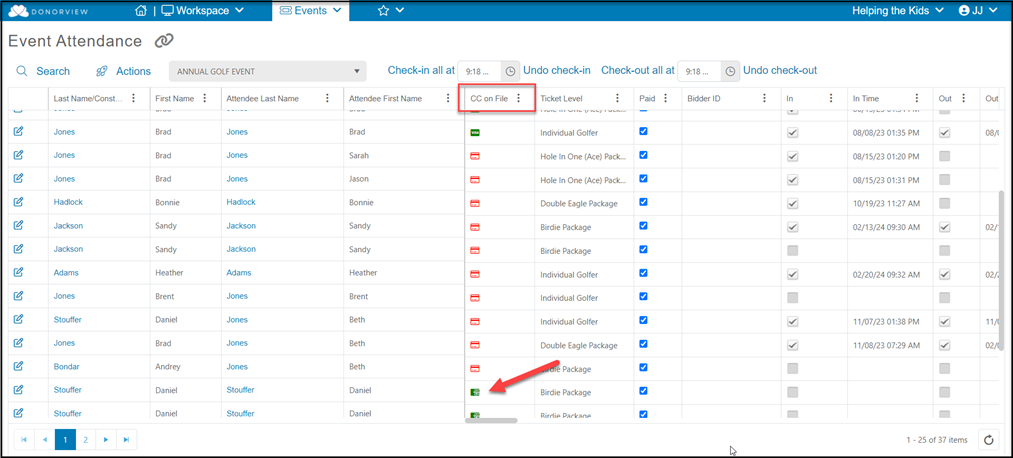
 You can also click on the credit card icon on the attendee's row to enter the card number in the Payment Methods tab of their record.
 **Swiping a credit card using the DV Connect App**
It is strongly recommended that this activity be practiced by all those using the app prior to the event.
1. Log into the DV Connect App.
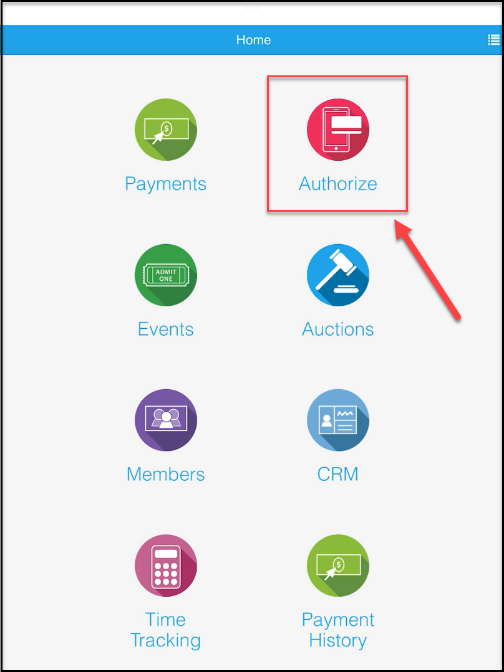
2. Click on the Authorize icon.
**Swiping a credit card using the DV Connect App**
It is strongly recommended that this activity be practiced by all those using the app prior to the event.
1. Log into the DV Connect App.
2. Click on the Authorize icon.
 3. Swiping the credit card is demonstrated in these videos:
Stripe Swiper (white) - https://vimeo.com/1024079232/ec89adabb3
ID Tech Swiper (black) - Mobile App - iPad:https://vimeo.com/738265241/450ca22c8a
3. Swiping the credit card is demonstrated in these videos:
Stripe Swiper (white) - https://vimeo.com/1024079232/ec89adabb3
ID Tech Swiper (black) - Mobile App - iPad:https://vimeo.com/738265241/450ca22c8a