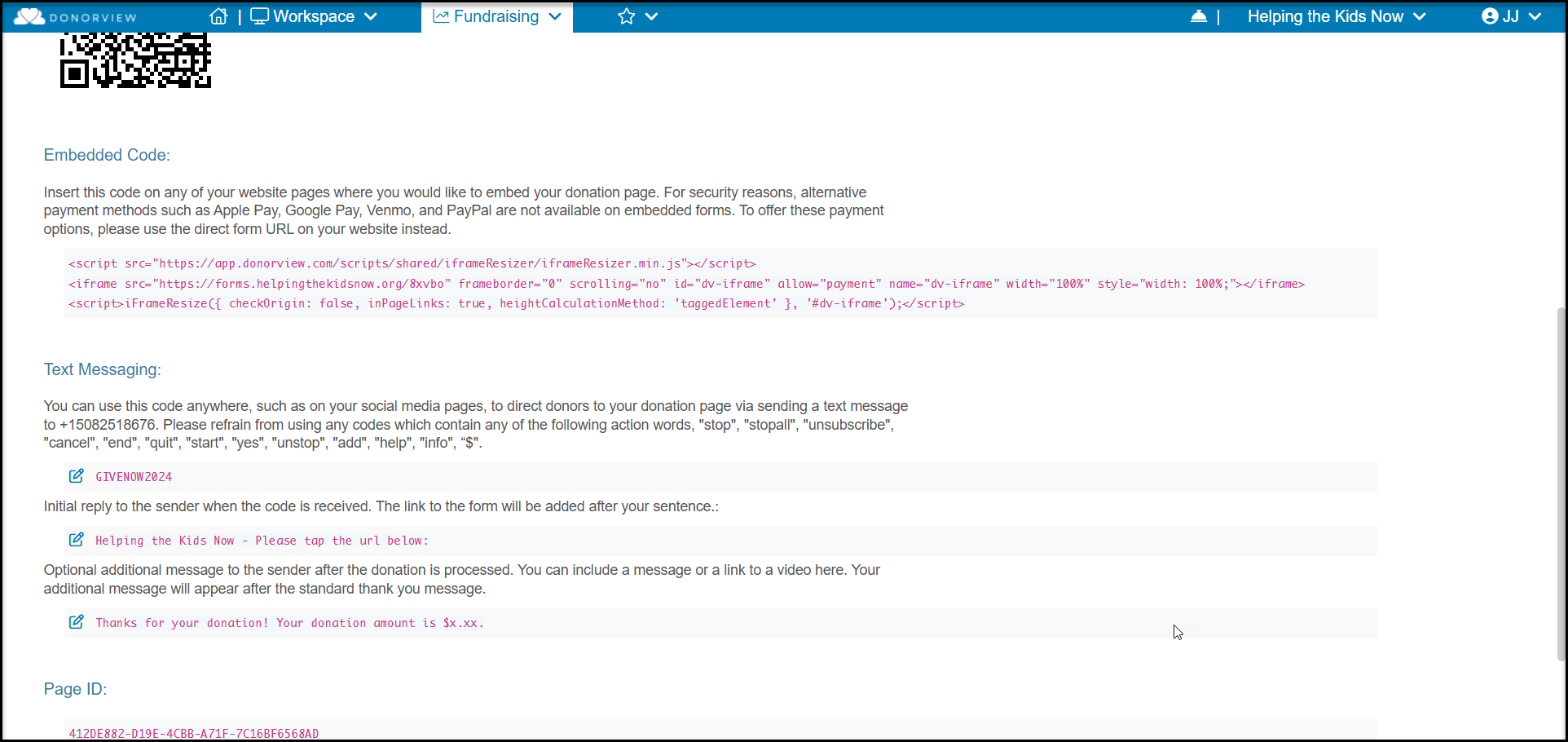
Once you finish all the steps for setting up the page the last step is the Preview/Publish tab. On this tab you will find the custom URL generated by the software that you can share on your website, in emails, or via social media. Note that this URL is not editable, it is auto-generated by the software.
A QR Code is also generated to share and you can download it with the small image icon located to the top left of the code.
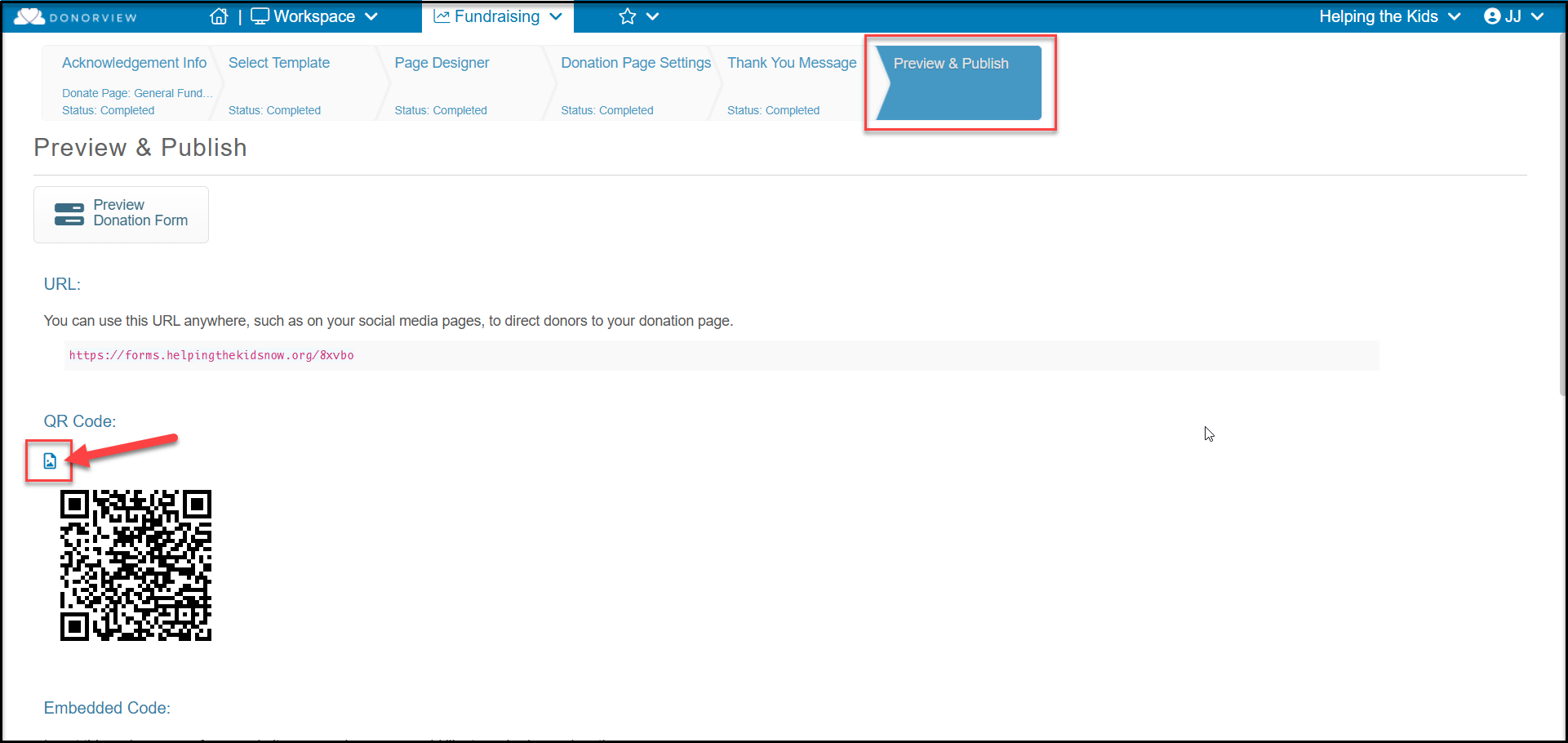
There is also an html Embedded Code available if you wish to embed your donation page inside your website frame. When a donation page is embedded into a website, the Apple Pay feature is disabled due to encryption requirements by Apple.
If you have Text Messaging activated, you can create a custom Text-2-URL code and customize the messages the constituent will receive if they use the code to enter their contribution. The constituent would text the code you create to your text messaging number, and they will receive a link back to complete their transaction. Once the transaction is complete, they will also get a text thank you message as well as an email message.