
What are the options for managing volunteers?
You can manage your volunteers with a simple process of just manually adding volunteer time or you can make it a more integrated process using Events, Surveys/Forms, and/or the Constituent Portal. There is also an option to allow your volunteers to check in and check out for their volunteer time using the DV Connect app's Kiosk Mode.
Simple Option
With the simple option, you will use the CRM and Volunteer Module's Time Tracking feature to manually enter volunteer time.
- You'll begin by assigning your volunteers to a constituent category of “Volunteer.” You can learn more about creating categories in these articles:
-
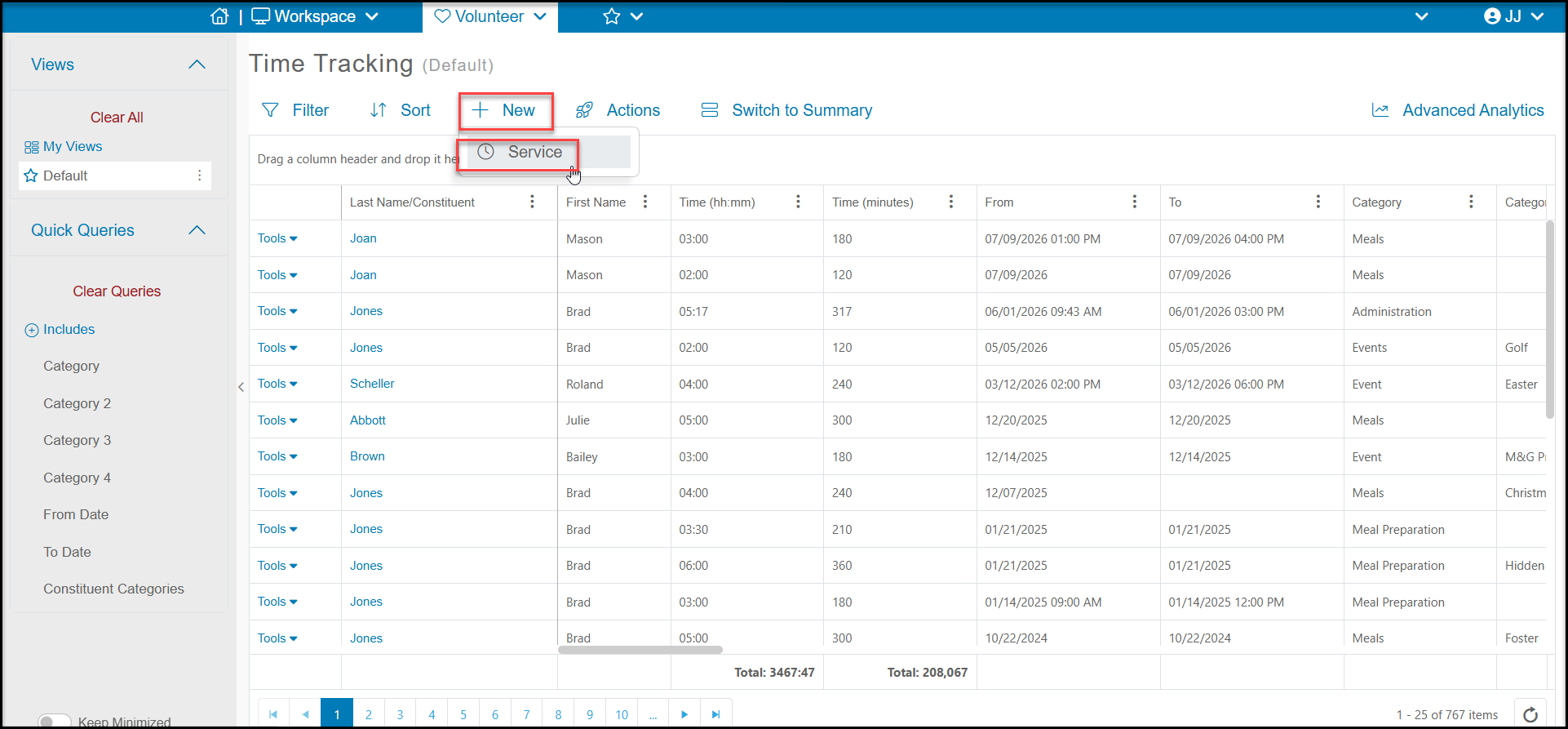
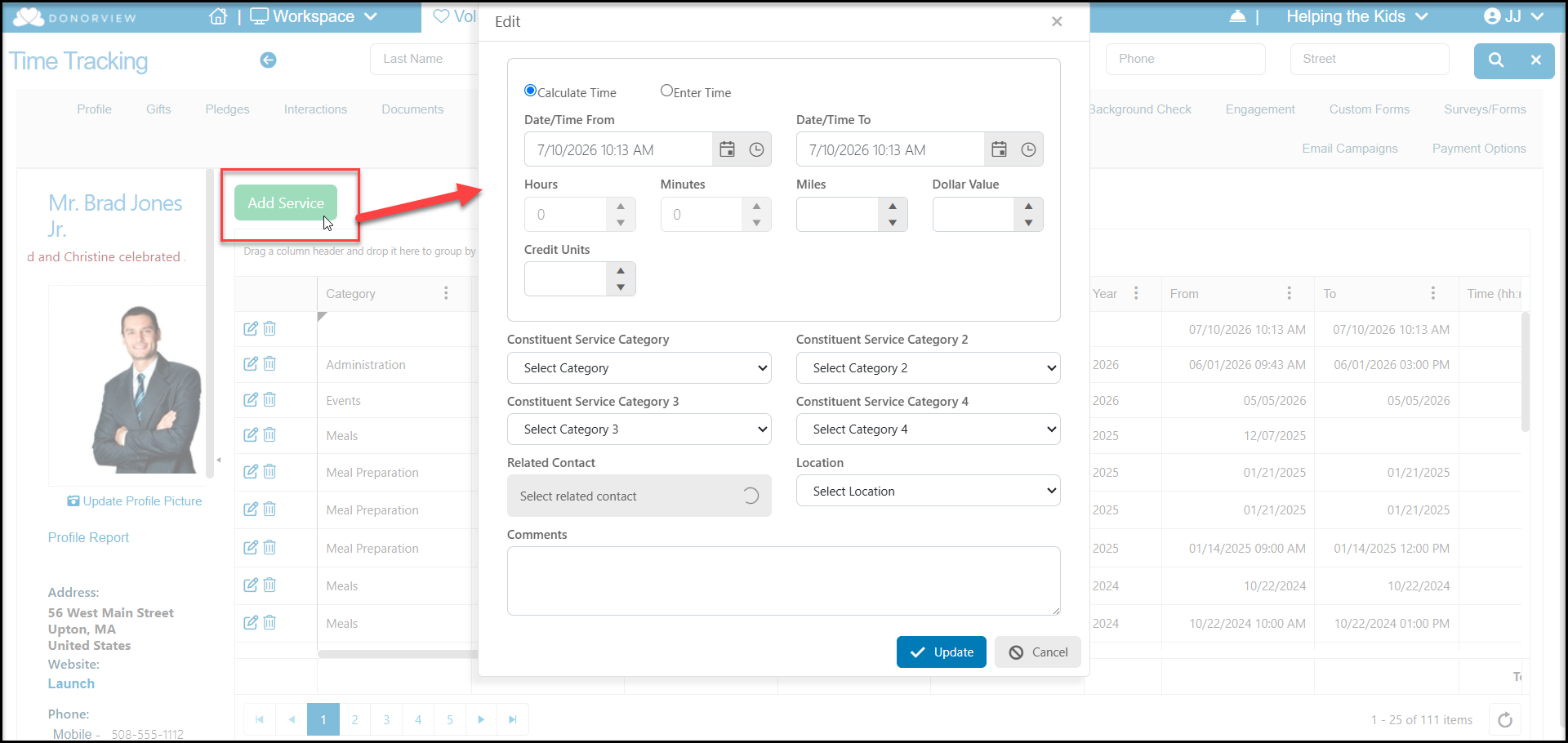
Each time a volunteer provides service, you will manually record that time by using the Time Tracking grid's +New > Service option or by going to the specific constituent's Time Tracking tab and clicking on Add Service. This will open a new window to allow you to enter the time and assign it to service categories for tracking. You can learn more about manually entering time tracking records in this article "How to manually record volunteer time."
-
Reports about how much time have been contributed can be generated from the Volunteer or CRM Time Tracking grids and the Constituents grids. See this article "How can I create volunteer reports?"
Integrated Option
You have the option of integrating your volunteer process with additional features. You can incorporate any or all of the features as desired.
-
As with the simple option described above, you'll begin by assigning your volunteers to a constituent category of “Volunteer" and you will always have the option of manually recording or editing time tracking as described above.
-
If you perform background checks for your volunteers, you can initiate them and review results in the CRM module. You can learn more about this in the article "Running Background Checks on Individual Constituents."
-
If you have a formal volunteer application process, you can create a volunteer application within the Survey/Forms module.
- You can share this application on your website, via text, using a QR code, and via social media.
- Once applications are received you can create a review process to evaluate the applications.
- All the applications are saved in the constituent's records and you can see aggregate results in the Volunteer Applications grid.
- You can learn how to create applications using the Surveys/Forms Module in this article "How do I create a basic survey, application, or other form?"
- You can also learn how to set up an internal review process in this article "How can I set up a review process for volunteer applications?"
- If you would like your volunteers to register themselves for volunteer events and shifts, you can create volunteer events using the Events module.
- Creating volunteer events will then allow you to use the Volunteer Module's Registrations, Attendance, and Scheduler pages to manage your volunteers.
- Each volunteer activity is created as a ticket level, and you can assign automated time tracking upon check in for each activity.
- You can share the page with your volunteers and allow them to self-register or you can register your volunteers for their activities internally using the events page or the Volunteer Scheduler.
- Registrations for volunteer events can be tracked in the Volunteer Module on the Registrations grid, and they can also be seen on the Events grid.
- When volunteers arrive for their event, you can check them in using the Volunteer Module on the Attendance grid, or they can also be seen and checked in on the Event Attendance grid. If automated time tracking was set up, checking them in will auto-assign the service time.
- You can also do a batch update using the Actions menu on the Event or Volunteer Attendance grid to add time tracking to all volunteers who attended the event.
- You can learn about the many options for creating volunteer events in the articles in this folder "Volunteer Events."
- If you are using the Advanced Constituent Portal, you can also allow your volunteers to update custom fields in their profiles, upload their resumes, drivers licenses, waivers, and other information as well as manually add their own time tracking. The Advanced Portal also has a link to events, so volunteers can see the calendar and register for upcoming activities. You can learn more about the Constituent Portal's features in the articles in this folder "Portal Features."
Volunteer Self Check In
The mobile app has feature to allowing the use of theDV Connectmobile app in Kiosk Mode. You can set up a user as a "Mobile App Kiosk User" and this user would only have access to the time tracking feature on the app. You can learn more about this user setting in this article "Kiosk Mode for Mobile App Users."
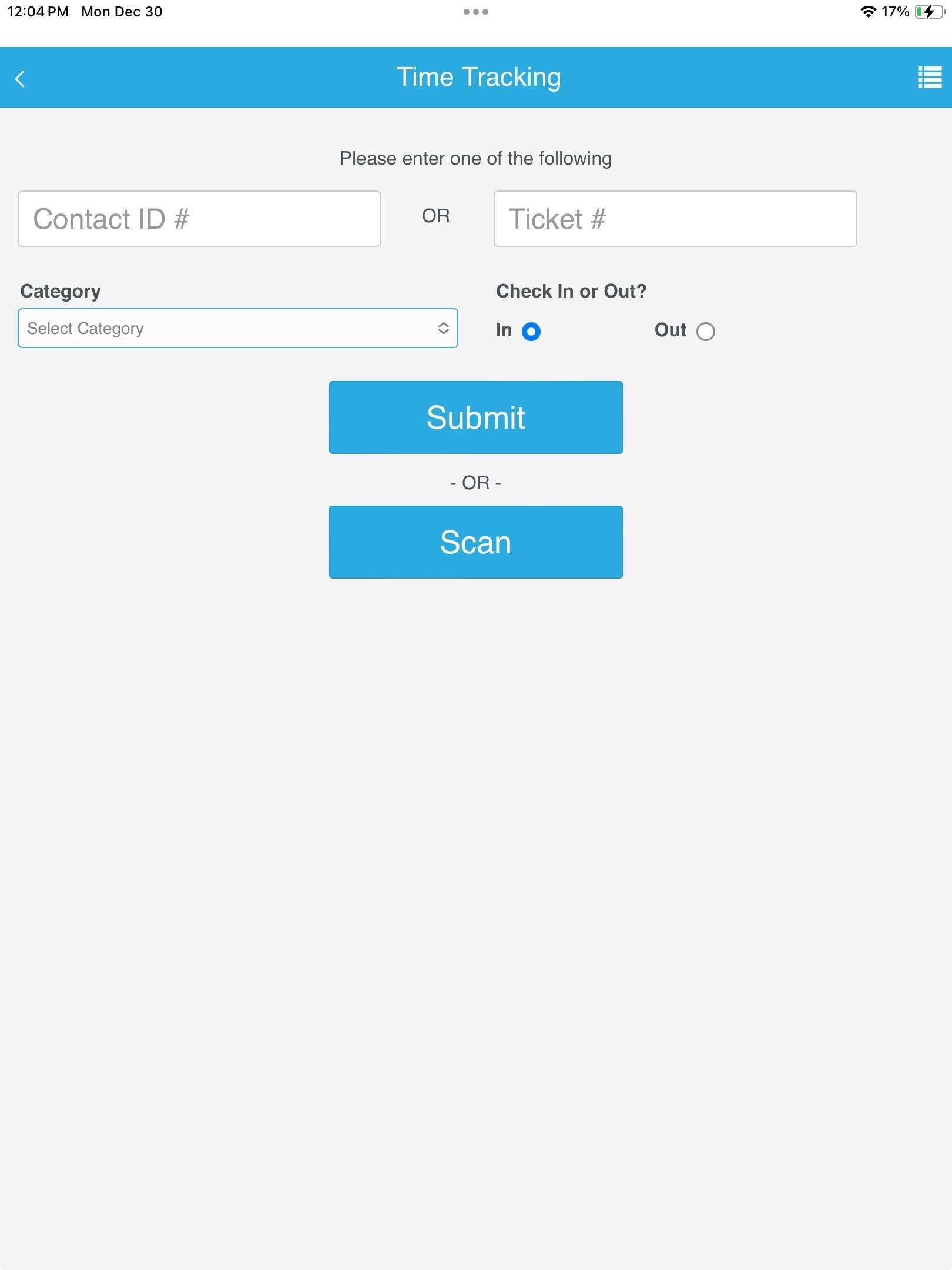
When the user logs into the mobile app, only the Time Tracking module is available and the screen automatically goes to the Time Tracking login screen. Volunteers can check in with their Constituent ID or the Ticket Number from the volunteer event they registered for.
Volunteers can select the Category of work they are doing and select to Check In or Check out and click submit.
If tickets were used with a volunteer event, the ticket's QR code could also be scanned to check in the volunteer. If a volunteer event was set up and there was auto-time tracking set up in the event level and the ticket is scanned, there is no need for check out.
Linked articles
- Can I add, edit or delete Constituent Categories?
- How do I add a constituent to a category?
- How to manually record volunteer time
- How do I create volunteer reports?
- Running Background Checks on Individual Constituents
- How do I create a basic survey, application, or other form?
- How can I set up a review process for volunteer applications?
- What is the DV Connect App?
- Kiosk Mode for Mobile App Users