Advanced Analytics offers a Geo Search option which will allow you to filter your data based on your constituent’s default address. This can help you identify constituents in a specific area on a map for mailing, emailing, and reporting purposes.

Selecting the “Geo Search” menu option from Advanced Analytics will launch a new window containing a map which will automatically place a pin based on your organization's mailing address that is set up in your account settings.
- In this new window your first search option is to input a new street address into the search bar if you do not wish to use your organization's default address.
- The second search option is to select a location from the map by first selecting a radius from the Radius drop down menu options.
- Once a radius has been selected you will see a transparent red circle indicating the inclusion area for your filter.
- Then you can either use the current selection or click a spot with your mouse elsewhere on the map to drop a new pin.
- Your third option for selection is the blue “Select Visible Area” button which will make the entire section of the map currently visible on your screen the inclusion area for your filter.

- If you wish to clear the inclusion area to start a new search you can click the red “Clear Search” button and start the process over.

- Once you are satisfied with your selection, click the blue, “Apply to Grid” button. Please note this button will only function if you have an area selected on the map with the red transparent circle (for the radius option) or rectangle (for the Select Visible Area option.)

- Once Apply to Grid has been clicked, the grid will then refresh to include only the constituents with a default street addresses that falls within the set inclusion area.
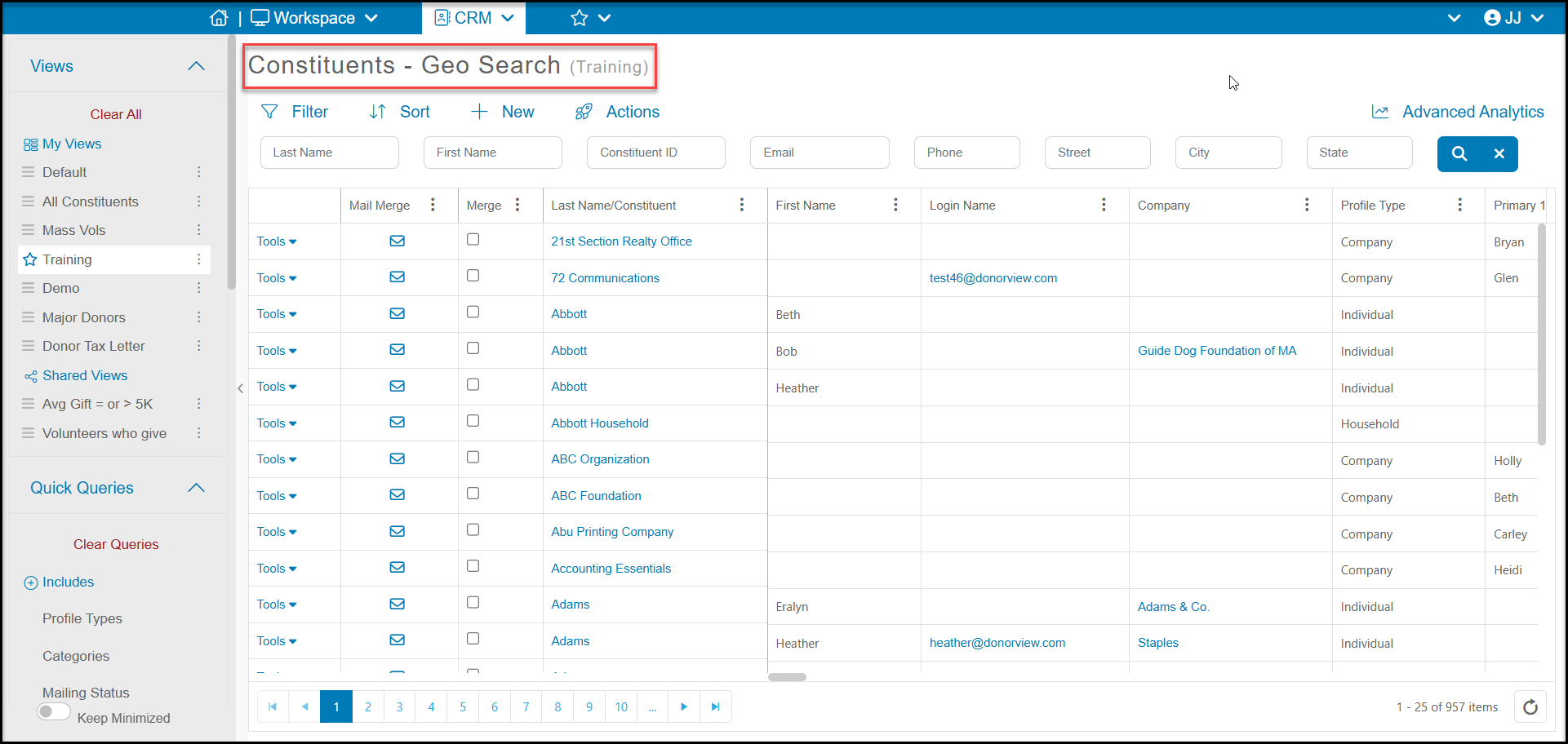
- While on the grid you will know that a Geo Location filter has been applied to the data as the name of the grid will update to include the words Geo Search next to the view name.
- Geo Search filters cannot be saved as Views, but you can use the Actions menu to export to Excel, generate email lists, send texts, emails, and letters, or perform batch updates to the data shown on the grid.