# Connecting your Outlook Email Account to DonorView
> Source: https://support.donorview.com/connecting-your-outlook-email-account-to-donorview | Updated: 2025-08-26T18:50:54Z
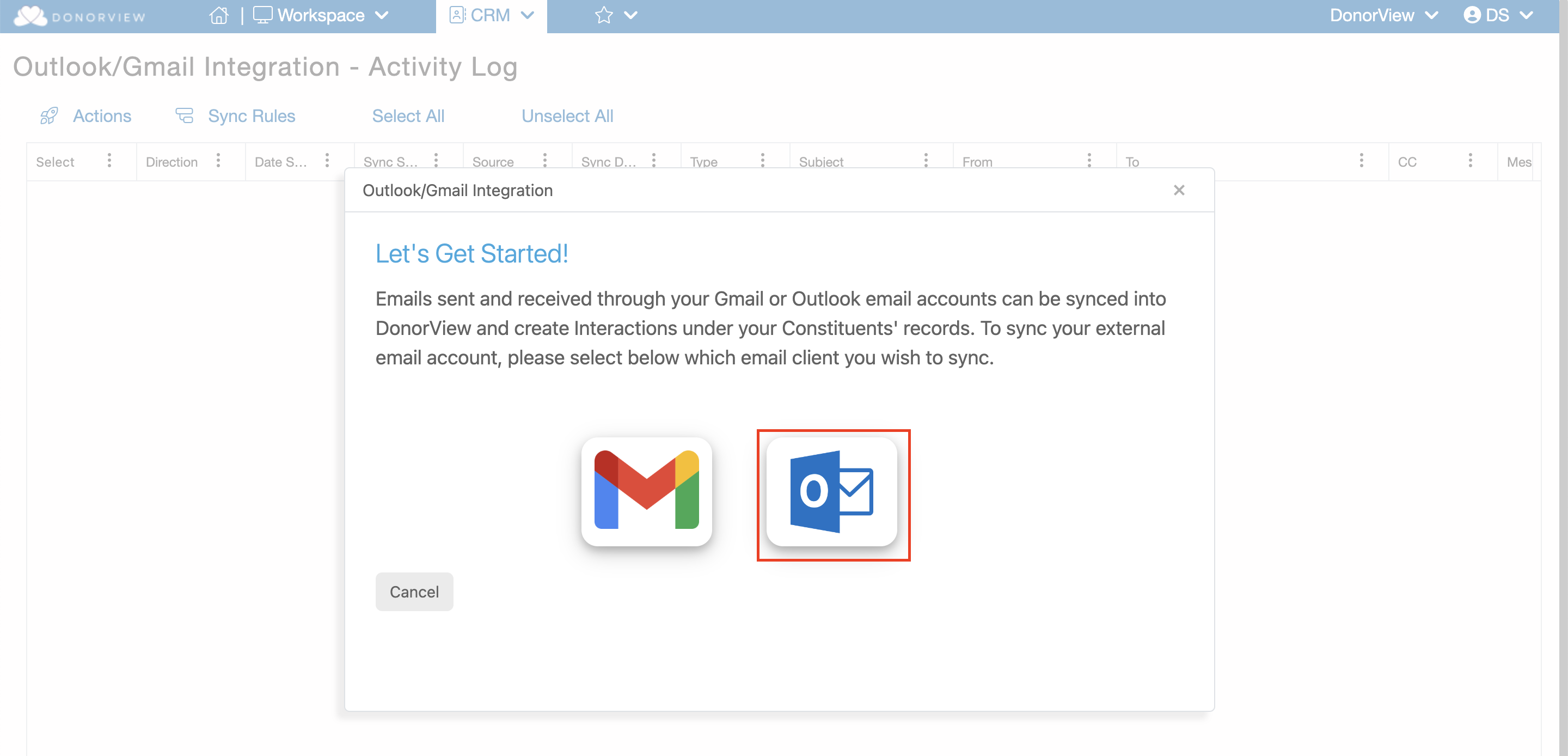
Users who want to be able to sync their Outlook email communication with DonorView can navigate to Workspace>CRM>Outlook/Gmail Integration. If this is your first time visiting this page you will be prompted with a “Let’s Get Started!” message where you can select which email client you wish to integrate with and be taken to the instructions to setup that connection.
 [Watch the video](https://vimeo.com/988351233/d437a5590a?share=copy) for how to connect your Outlook email account to DonorView.
**Requirements:**
It must be one of the supported applications for Web add-ins.
- Outlook 2013 or later on Windows
- Outlook 2016 or later on Mac
- Outlook on iOS
- Outlook on Android
- Outlook on the web for Exchange 2016 or later
- Outlook on the web for Exchange 2013
- Outlook.com
Your Outlook must be connected to an Exchange server or Microsoft 365 using a direct connection. When configuring your Outlook, you must choose an Exchange, Office, or Outlook.com account type. If it is configured to connect with POP3 or IMAP, add-ins will not load.
**How to Install:**
1) Download the DonorView Add-in (See the attachment below)
2) Office 365 Admin can install DonorView Add-in for all of the employees.
3) In DonorView, click
[Watch the video](https://vimeo.com/988351233/d437a5590a?share=copy) for how to connect your Outlook email account to DonorView.
**Requirements:**
It must be one of the supported applications for Web add-ins.
- Outlook 2013 or later on Windows
- Outlook 2016 or later on Mac
- Outlook on iOS
- Outlook on Android
- Outlook on the web for Exchange 2016 or later
- Outlook on the web for Exchange 2013
- Outlook.com
Your Outlook must be connected to an Exchange server or Microsoft 365 using a direct connection. When configuring your Outlook, you must choose an Exchange, Office, or Outlook.com account type. If it is configured to connect with POP3 or IMAP, add-ins will not load.
**How to Install:**
1) Download the DonorView Add-in (See the attachment below)
2) Office 365 Admin can install DonorView Add-in for all of the employees.
3) In DonorView, click  and copy and paste the Registration key from your DonorView account into your Outlook.