# Auction Check Out and Payment Processing
> Source: https://support.donorview.com/auction-check-out-and-payment-processing-dv | Updated: 2026-10-12T20:38:25Z
You can perform the check out process internally, or, if your auction participants have created a Constituent Portal account, they can perform a self-checkout with a credit card. To learn more about self-checkout, see this article: [Mobile Checkout Using the Constituent Portal](./mobile-checkout-using-the-constituent-portal)
For internal processing, once your auction is completed, you can process the payments using the Auctions grid. If you hosted an online auction with no paddle raises or add-ons as part of your auction, you can use a bulk check out process on the Bid History grid to charge all of the credit cards at once. This option can only be used for online auction bids. I cannot be used for add-ons, paddle raises, live items, or silent auction bid sheets. Please see this article for bulk credit card processing: [Can you bulk charge credit cards for auction checkout?](./can-you-bulk-charge-credit-cards-for-auction-checkout-dv)
For silent auctions where bidders filled out a paper bid sheet, or for those auctions that included live auction items, add-ons and paddle raise donations, each bidder must be checked out one at a time from the Auctions grid.
1. Go to Workspace > Auctions > Auctions
2. From the Auctions grid, sort by the bidder ID number or the constituent's last name to see all of the items that are associated with a single bidder.
3. This checkout process can only check out one bidder ID number at a time, but can include multiple auction items, add-ons, and paddle raises in the same transaction.
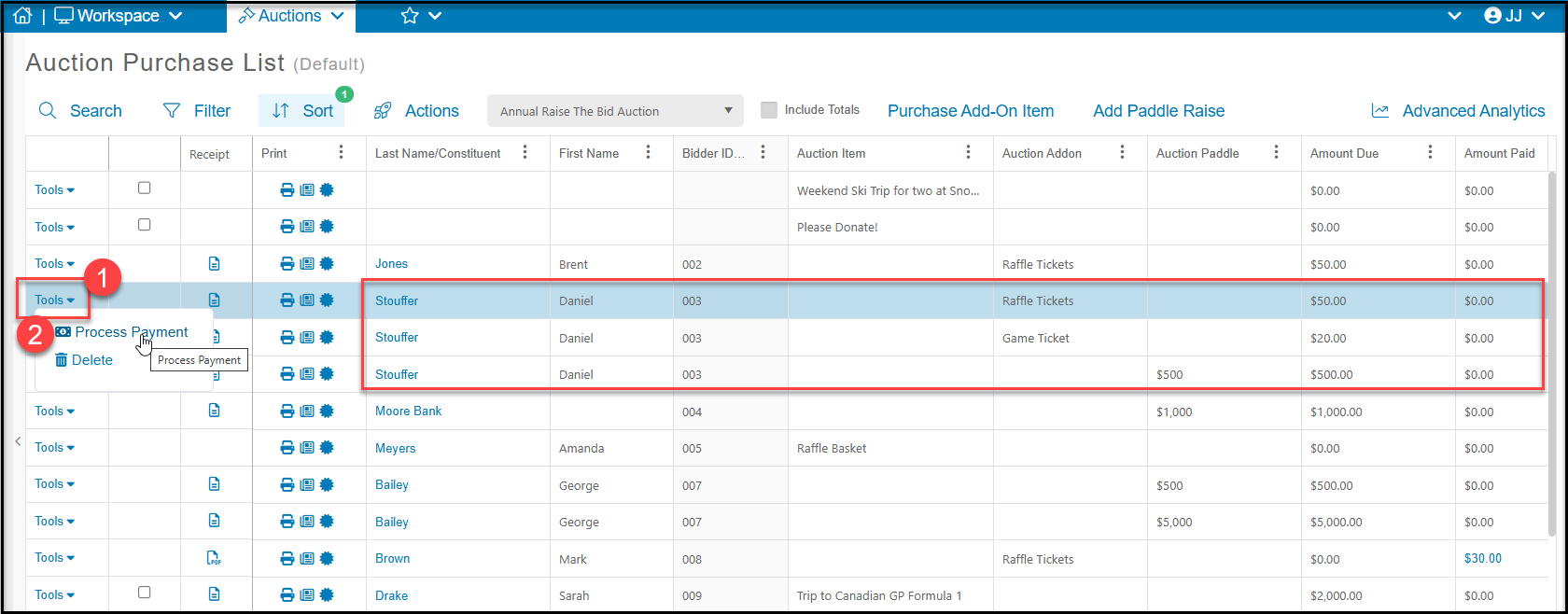
4. In the **first example** below, bidder ID 003, Daniel Stouffer, did not win any auction items, but he does have two add-ons for Raffle and Game Tickets, and he raised his paddle for a $500 Auction Paddle Raise donation.
5. To begin his checkout, click on the **Tools** menu (Step 1) on the left side of the grid, and select **Process Payment** (Step 2).
 6. A new window will open that includes all of his add-ons and paddle raises for his checkout. Note that it includes all three of his items with a total at the bottom of the window.
7. Ensure the "**I will Pay Later**" button is set to "No" and select the **Payment Type** from the dropdown list.
6. A new window will open that includes all of his add-ons and paddle raises for his checkout. Note that it includes all three of his items with a total at the bottom of the window.
7. Ensure the "**I will Pay Later**" button is set to "No" and select the **Payment Type** from the dropdown list.
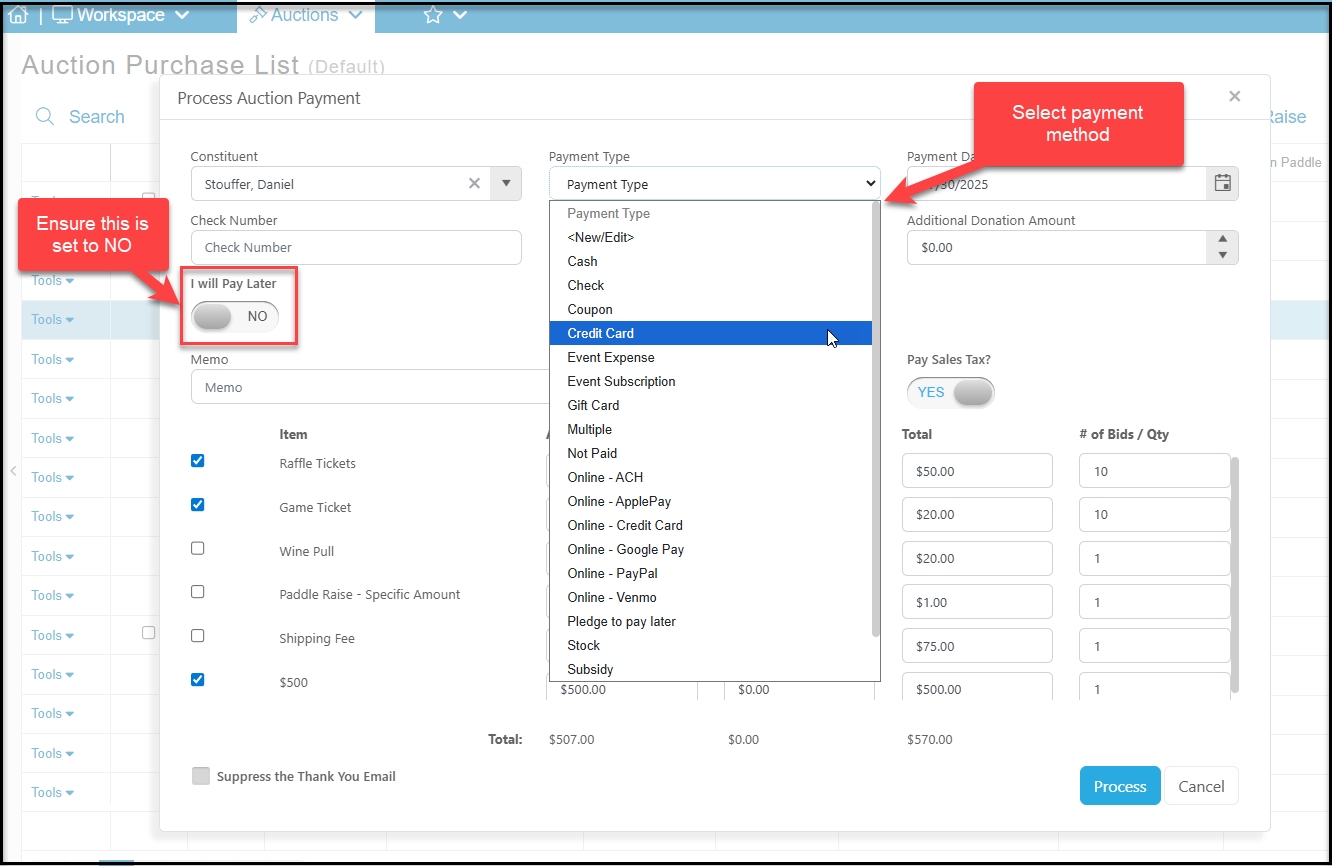 8. If you select **Credit Card**, you can choose a credit card that is on file for this bidder, or you can select "**New Credit Card**" and enter the credit card and billing information at the bottom of the window.
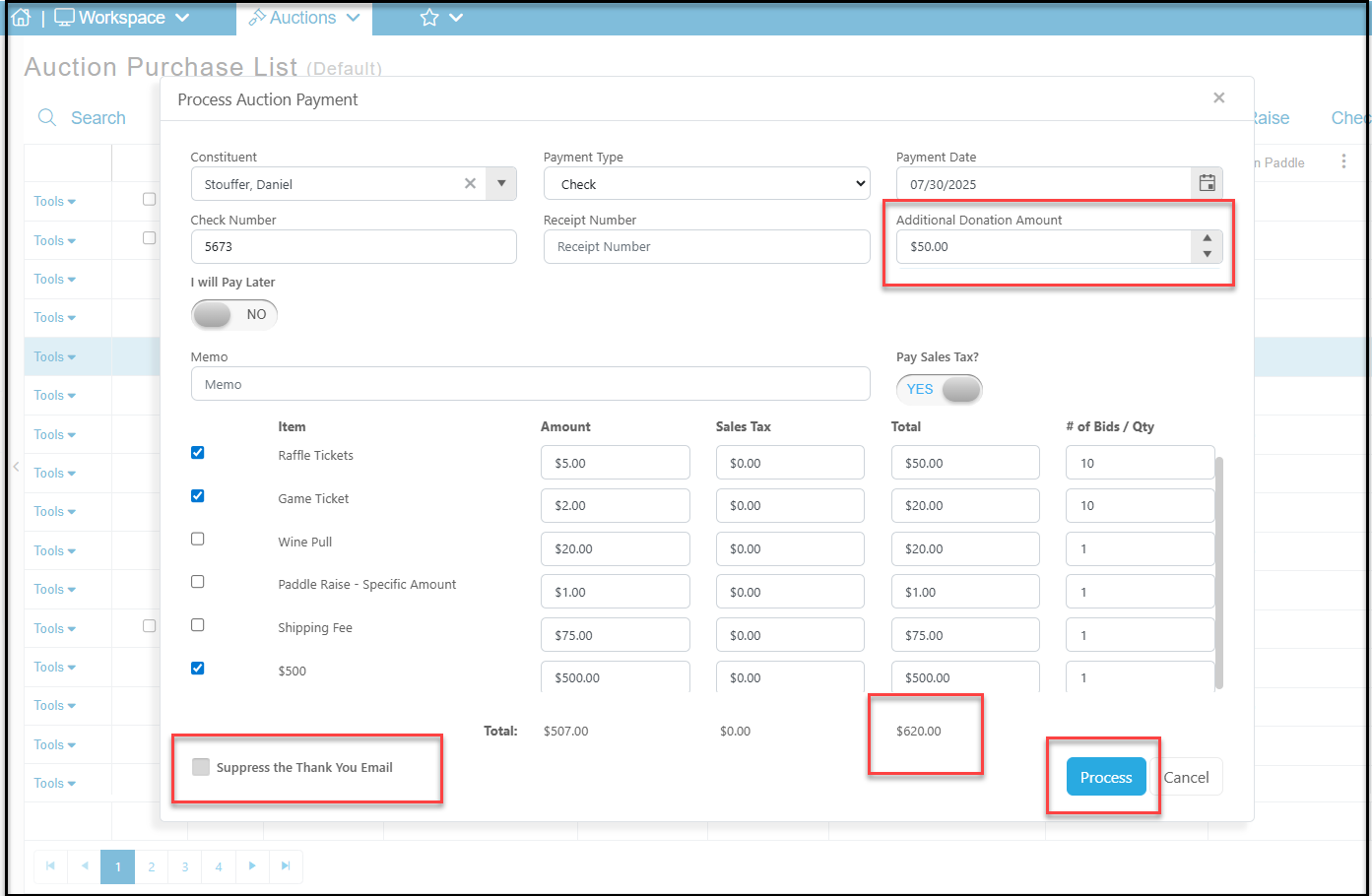
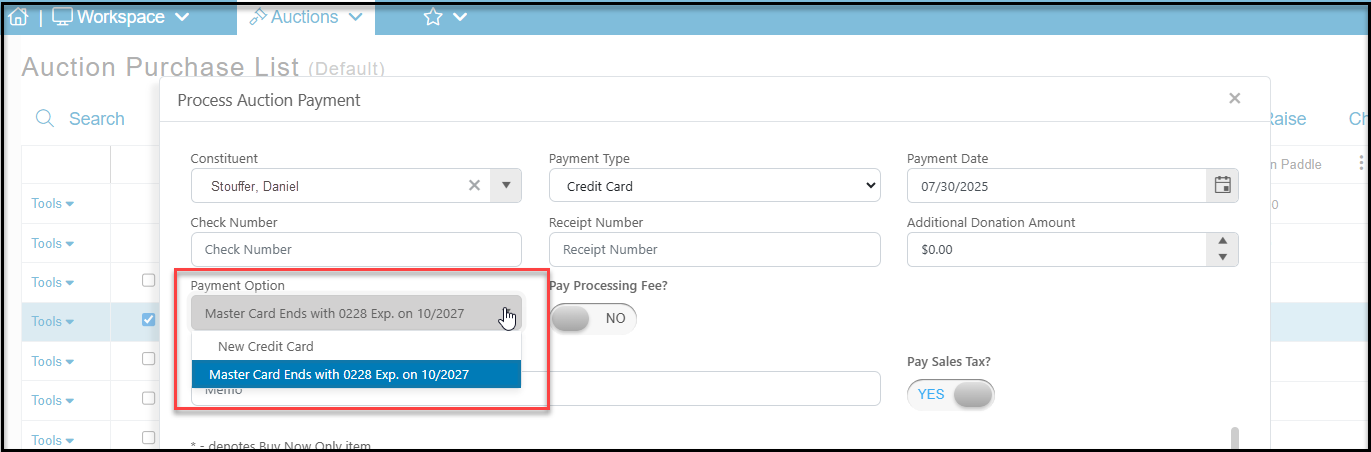 9. Once your payment method is selected and the information entered, you can add **Additional Donation Amount** if desired, and adjust the **Amounts** or **Sales Tax** as needed. For credit card transactions, you can also elect to **Pay the Processing Fee.**
10. If you do not wish the bidder to receive an thank you email, check the box for **Suppress the Thank You Email.**
11. Click the **Process** button to process the payment.
12. If you have not suppressed the thank you email. the bidder will receive an automatic thank you email for their purchase.
9. Once your payment method is selected and the information entered, you can add **Additional Donation Amount** if desired, and adjust the **Amounts** or **Sales Tax** as needed. For credit card transactions, you can also elect to **Pay the Processing Fee.**
10. If you do not wish the bidder to receive an thank you email, check the box for **Suppress the Thank You Email.**
11. Click the **Process** button to process the payment.
12. If you have not suppressed the thank you email. the bidder will receive an automatic thank you email for their purchase.
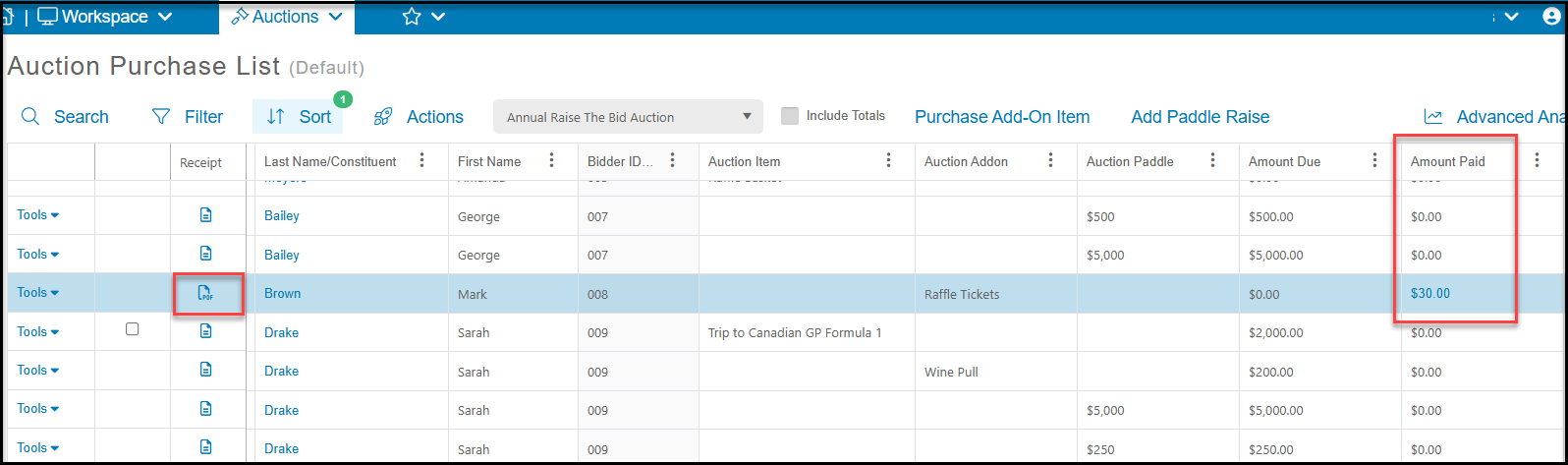
 13. Once the payment has been processed, the items will show with an amount in the **Amount Paid** column, $0.00 in the **Amount Due** column and the receipt for each item will be available as a pdf link on the left side of the grid. See bidder ID 008, Mark Brown, example below.
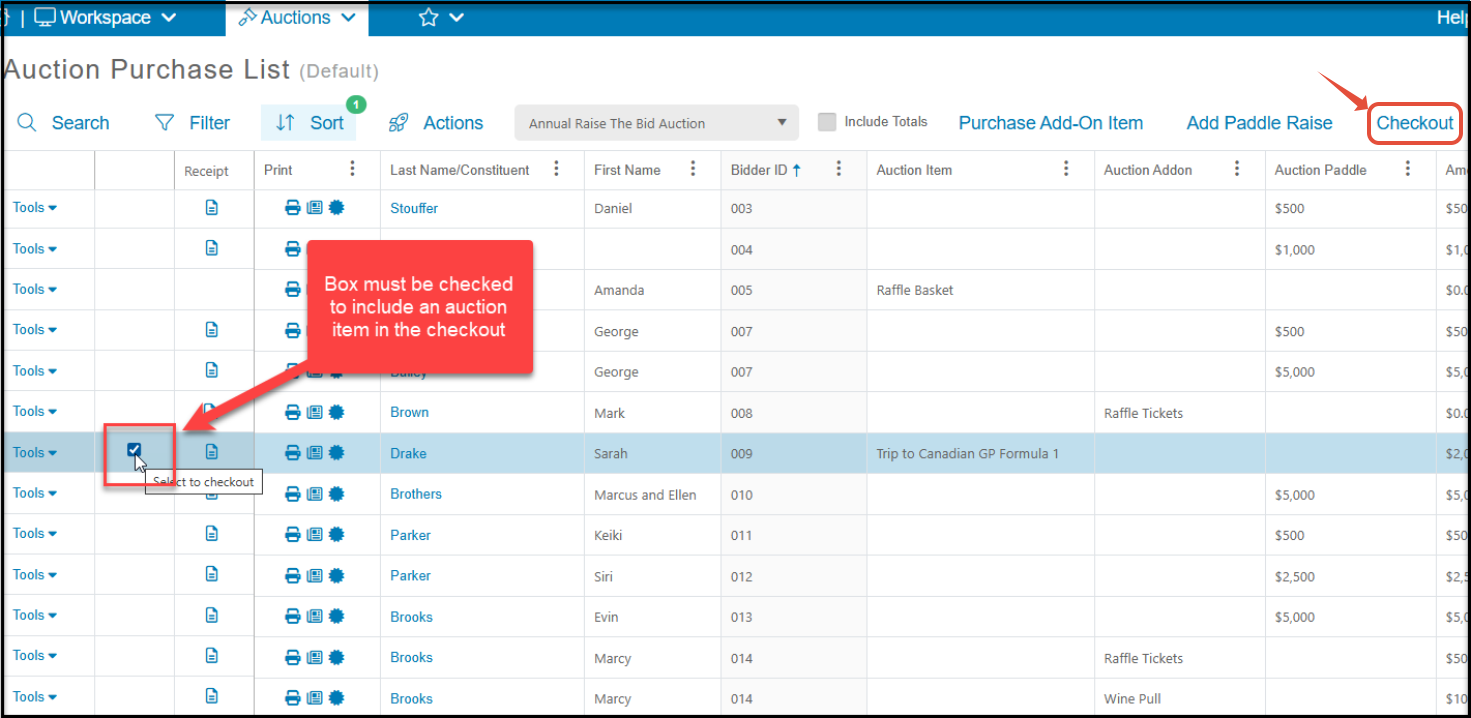
 14. In the **second example**, this bidder, 009, Sarah Drake, has only one one auction item, and has no add-ons or paddle raises.
15. You must check the box on the left side of the row to include an auction item in a check out.
16. Once the box is checked on this bidders row, you can either use the **Tools** menu and select **Process Payment** or click on **Checkout** at the top of the grid to open the new window to process the payment.
14. In the **second example**, this bidder, 009, Sarah Drake, has only one one auction item, and has no add-ons or paddle raises.
15. You must check the box on the left side of the row to include an auction item in a check out.
16. Once the box is checked on this bidders row, you can either use the **Tools** menu and select **Process Payment** or click on **Checkout** at the top of the grid to open the new window to process the payment.
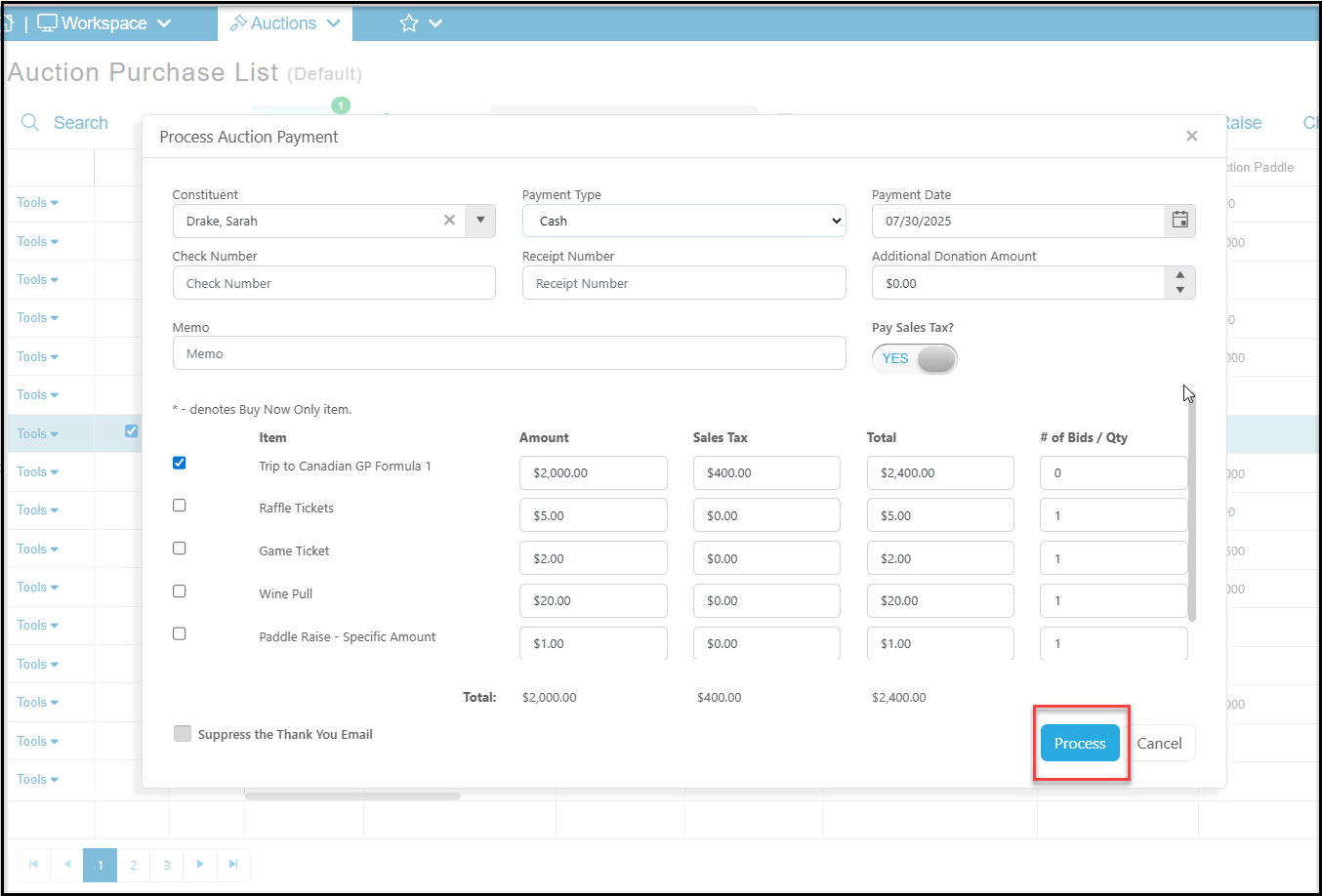
 17. The check out process is the same as described above. You can select a **Payment Method**, make any updates needed, and click **Process** to complete the checkout for this bidder and auction item.
18. The winning bidder will receive an automatic thank you email for their purchase unless you check to **Suppress the Thank You Email.**
17. The check out process is the same as described above. You can select a **Payment Method**, make any updates needed, and click **Process** to complete the checkout for this bidder and auction item.
18. The winning bidder will receive an automatic thank you email for their purchase unless you check to **Suppress the Thank You Email.**
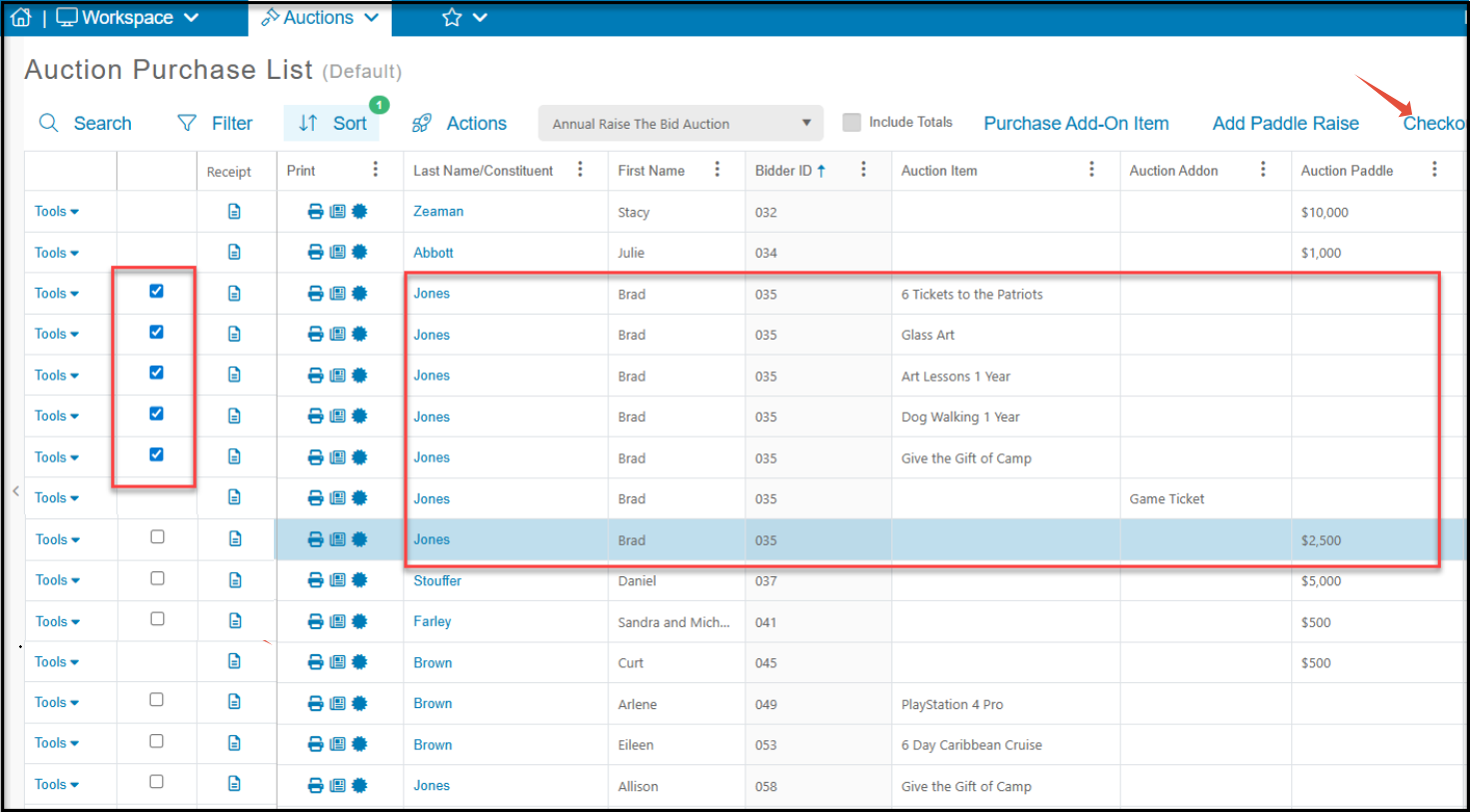
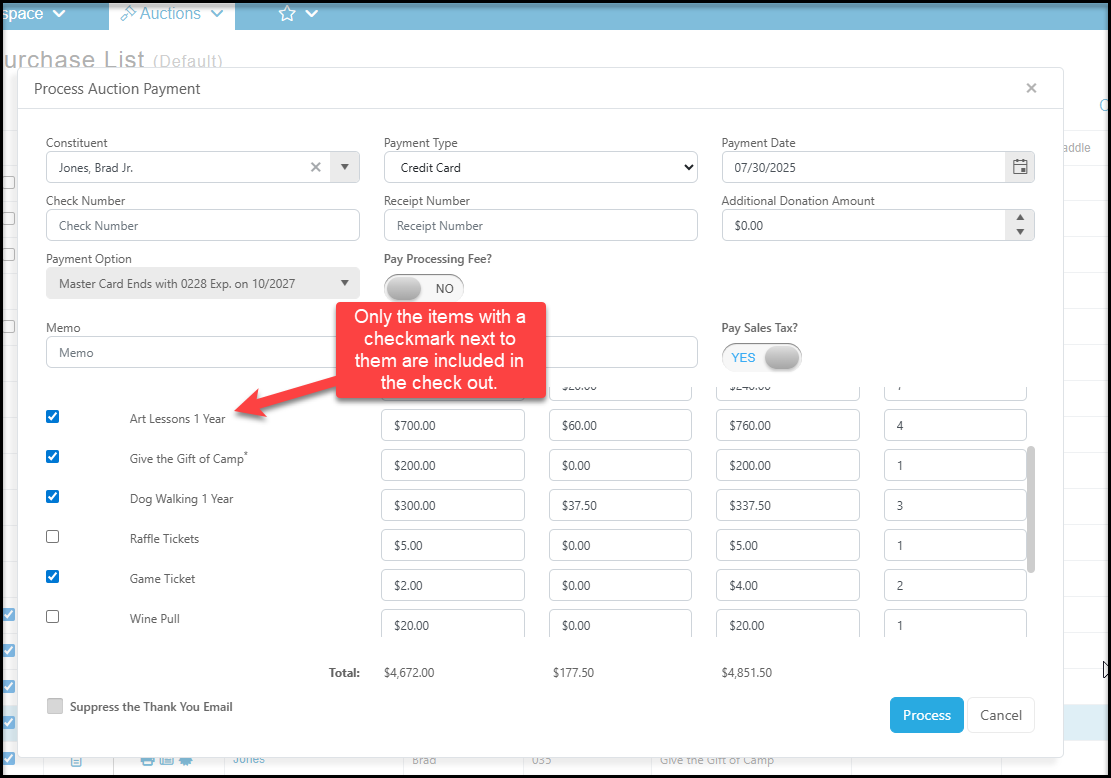
 19. In the **third example**, this bidder, 035, Brad Jones, has won multiple auction items and has add-ons.
20. Begin by checking the boxes on the rows for all of his auction items.
21. Once all the boxes are checked, click the **Checkout** link at the top of the grid. All of the add-ons and paddle raises will automatically be included in the checkout.
19. In the **third example**, this bidder, 035, Brad Jones, has won multiple auction items and has add-ons.
20. Begin by checking the boxes on the rows for all of his auction items.
21. Once all the boxes are checked, click the **Checkout** link at the top of the grid. All of the add-ons and paddle raises will automatically be included in the checkout.
 22. You will process the checkout in the same manner as described above.
23. Only those items with a checkmark next to them will be included in the checkout. You can add items, update amounts and add a donation as desired.
24. Click on **Process** to process the payment.
25. The winning bidder will receive an automatic thank you email for their purchase unless you check to **Suppress the Thank You Email.**
22. You will process the checkout in the same manner as described above.
23. Only those items with a checkmark next to them will be included in the checkout. You can add items, update amounts and add a donation as desired.
24. Click on **Process** to process the payment.
25. The winning bidder will receive an automatic thank you email for their purchase unless you check to **Suppress the Thank You Email.**
 26. Continue the same process until all bidders have been checked out.